The Org Settings control how Mosaic behaves for every member on your team. Some settings here establish defaults that can be overridden at the project or individual level later. Getting these right during account setup saves time downstream, and enables your team to be set up for success.
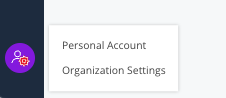
This space is only accessible to Admins. To reach it, click your initials in the bottom-left corner of any Mosaic page and select Organization Settings.
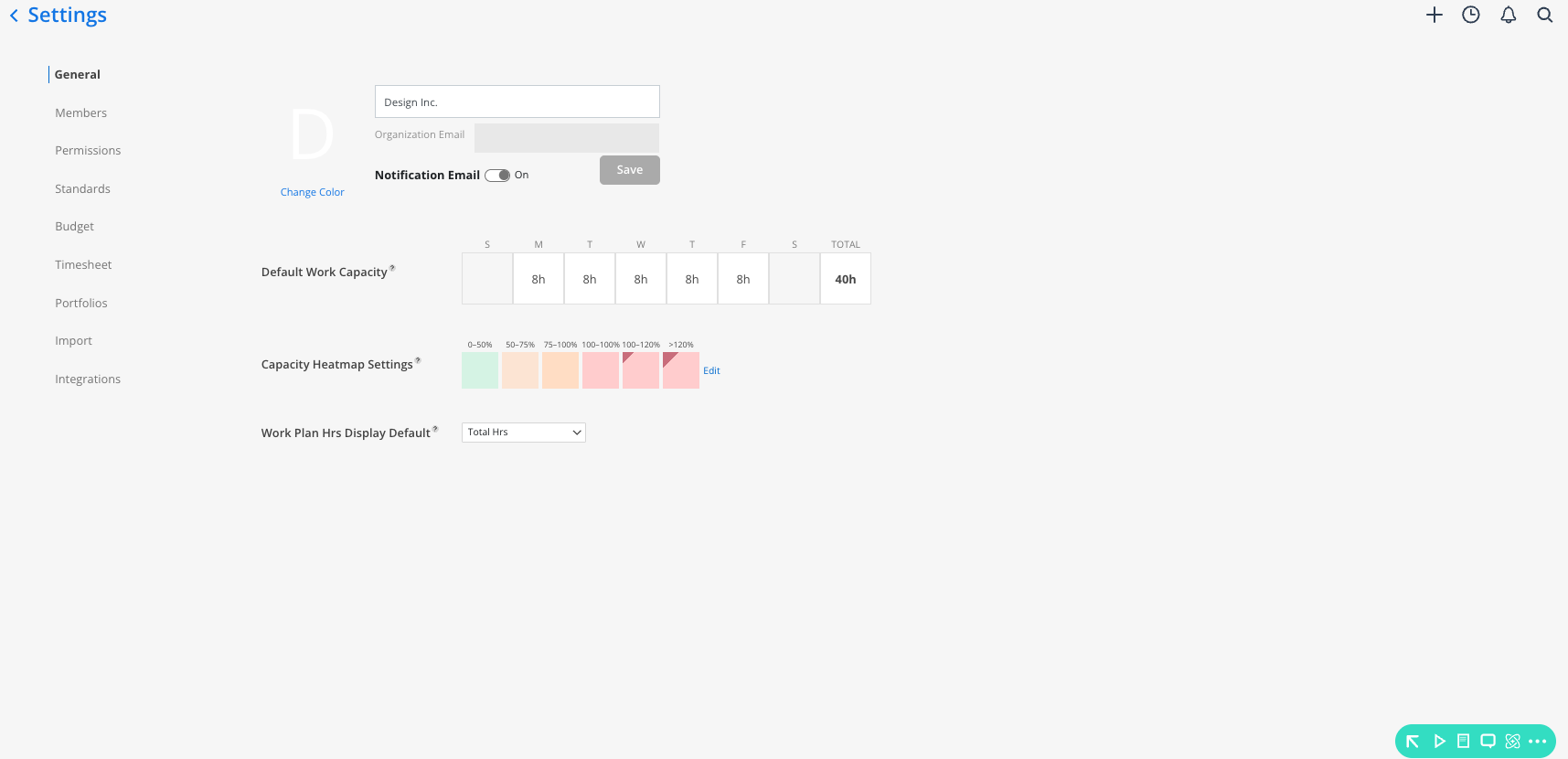
This is the best place to go when you want to:
Define what different team members can see and do in Mosaic
Set up the attributes and groupings used for filtering and reporting
Configure default capacity, budgeting, and display behaviors
Establish the dropdown menus that appear throughout the product
Control when and how members receive email notifications
Every Mosaic user has two levels of settings: personal and organizational. Personal settings only affect your own account. Org settings affect the entire organization and are only visible to Admins.
Personal account — Accessed via your initials orb in the bottom-left. Change your password, update your orb color, and toggle your personal email notifications on or off.
Org settings — Also accessed via the initials orb, below Personal Account. Controls member management, permissions, standards, budget defaults, and security.
👉 Learn more about Personal Account Settings
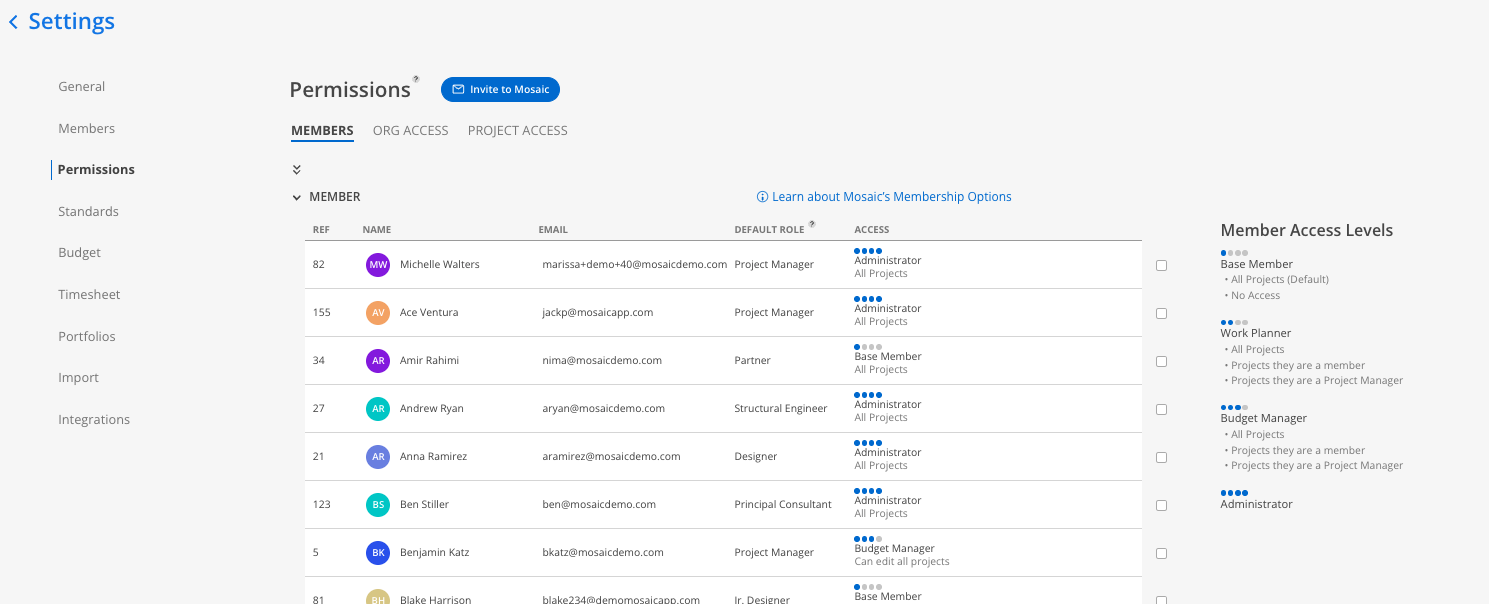
Mosaic has four active permission levels and one inactive state. The level you assign determines which spaces a member can access and what they can do within those spaces.
Base Member — The default level for most team members, typically selected for Individual Contributors. Access to the Home space and their own project information. Cannot plan time for others or view budgets.
Work Planner — Access to the Workload and Planner spaces. Can view or edit work plans (configurable). Sees budget in hours and percentages only, never dollar values.
Budget Manager — Everything a Work Planner can do, plus access to financial spaces. Can see and edit project budgets in dollar values.
Admin — Full access to all spaces, including Org Settings and integrations.
Archived Member — Removed from active use and does not consume a license. Historical data is preserved.
👉 Learn more about Permission Levels
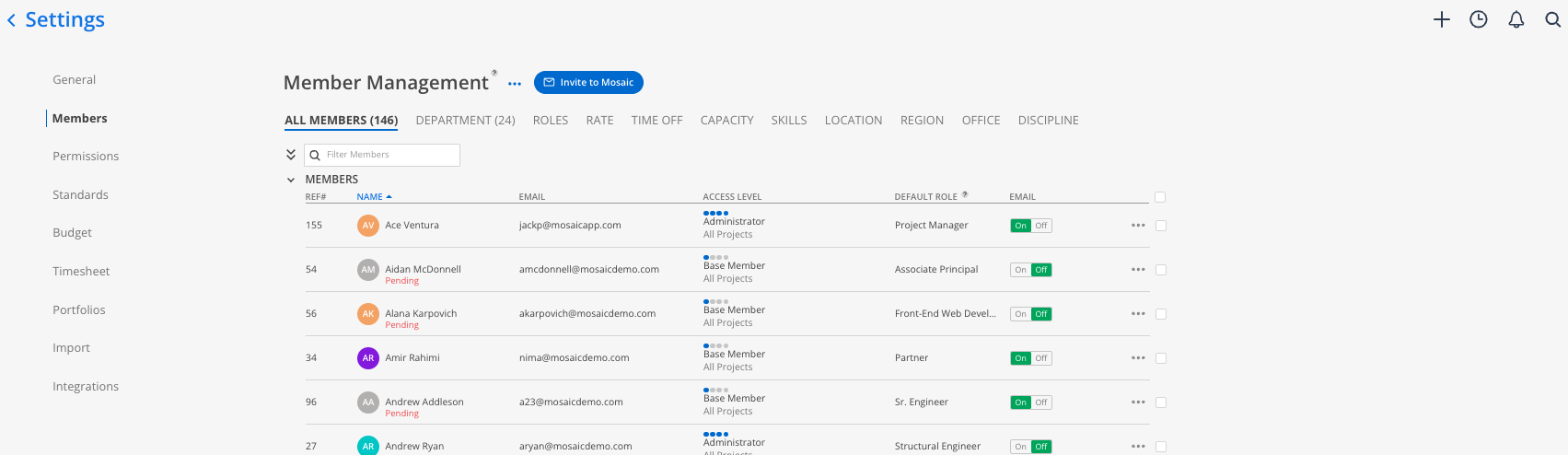
Member attributes are additional fields you attach to team members for filtering, reporting, and planning. Department, role, skills, capacity, and more - all live here.
Default Role is the one of the most important attributes — it drives filtering in the Workload space and feeds role-based reports
Member Level Rates can also be set here — whether you use Bill Rates, Costs Rates, or both.
Capacity defaults can pull from the General tab but can be set per member or via a custom policy
Skills are optional but enable a dedicated skills-based report and proficiency tracking
👉 Learn more about Member Attributes
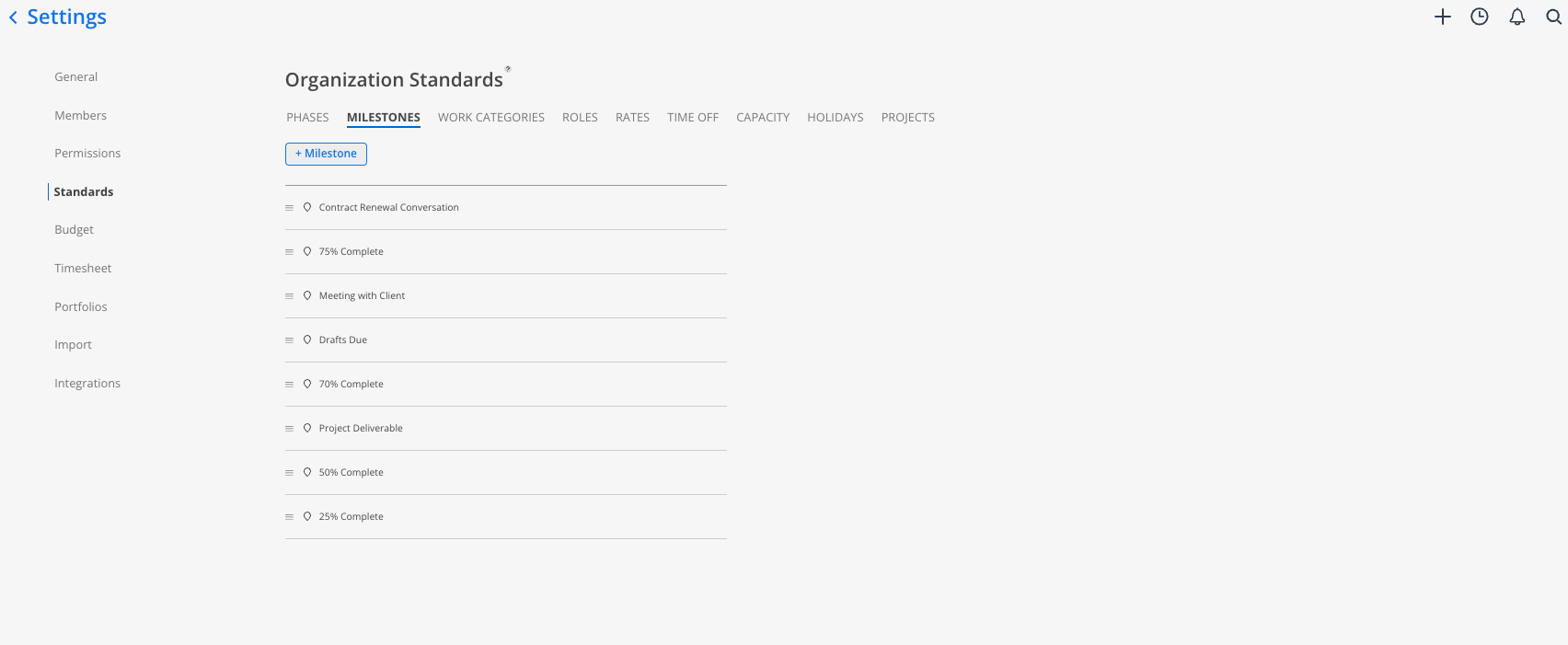
Standards are your organization's dropdown menus. Every picklist option you see across Mosaic — for roles, milestones, phases, and more — is defined here. Think of Standards as the master lists that power the product.
Roles master list populates from your ERP (if integrated) or can be created manually
Holidays entered here appear automatically across all members' timelines and calendars
Project tab configuration controls which tabs (Plan, Budget, Notes, Tasks, etc.) appear on new projects by default
👉 Learn more about Organization Standards
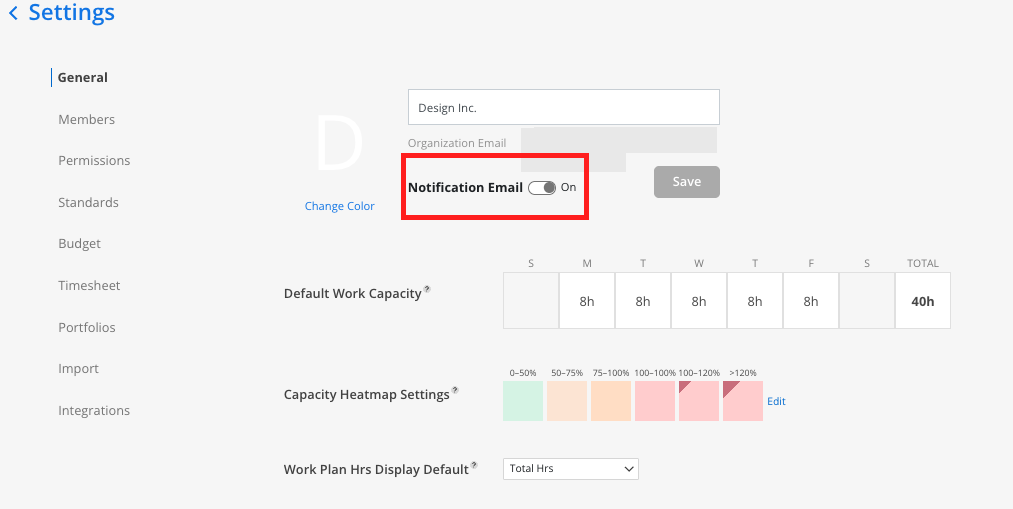
Control when members receive activation emails and notification preferences from a single place. The org-level toggle overrides all individual settings — useful for staging a rollout before you're ready to invite the full team.
Members with "Pending" status have not yet activated their Mosaic account
When you're ready to go live, turn on the org-level email toggle and bulk-resend invitations
👉 Learn more about Email Notifications and Member Activation
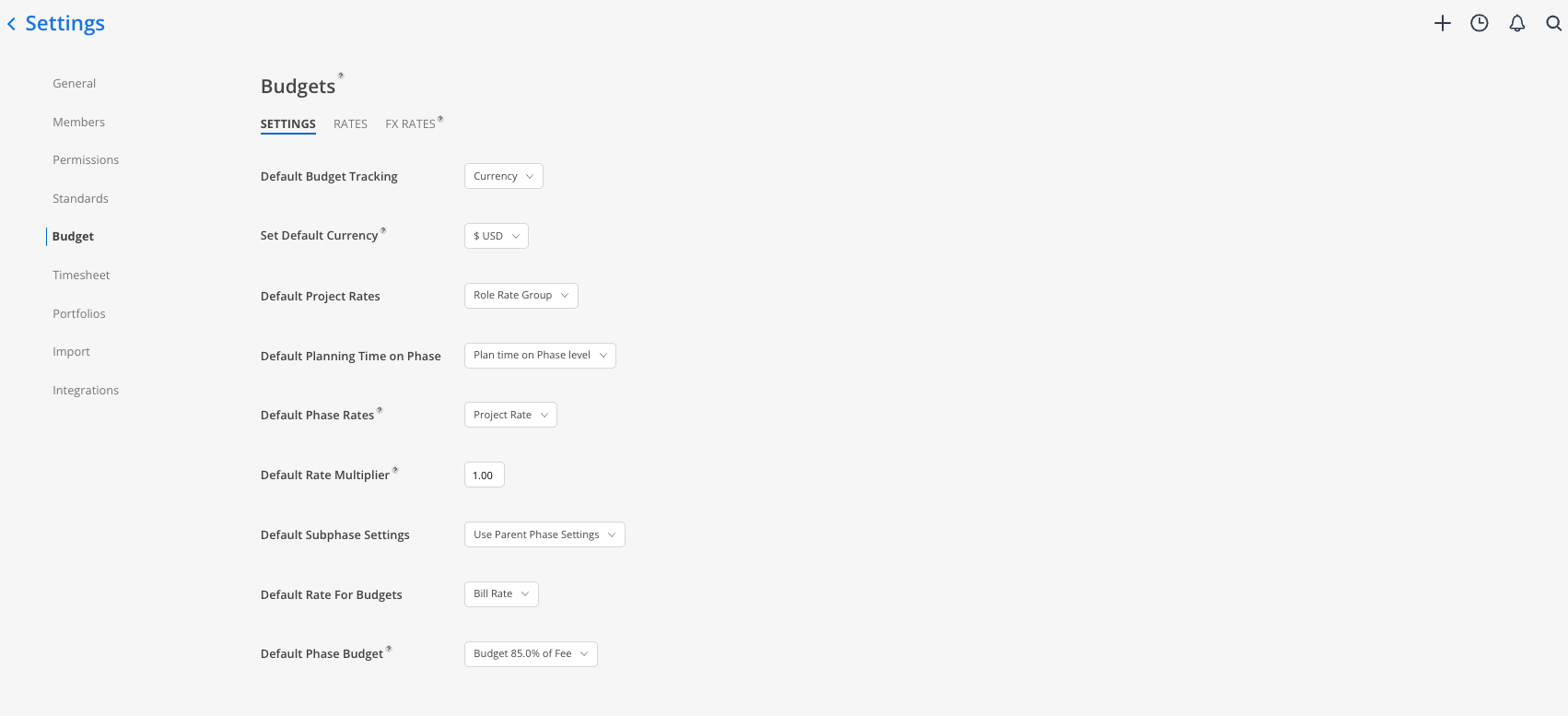
Set the default budget tracking method, currency, rate approach, and phase budget target for all new projects. Most settings can be overridden at the project level.
Choose Currency tracking to see both hours and dollar amounts (recommended over Hours-only)
Set a default phase budget at 90% of fee to build in a buffer before projects show as over budget
👉 Learn more about Budget Defaults
Enable multi-factor authentication or single sign-on for your organization.
MFA is optional and available at no additional cost — follow the setup steps after enabling
SSO (Microsoft or Google) comes at an additional cost; contact your customer success manager to get it configured
👉 Learn more about Security Settings
Set up permissions before inviting the team — Decide who needs Work Planner vs. Budget Manager access before members log in for the first time
Use the org-level email toggle — Keep emails off while you finish configuration; turn it on when you're ready to formally onboard the team
Build your standards lists early — The milestones, roles, and capacity policies you add here become the dropdown options your whole team uses. Invest a little time upfront.
Start with default capacity — Set the general tab default for the majority of your team, then handle exceptions (part-timers, interns) individually or via a custom policy
Archive former employees, don't delete — Archived members still show their historical time. This keeps budget and time entry data accurate without consuming a license.
