The Notifications widget is your central feed for everything happening in Mosaic that is relevant to you. It surfaces updates from tasks, work plans, projects, and time tracking — all in one place, without you having to check each space individually.
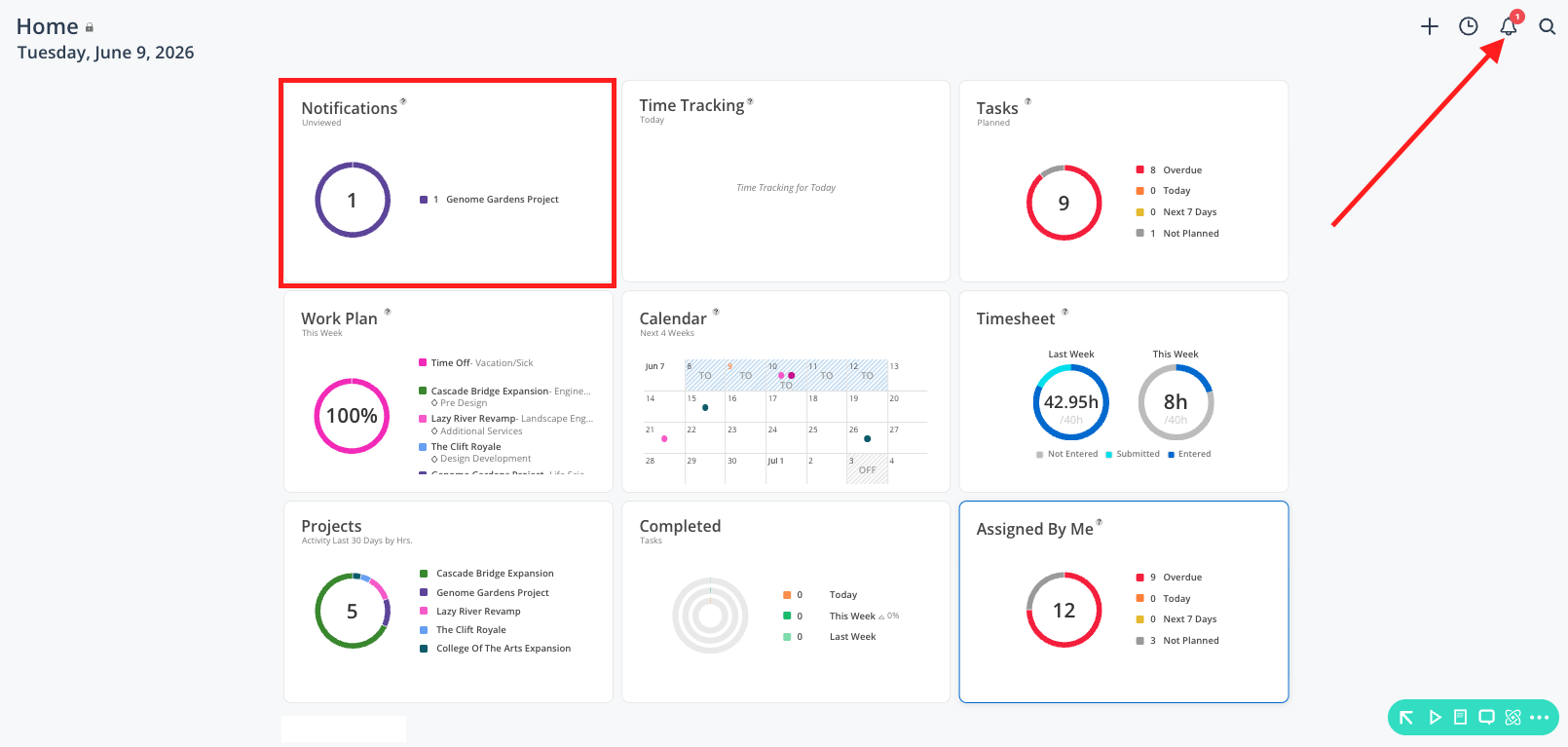
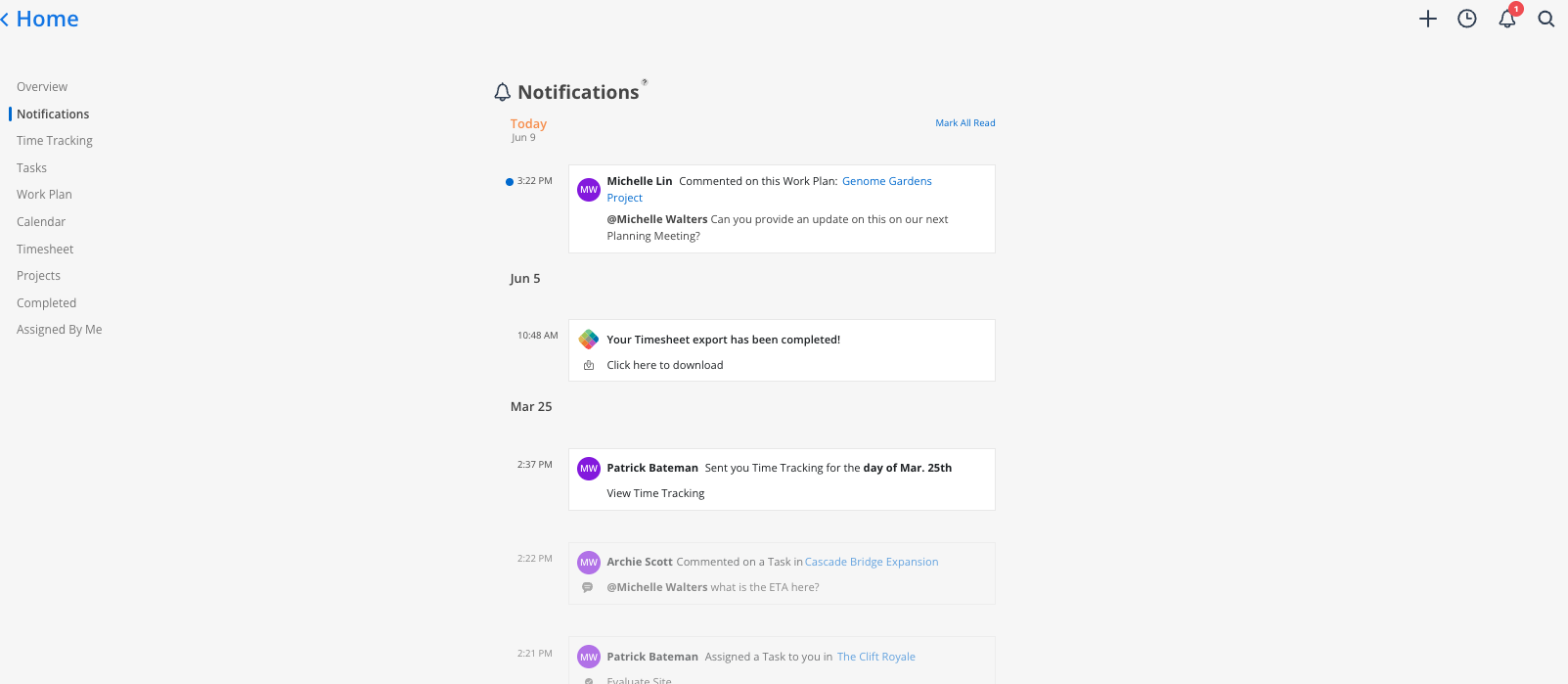
Notifications can be accessed two ways: through the bell icon in the top-right corner of any space in Mosaic, or directly through the Notifications Widget on the Home Space. Both show the same content. Updates are displayed in chronological order, most recent first.
See if a task has been assigned to you
Check whether someone replied to a comment you left
Know if you were added to a project
Review a timesheet reminder
Download a report export once it is ready
Catch up on activity after being away
The Notifications widget shows updates related to your involvement in Mosaic, including:
Project updates — Someone added you to a project, or a project archived
Task activity — task assigned to you, task completed, new task comment, or reply to task a comment
Work plan comments — when someone @mentions you in a work plan comment, that will appear here
Shared work plans — when a team member sends you their work plan summary
Time tracking — when a check-in or time tracking summary is shared with you
Export notifications — when a report or data export is ready to download
Timesheet reminders — sent by an admin to flag incomplete timesheets
Unread notifications are marked with a blue dot. Read notifications no longer show the blue indicator.
Click the bell icon in the top-right corner of any Mosaic space, or click the Notifications widget on your Home Space
A red badge appears on the bell icon when you have new unread notifications
Click any notification or its View button to navigate directly to the relevant content
Hover over a notification and click Mark as unread to flag it for later review
Click Mark all as read to clear the unread indicator from all notifications at once
Task or comment notification — Opens the task modal showing full task details, all comments, and replies
Project notification — Takes you to the project page
Work plan comment notification — Opens the work plan modal so you can read and reply to the comment
Shared work plan notification — Opens a modal showing the member's weekly capacity and work plan summary
Time tracking notification — Opens a modal showing the time logged for that member on that date
Export notification — Triggers an automatic file download when you click "Click here to download"
Timesheet reminder notification — Takes you to the Timesheet page where you can review and complete missing entries
Notifications are generated based on your role and access in Mosaic. You will only receive notifications for projects you are assigned to, tasks you are involved in, and data you have permission to view. Certain notifications respect project-level permissions and may show limited detail depending on your access level.
Check the bell first when you log in — It is the fastest way to see what changed while you were away
Use “Mark as Unread” to create a personal action list — Flag notifications you need to act on so they stay visible
Do not rely on notifications for work plan changes — Mosaic does not send a notification every time a work plan is created or edited. Check your Work Plan widget directly after time away to see what has changed.
