The Assign Role View helps you find the right person for an open role - while also confirming they have the capacity - without ever leaving the Planner Space.
This is the best place to go when you want to answer questions like:
Who on my team is a good fit for this open role?
Does this person actually have room to take on the work?
Which team members meet the skill and office requirements for this role?
What happens to this person's availability if I assign them?
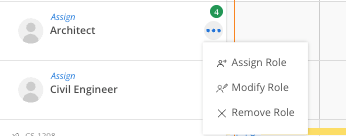
When you open the view for an open role, you'll see member suggestions organized into different groups: matches and alternatives.
Each suggestion shows:
The member's name, role, and availability during the open role's date range
Which requirements they meet or don't meet, with gaps clearly highlighted
The member’s bill rate times the total hours budgeted for the open role; providing an estimation of the full spend if the member is assigned.
Additional fit context based on past projects and timesheet history
A live capacity preview when the Plan Time toggle is on
All three decision inputs — availability, skill match, and budget impact — in a single panel, so you do not need to check capacity in Workload and rates in Budget separately
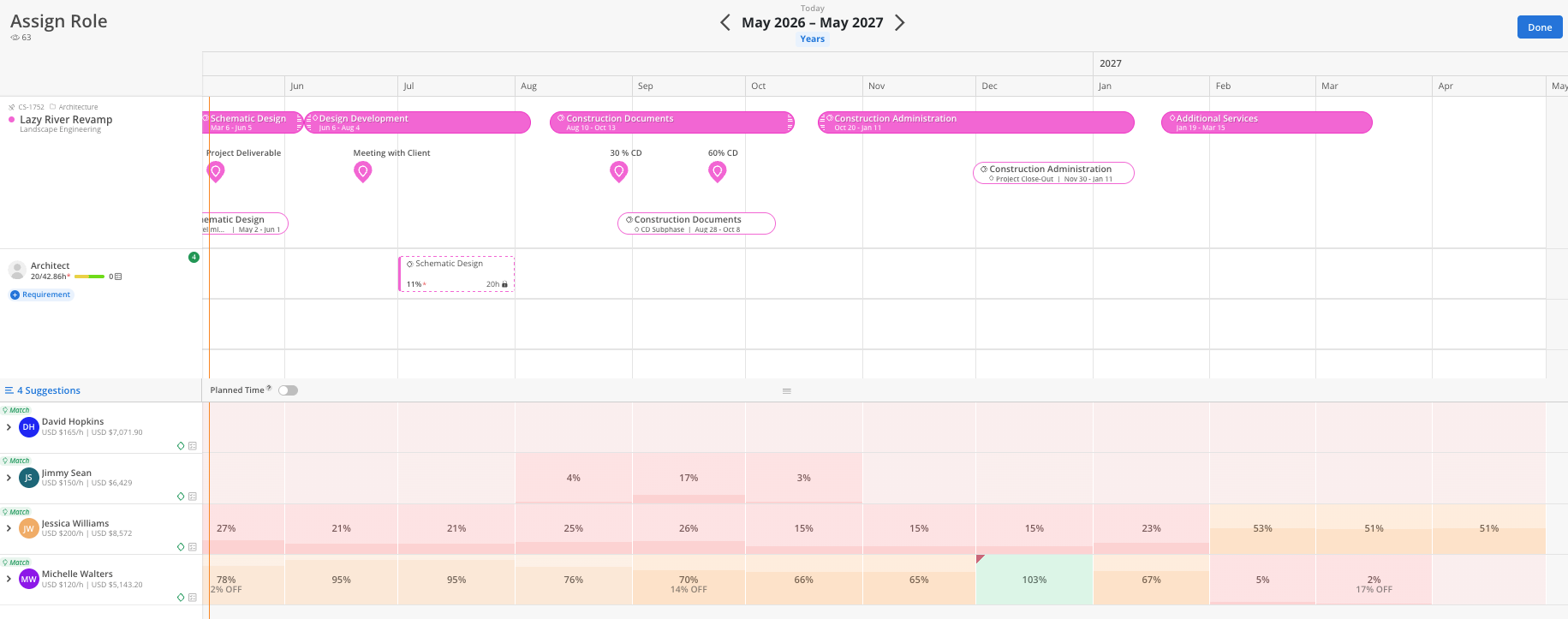
The Assign Role View is accessed directly from open roles in the Planner space.
To open it:
In the Planner space, find a project with open roles and expand it
Hover over the open role row to reveal the action bar
Click the smart suggestion icon. The number on the icon shows how many member matches were found.
The Assign Role View opens as a panel without leaving the Planner
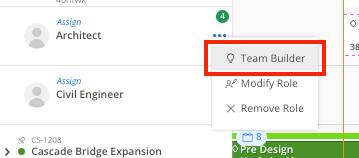
Mosaic surfaces two types of suggestions based on how well each team member fits the open role.
Match suggestions are members who meet all role requirements and have availability during the planned dates. Start here when making a staffing decision.
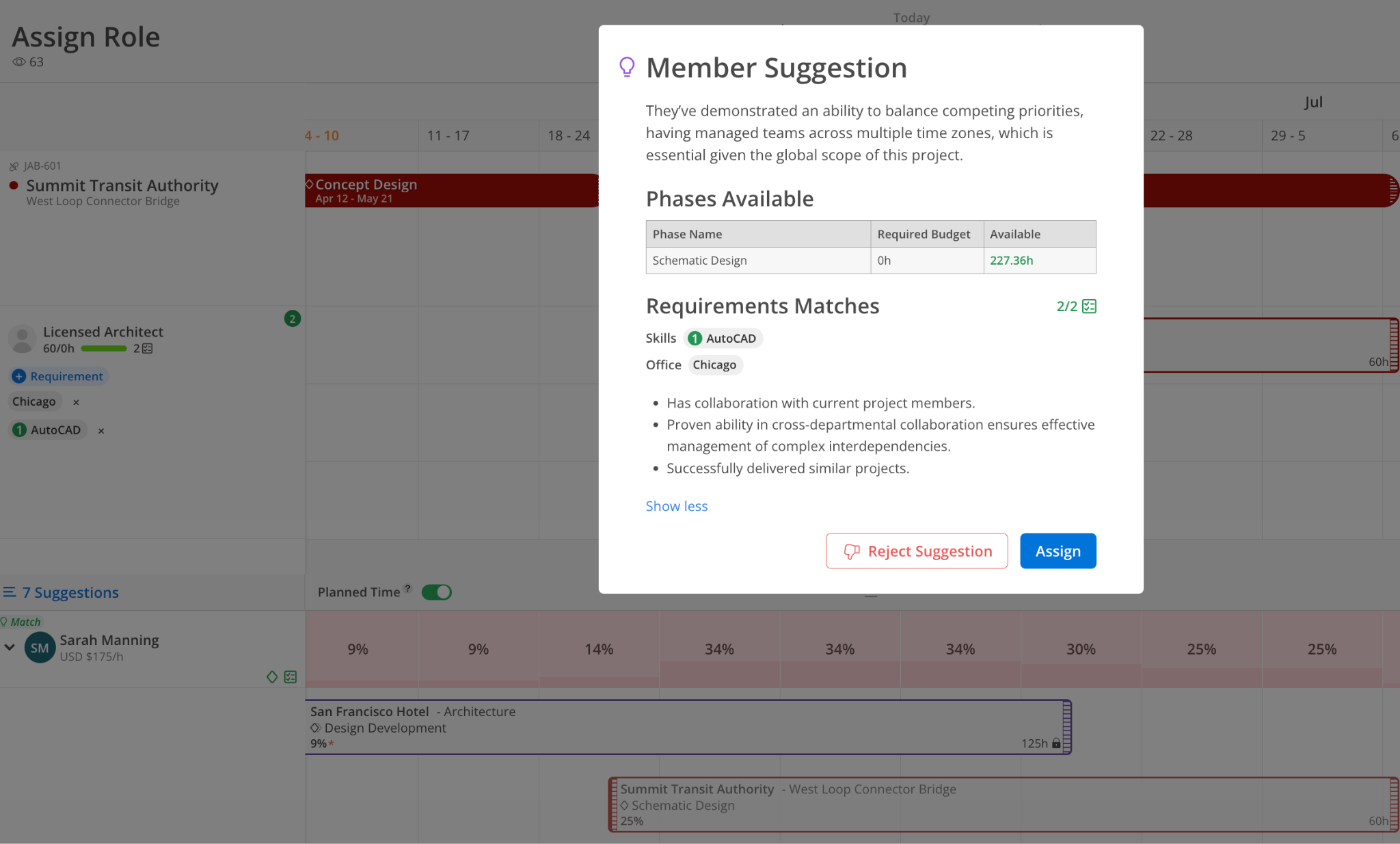
Alternative suggestions are members who are a strong overall fit but have one or more gaps — for example, a skill at a slightly different proficiency level. The mismatched requirement is highlighted so you can make an informed call.
You can still staff an alternative candidate. The view just makes the gap visible rather than hiding it.
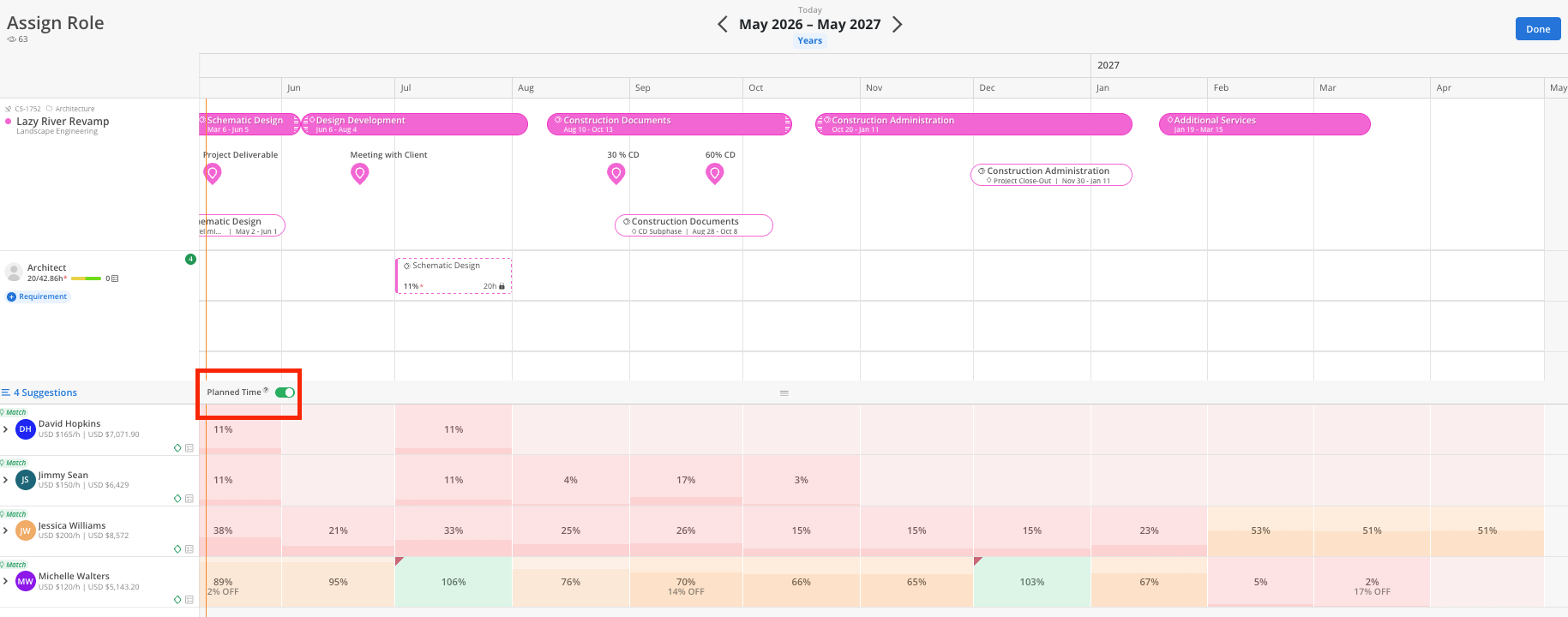
The Plan Time toggle is the fastest way to see how an assignment would affect a team member's workload before you commit.
When you turn it on:
The open role's work plan is applied to each member's availability preview
The availability timeline updates to show their expected utilization across the full date range of the open role
Members who can absorb the work without going over capacity are easy to spot
Members who would exceed capacity are flagged so you can adjust before assigning

Mosaic evaluates each team member against the open role using several signals:
Role - whether the member's assigned role matches the open role type
Department - whether the member’s assigned department matches the open role type
Discipline - whether the member’s assigned discipline matches the open role type
Availability - whether the member has sufficient capacity during the open role's date range
Skills - any skill requirements added to the open role, matched by skill and proficiency level. If a requirement was set using Any Level, members are matched on having the skill regardless of proficiency.
Office - if an office requirement is set on the open role
Past projects - projects the member has worked on previously
Timesheet history - time entries that indicate relevant hands-on experience
The more requirements you add to an open role, the more precise the suggestions become.
Once you've identified the right person, you can assign them directly from this view.
When you assign a member:
The open role is replaced by a work plan for that member on the project
The work plan uses the same dates and hours as the open role
The member's capacity updates immediately in both Workload and Planner
When using the Assign Role View, a few habits will help you get the most out of it:
Add skill and office requirements to open roles before opening the view — more detail means more accurate suggestions
Always turn on Plan Time before assigning to confirm the member can actually absorb the work
Don't ignore alternative suggestions; a small skill gap may be acceptable depending on the project
If two candidates look similar, compare their availability timelines side by side with Plan Time on to spot differences across the full date range
Use this view early in project setup, before schedules are locked, so you have flexibility to adjust if a preferred candidate is unavailable
