Every project has its own dedicated space in Mosaic. Opening a project takes you to a tabbed view where you can see everything related to that project in one place. What you can see and edit depends on your permission level.
Open a project by clicking its name from a portfolio, or by searching in the Projects sidebar and selecting the project.
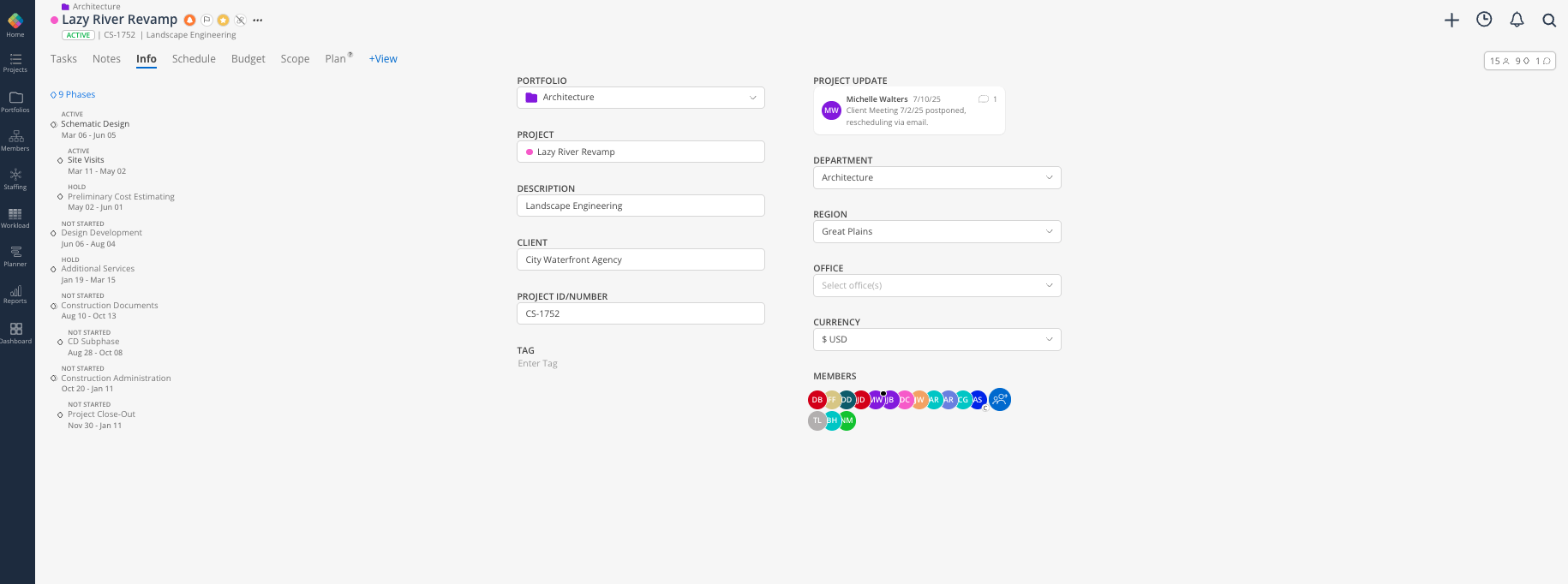
At the top of every project page, next to the project name and reference number:
Chain link icon (green) — If a project is linked to your ERP integration, this icon with be green. If not linked, this icon will be grey with a line slashing through.
Notification bell — Manage your personal notification settings for this project
Star icon — Add this project to your personal starred/favorites list
Priority flag — A project-level priority visible to all members (High, Medium, Low). This is displayed throughout Mosaic
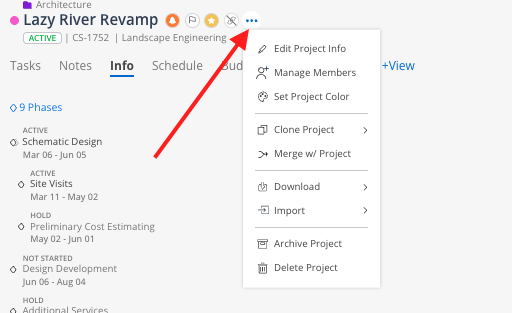
Three Dot Menu — Find additional options, such as Cloning Projects, by selecting this menu icon:
Members count — How many members are on this project. Click to see the full list. The project manager is indicated by a black dot on their avatar.
Schedule count — Number of items on the project schedule. Click to open the schedule panel.
Comment / update icon — Leave a comment that notifies all project members


A Gantt-style view of the full project schedule. This is the primary place to view and manage the project timeline.
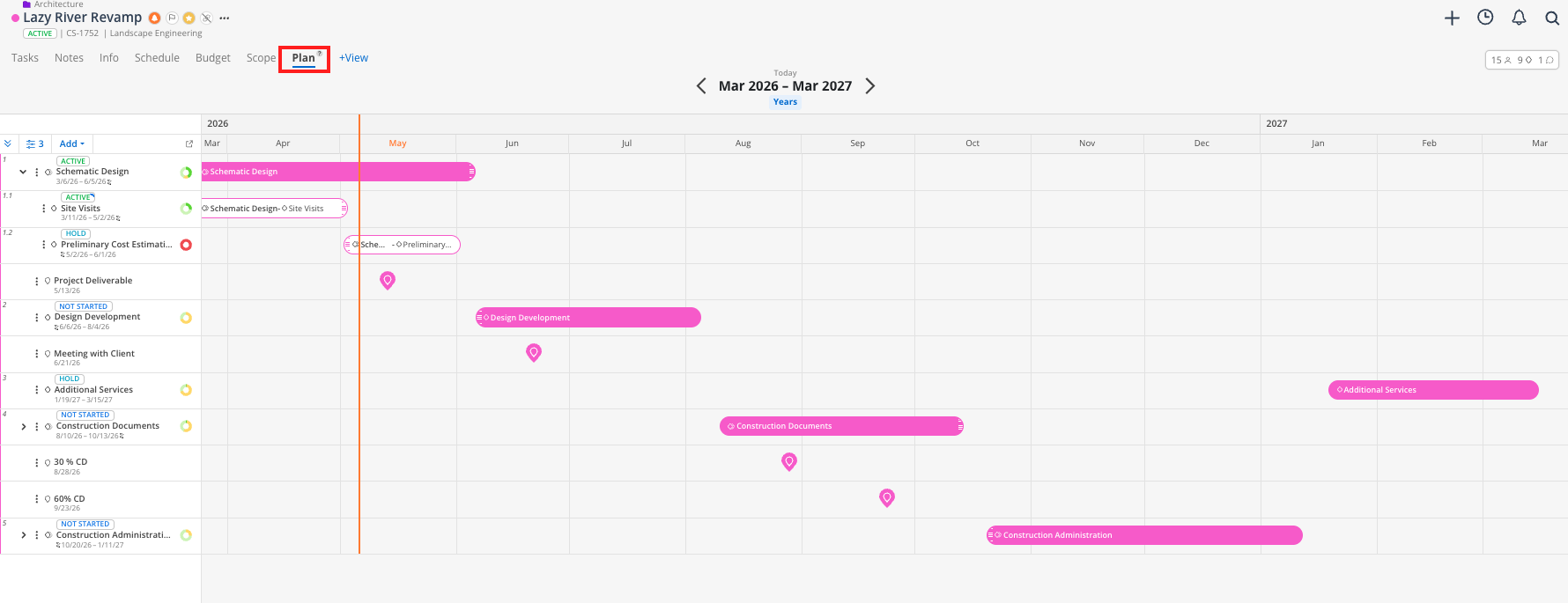
See all phases, subphases and milestones laid out on a horizontal timeline
Drag and drop phases or milestones to adjust their dates
Add milestones directly from this view
Filter to show only milestones, specific phases, or date ranges
Note: The Plan tab is Mosaic's first release of a Gantt view. More functionality will be added over time.
A list-style view of the project schedule showing phases, subphases, and milestones with columns for status, date range, and workday count.
This tab can be toggled between Phase view or Task view (shown below) - allowing you to see both in a date-forward view.
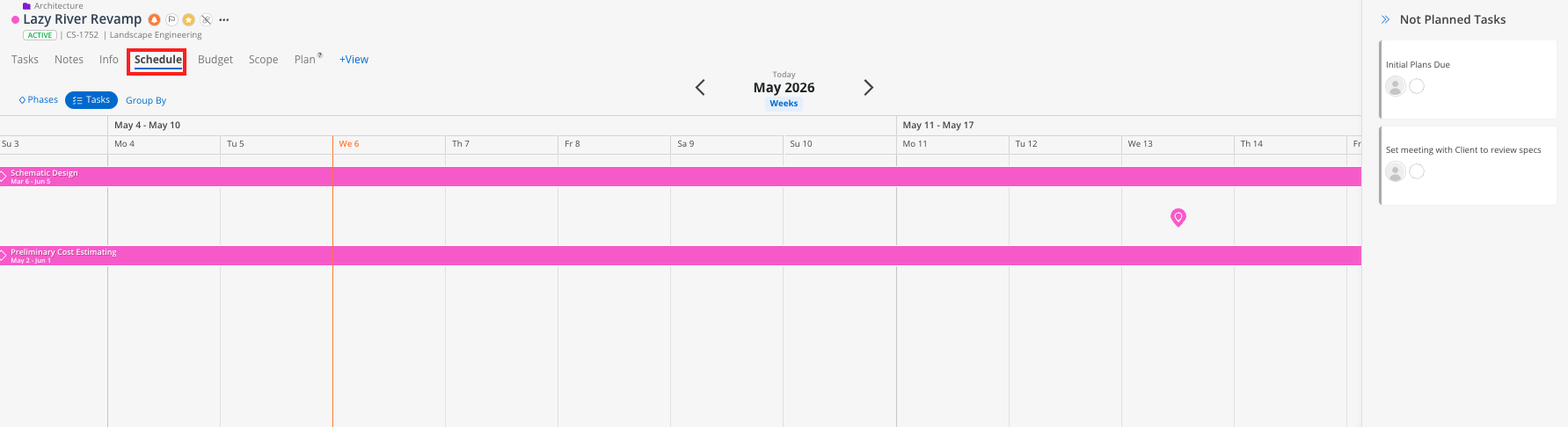
Columns in the Schedule tab:
Title — Phase or sub-phase name. A chain link icon next to the name means it is linked to your ERP.
Status — Pulls from your ERP; can be manually updated in Mosaic.
Date range — Start and end dates for the phase.
Workdays — The baseline count of working days in the original date range. Initials next to the phase name indicate who last edited the dates in Mosaic.
Scheduled Tasks - Tasks with already assigned members and dates will appear as scheduled
Not Planned Tasks - Tasks lacking planned dates or members appear in a right-side menu, allowing for quick assignment in planning meetings
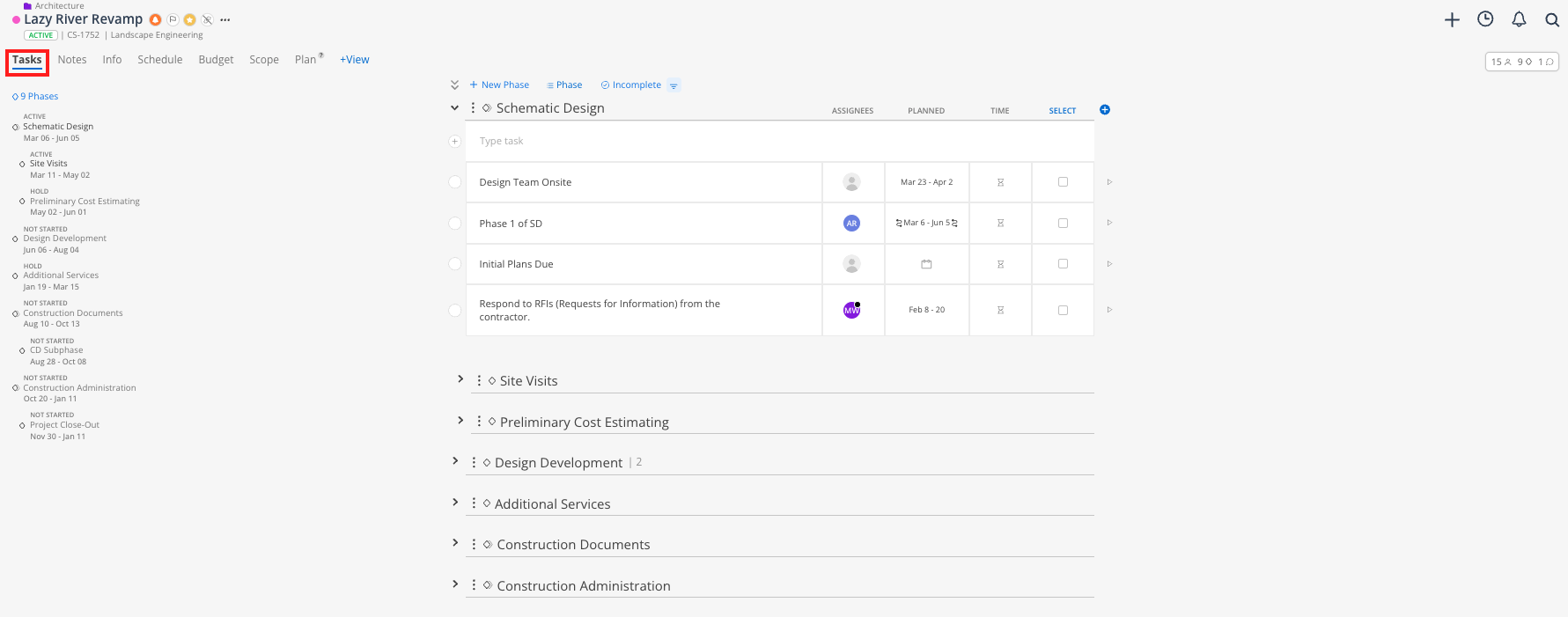
Tasks are internal checklist items you can create on a project or for yourself personally. They are designed for action items, deliverable tracking, and to-do lists — not for capacity planning. Unlike work plans, tasks do not affect a team member's scheduled capacity or the project budget by default.
See the Tasks article for full detail on creating and managing tasks.
Helpful project information that in some cases, may be synced from your ERP: project number, client, office, project manager, and member list.
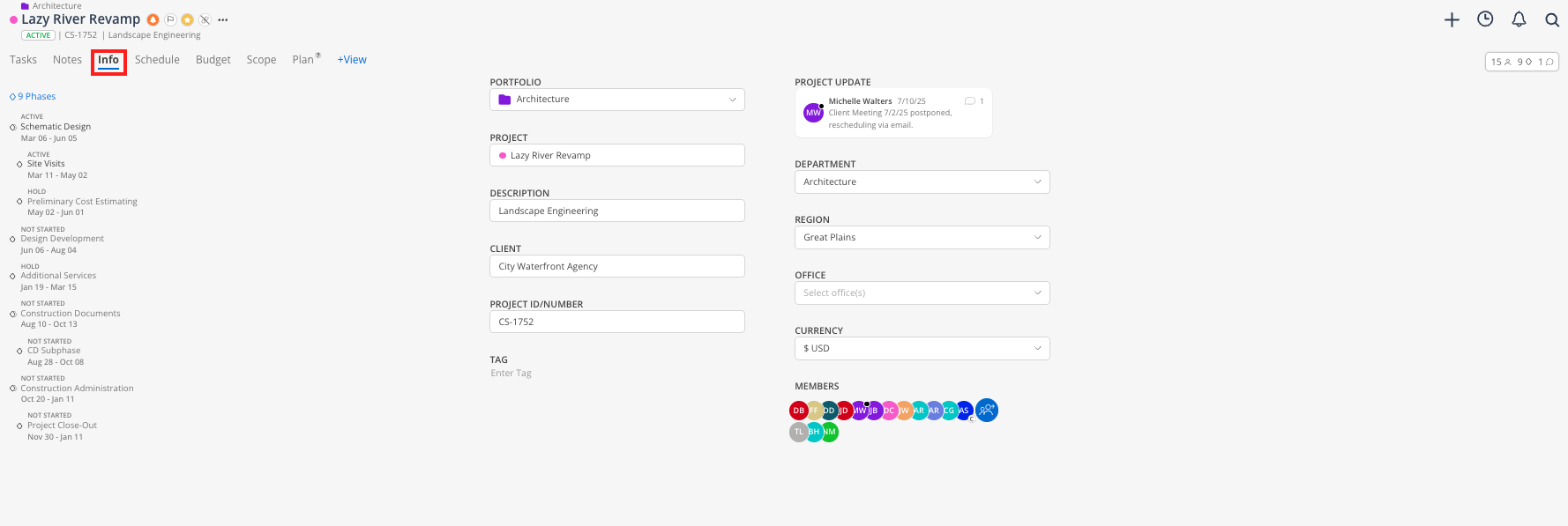
You can also add helpful attributes, which assist in filtering, such as Office, Department, Region, or Client (if not synced over).
Change the Project Currency here if need be.
Add a Project Tag for tracking purposes. These are customizable.
Although the Budget Space is gated to Budget Manager and Admin access only; this tab displays the project budget, planned vs. spent time by phase in a easy-to-read view. Those with Base Member access will see a blank tab.
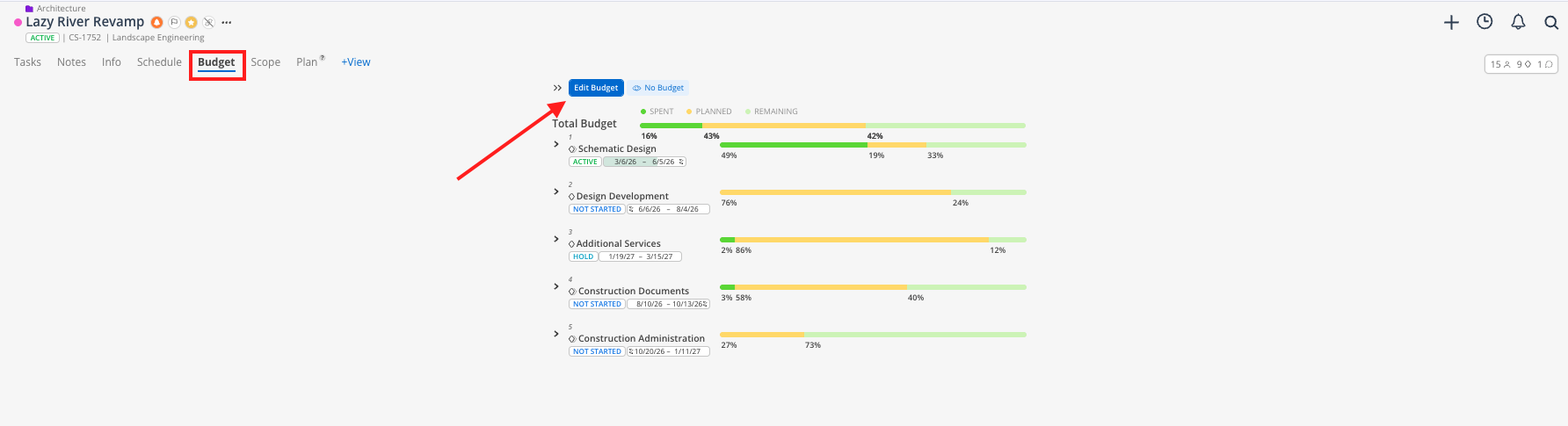
To access the Budget Space, select the Edit Budget icon.
Although the Budget Space is gated to Budget Manager and Admin access only, this is a helpful tab for Projects with Scope in use.
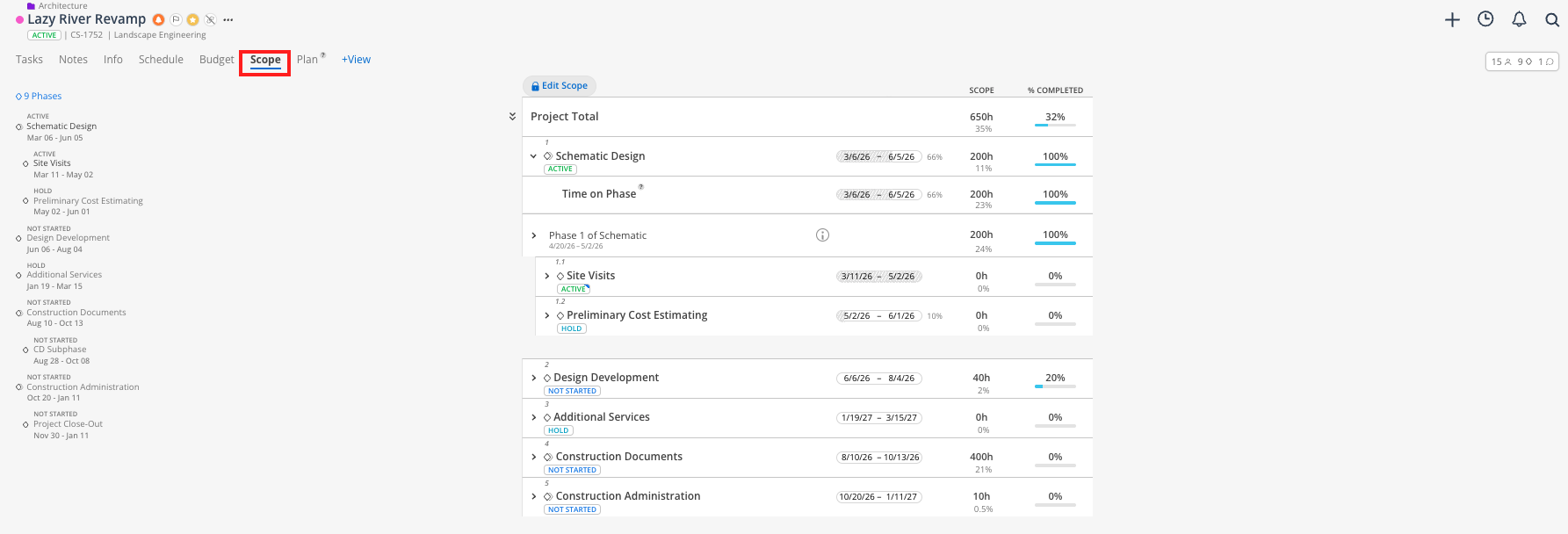
See the Scope article for full detail on creating and managing Scopes.
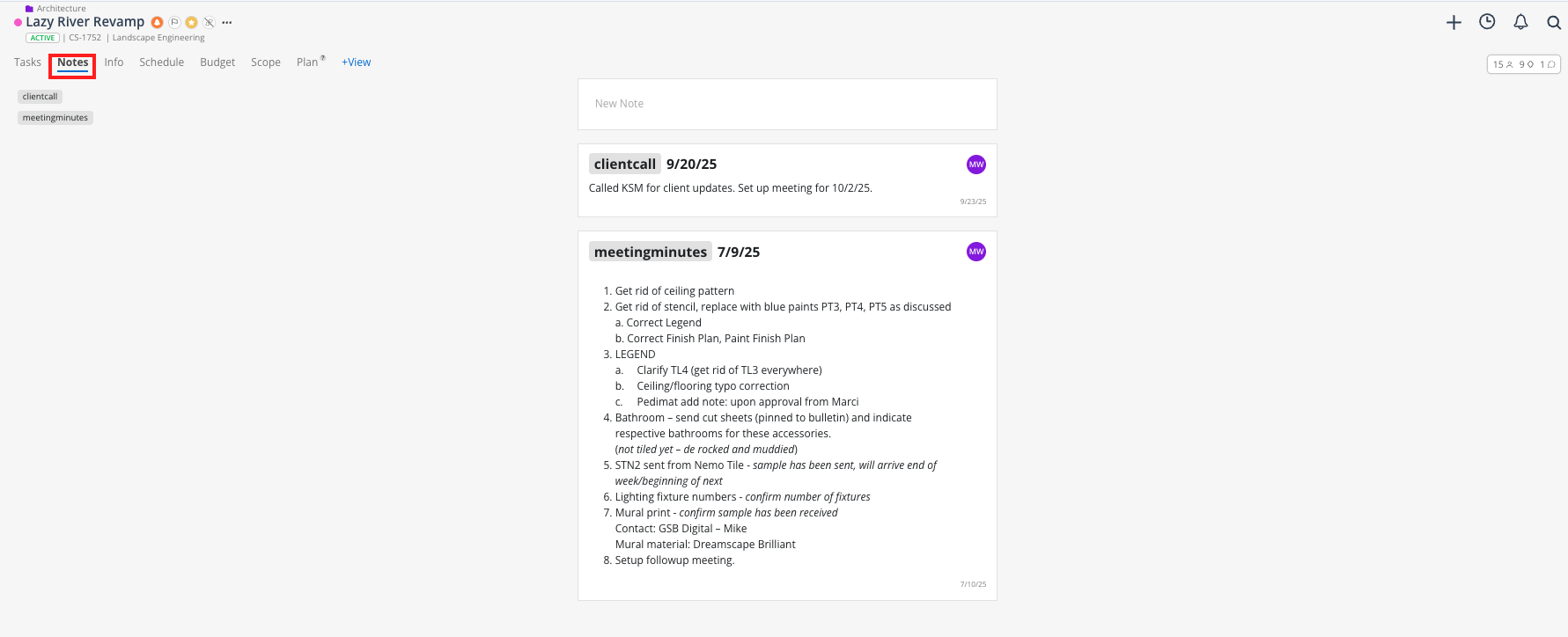
Use this tab to create additional checklists and easily record and share project documentation, meeting minutes, conference call notes, and more.