Portfolios are file folders for your projects. When a project is imported from your ERP, an admin places it into the appropriate portfolio. How portfolios are organized varies by firm — common structures include by year, by client, by office, or by project type.
Click the Portfolios icon in the left-side menu to open the portfolio space.
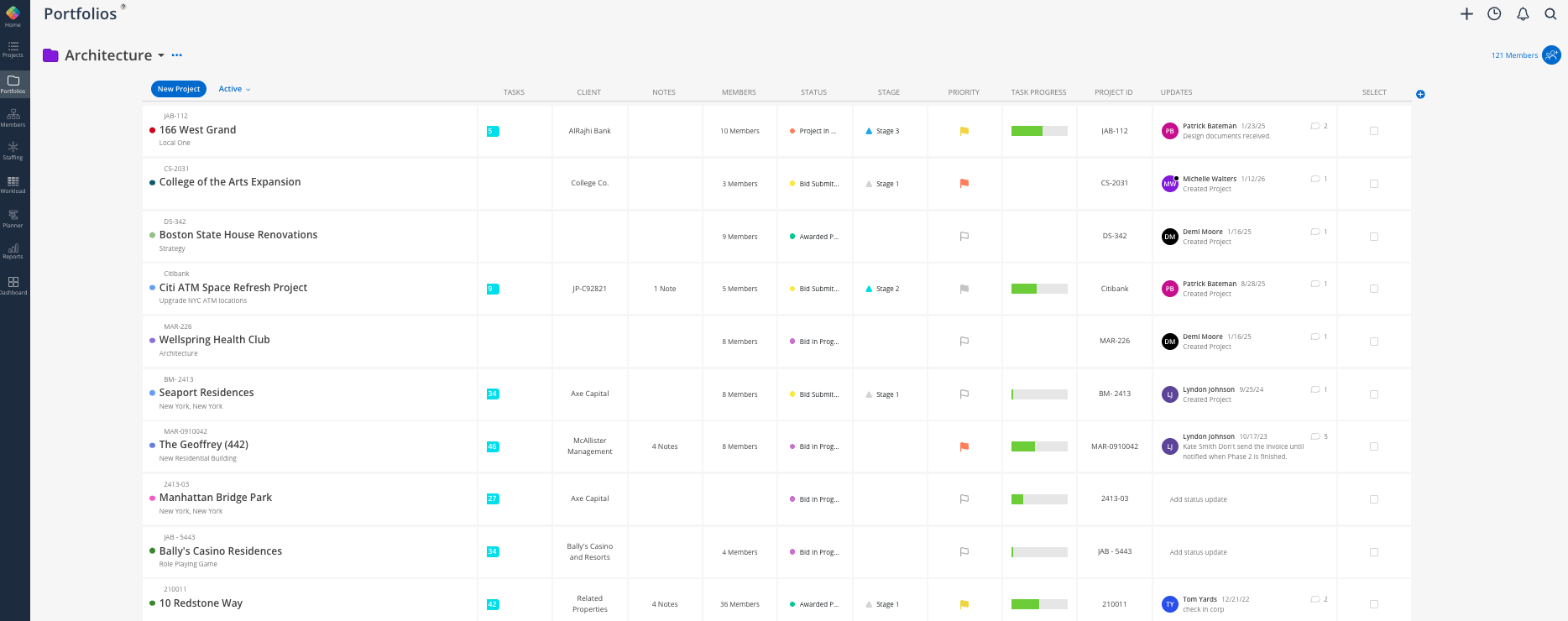
This space works hand-in-hand with the Project space. Portfolios are the folder; projects are the contents.
This is the best place to go when you want to answer questions like:
What projects do we have active right now?
How do I find a specific project quickly?
Which projects are on track versus behind?
How do I group projects for a specific client or department?
What is the overall health of our project pipeline?
Portfolio list — All portfolios your admin has created. Expand each one to see its projects.
Project rows — Each project listed with its name and reference number. Additional columns can be added.
Star icon — Appears on hover over the project name. Stars the project for your personal favorites.
Chain link icon — Indicates the project is linked to your ERP integration.
Notification bell — Appears if you are a member of the project. Lets you manage notification settings for that project.
Comment / update field — Leave a project-level comment that notifies all project members.
Click Portfolios in the left-side menu.
Click the arrow next to a portfolio name to expand it and see its projects.
Alternatively, use the magnifying glass search bar in the top-right of the portfolio page to search by project name or number.
Click the project name to open its project space.Portfolios
A portfolio is a named collection of projects. Portfolios are created by admins and project managers to group related work.
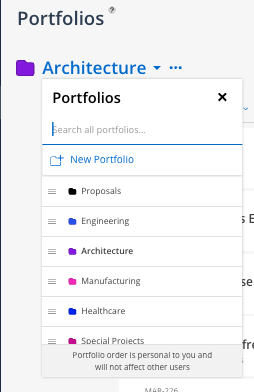
Reorder your List — Drag and drop frequently used portfolios to the top of your list for quick access. This list order will
Filter within a portfolio — Search, sort, and filter by project name, number, status, or other attributes to find what you need within a portfolio.
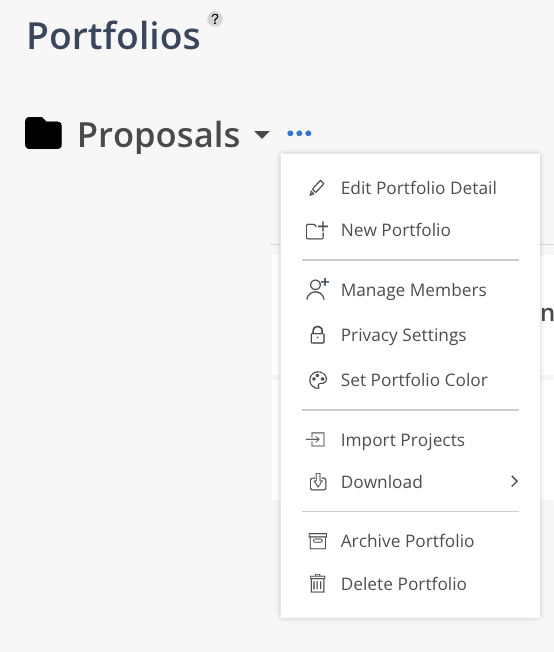
Selecting the three dot icon also allows you to edit Portolfio information; such as chaning its detail, managing members, or setting the Porfolio’s color (which will affect the projects colors as well).

Each project in the portfolio view appears as a row with key summary information. Depending on your access level (typically as a Admin or Portfolio Manager), you can use the + button to decide which columns the portfolio calls for, and in which order they should appear.
With a portfolio open, look for the column settings control at the top right of the project listing.
Toggle columns on to display: status, stage, priority flag, member count, task progress, notes, client name, and project ID.
Columns can be reordered or hidden to match your team's preference.
Click a column header to sort by that field.
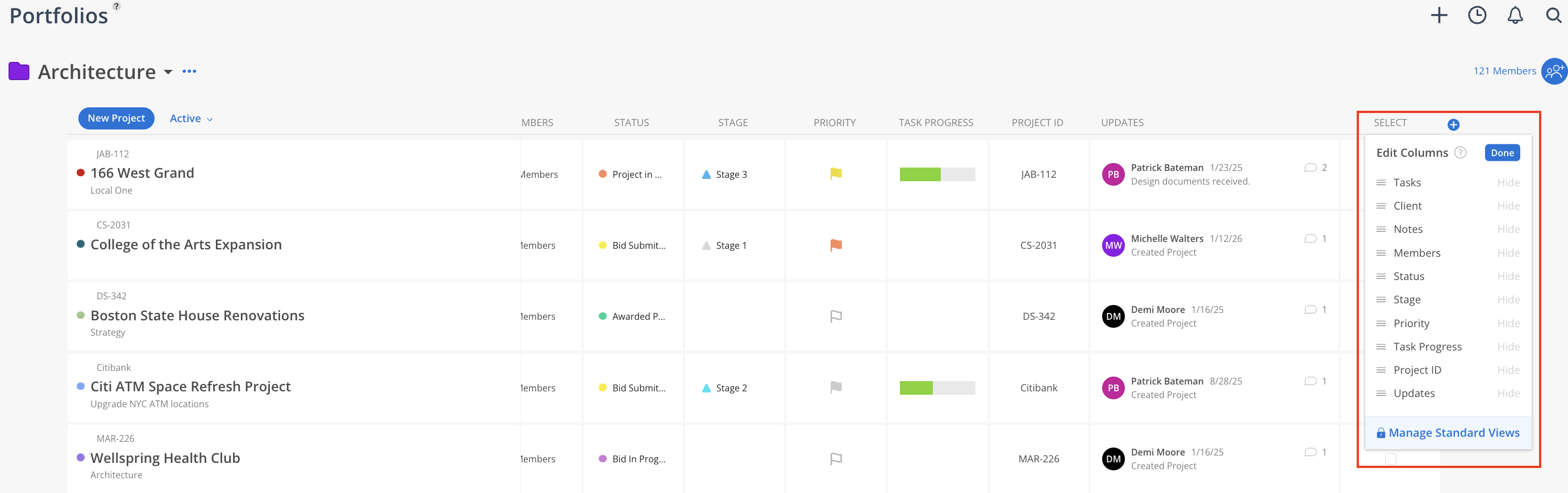
The Columns available in each Portfolio are:
Project Name - Lists Project Name (as well as Client and Reference Number). This is the only column that cannot be moved in column order.
Tasks - Opens up the Projects Task Tab in the Project Space
Client - Shows Client associated to Project. For some ERP’s, this is something that can be synced over. If not, the Client can be manually set using this column - which opens up the Project Info Modal
Notes - Opens up the Projects Note Tab in the Project Space
Members - Shows list of all members in Project. Additional members can be added here by selecting the + member icon. Additionally, selecting the members access allows you to change access level per project (Set as Project Manager, Can Edit, View Only, or Remove from Project)
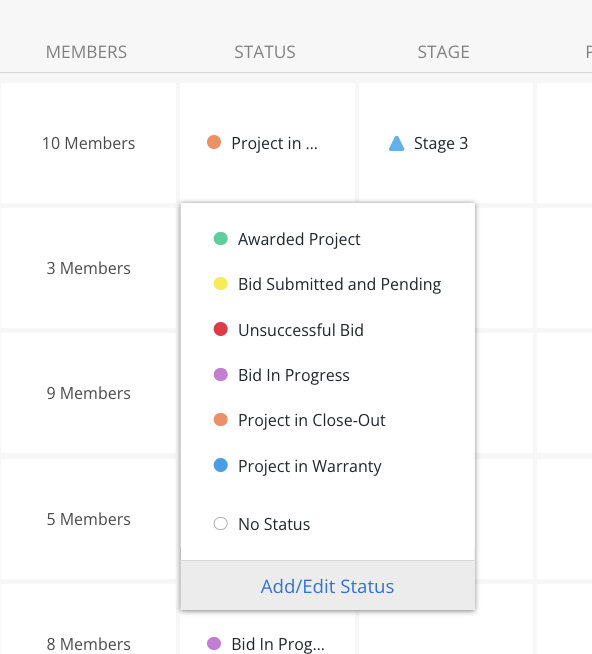
Status - This is a customizable field in each Portfolio, allows you to set a Project to a specific Status. Editing or Adding statuses can be done by selecting the bottom ‘Add/ Edit Status’ button:
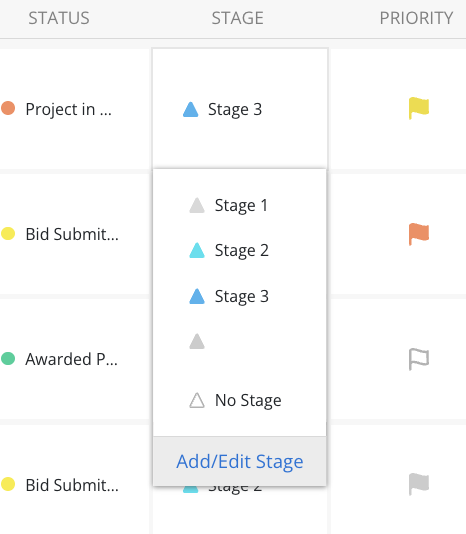
Stage - This is a customizable field in each Portfolio, allows you to set a Project to a specific Stage. Editing or Adding stages can be done by selecting the bottom ‘Add/ Edit Stage’ button:
Priority - Shows the projects currently set priority. Projects can be High, Medium, Low or No Priority. This is a attribute that be filtered in other spaces (such as Planner or Reports) as well, as the priority sticks to the project.
Task Progress - Shows a green progress bar of tasks as they are completed throughout the scheduled project.
Project ID - Shows Project Number associated to Project. For some ERP’s, this is something that can be synced over. If not, the Number can be manually set using this column - which opens up the Project Info Modal
Updates - Opens the Update modal, which shows project activity - such as members being added or removed, projects being imported, projects being moved to different portfolios. Additionally, the modal allows a update to be added in as comment - which is then pushed as a notification to all projects members.
Click the comment icon column or the comment field inside the project row.
Type your update. All current members of the project will receive a notification.
Use this for client updates, status changes, or any note the whole project team needs to see.
Search by name or number — Type a project name or project number to find a project quickly using the magnifying glass in the top-right page corner. Project numbers are particularly useful for teams with large project lists.
Sort by Columns — Using the shown columns, sort as needed to change the list of projects
Drag and Drop — Using the 3 line button, drag and drop your projects into desired order
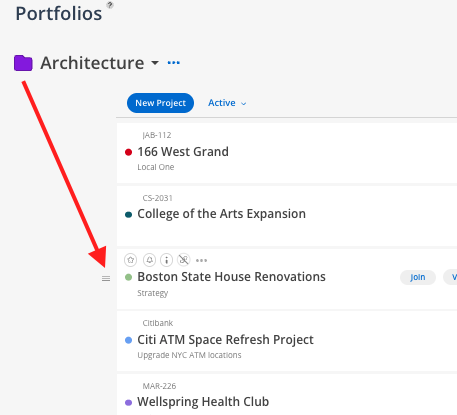
If you hover over a project name and see a "Join project" prompt, you are not yet a member. You can join manually, or you will be automatically added when time entries or work plans are created for you on that project.
Use search instead of scrolling — For organizations with many projects, searching by project number is the fastest way to navigate
Add columns before team meetings — Turn on status and priority columns when using the portfolio view in a project review meeting so the team can see key info without clicking into each project
Starred projects appear in the Projects sidebar — You do not need to navigate back to the portfolio every time; starred projects are one click away from any space
