
Overview
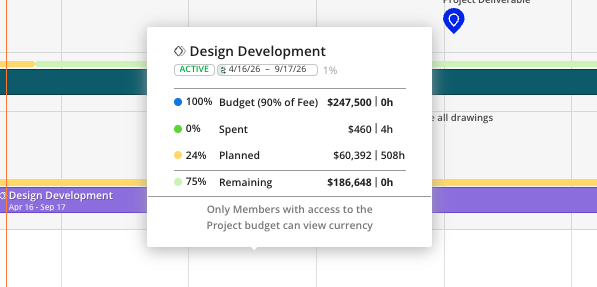
For users with budget manager access or higher, a color-coded budget bar appears above each phase bar in the Planner. It shows how much of the phase budget has been spent, how much is planned for the future, and how much remains. If plans exceed the budget, the bar turns red. This gives you a fast check on budget health as you plan time for team members.
What You See
Budget bar — a thin colored line above the phase bar on the timeline
Green segment — time entries already charged (spent time synced from your ERP)
Yellow segment — future planned time based on current work plans
Light green segment — remaining budget
Red segment — appears when planned + spent exceeds the phase budget
Hover tooltip — hover over the bar for exact numbers
How To View the Budget Indicator
Make sure you have Budget Manager access or higher. Base members and view-only work planners cannot see the budget bar.
Open a project in the Planner.
Ensure phase dates are set — the budget bar only appears on phases with dates.
Look at the colored line above the phase bar on the timeline.
Hover over the bar to see a breakdown of spent, planned, and remaining hours or dollars.
Tips
Check the budget bar before creating new work plans. If the bar is already showing yellow close to the end, adding more plans may push it into red.
Red means you are tracking over budget. Consider pulling back on plans or reviewing the work allocation for that phase.