Milestones are date markers on your project schedule that represent important deliverables, presentations, submissions, or checkpoints. These are independent of the Project Budget and cannot have work plans associated to them. They appear as icons on the calendar timeline. You can create custom milestones per project or use organization-wide standard milestones set by your admin team.
Milestone — listed in the schedule panel alongside phases
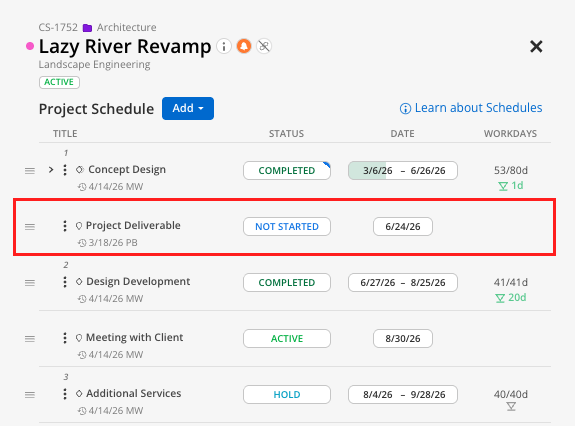
Milestone Icon — a small icon on the project timeline at the milestone date

Dependency icon — milestones can be linked to phases with dependencies
Open the Project Schedule Modal by clicking the calendar button next to the project name.
Select Add > Add Milestone at the top of the Project Schedule Modal.
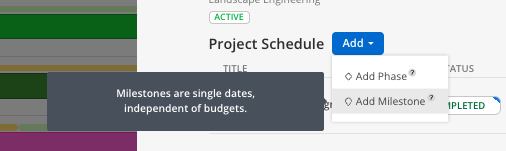
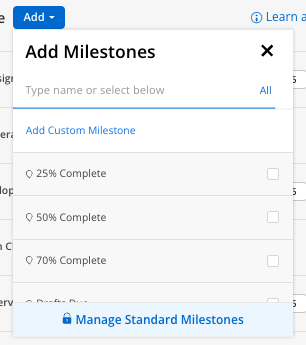
If your admin has set standard milestones, a pick list appears. Select one, or type a custom name.
Enter the date for the milestone.
The milestone icon appears on the timeline at that date.
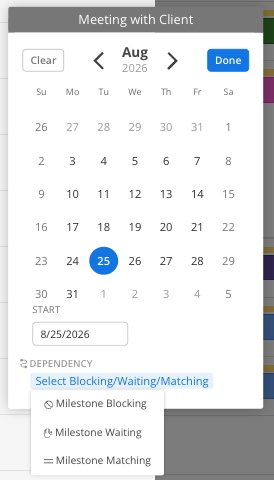
Click the dependency option next to the milestone.
Select a phase and choose Matching or Waiting.
The milestone now moves if the parent phase shifts.
Ask your admin to set standard milestones. If most projects share common milestones (e.g., "50% DD", "Permit Submittal"), having them as a standard pick list saves time and ensures consistency.
Use milestones to flag upcoming deadlines. When viewing multiple projects in the Planner, milestone icons quickly show where deadlines cluster.
