Every project in the Planner has a schedule view where you set start and end dates for each phase. Once dates are set, phase bars appear on the calendar timeline. You can link phases with dependencies so the entire schedule adjusts when one phase shifts. The schedule also tracks baseline work days to monitor schedule variance over time.
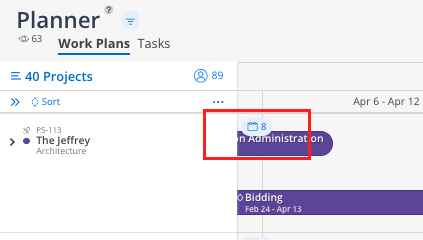
Schedule panel — a small calendar button to the right of the project name (may show a number indicating the count of phases). Click to expand.
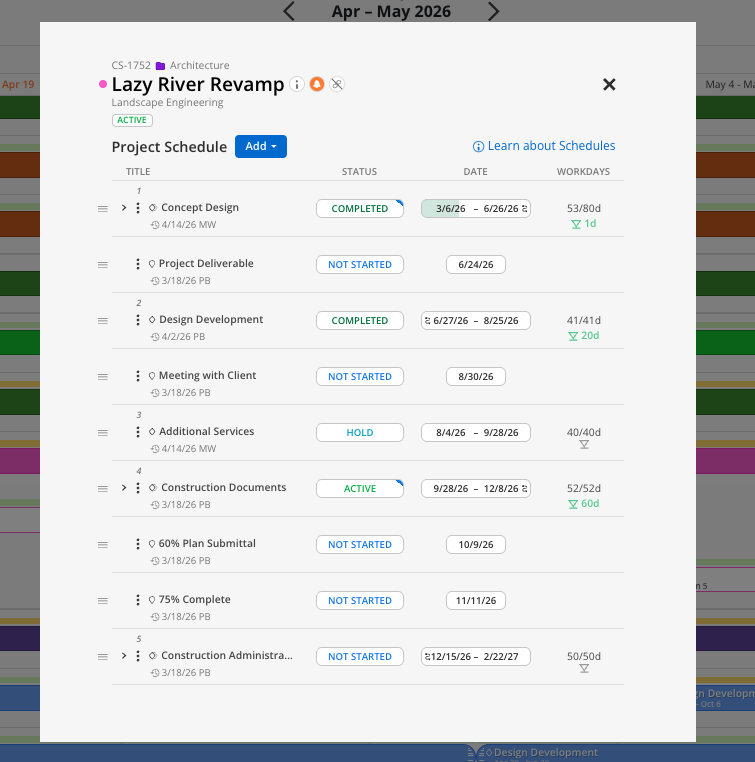
Phase and Milestone list — each phase, subphase and milestone - listed with a date column
Date column — shows "Plan" if no dates are set, or the current date range
Work days count — the number of working days in the date range
Baseline indicator — shows if work days have changed from the original baseline
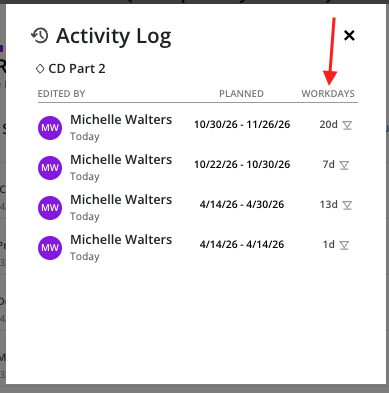
Activity log stamp — initials and date under each phase showing who last edited dates. "IS" initials indicate the integration server set the dates.
Phase bars — colored bars on the timeline representing the phase schedule
Dependency icons — chain link icons between connected phases
Click the small calendar button to the right of the project name to open the schedule panel.
In the Date column, click where it says Plan for the phase you want to schedule.

A calendar opens. Click a start date and then an end date.
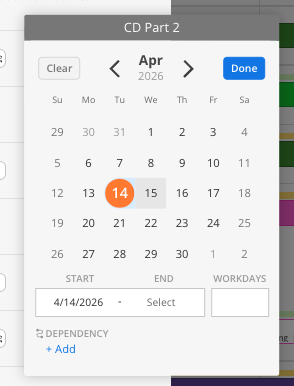
The number of work days calculates automatically.
The phase bar appears on the timeline in the background.
To change dates later, click back into the date column or drag the ends of the phase bar on the timeline.
After setting dates, the schedule shows the number of work days.
If the work days change from the original, a variance indicator appears (e.g., "+27 days").
Click the triangle icon next to the work days count.
Select Set as new baseline to reset the baseline to the current number of work days.
This is useful for tracking schedule variance in reports — reset the baseline only when you want to start tracking from the new schedule.
In the schedule panel, find the phase you want to make dependent on another schedule item.
Click the dependency option in the date column for that phase.
Choose a dependency type: Matching (starts on the exact end date of the prior phase) or Waiting (adds buffer days between phases) or Blocking (date of one item is a prerequisite for the date of another item - it must occur beforehand).
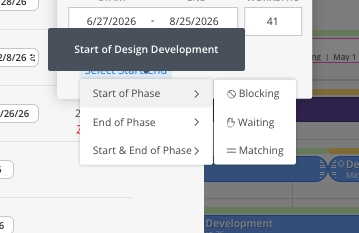
Select the schedule item (phase, subphase or milestone) to depend on (e.g., "End of Schematic Design").
If using Waiting, enter the number of buffer days.
The dependency icon appears. If the parent phase shifts, all dependent phases shift automatically.
Hover over the phase bar on the timeline.
Click and drag the entire bar to shift the full date range.
Click and drag either end of the bar to extend or condense the date range.
If dependencies are set, the bar will not move independently — it follows its parent phase.
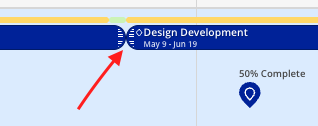
Set dependencies early. This saves time when schedules shift because all connected phases update automatically.
Use the activity log stamp. Click the initials under any phase to see who edited the dates and when. "IS" means the integration server set the date.
Reset baselines intentionally. Only reset when you want to start tracking variance from a new agreed-upon schedule.
