
Overview
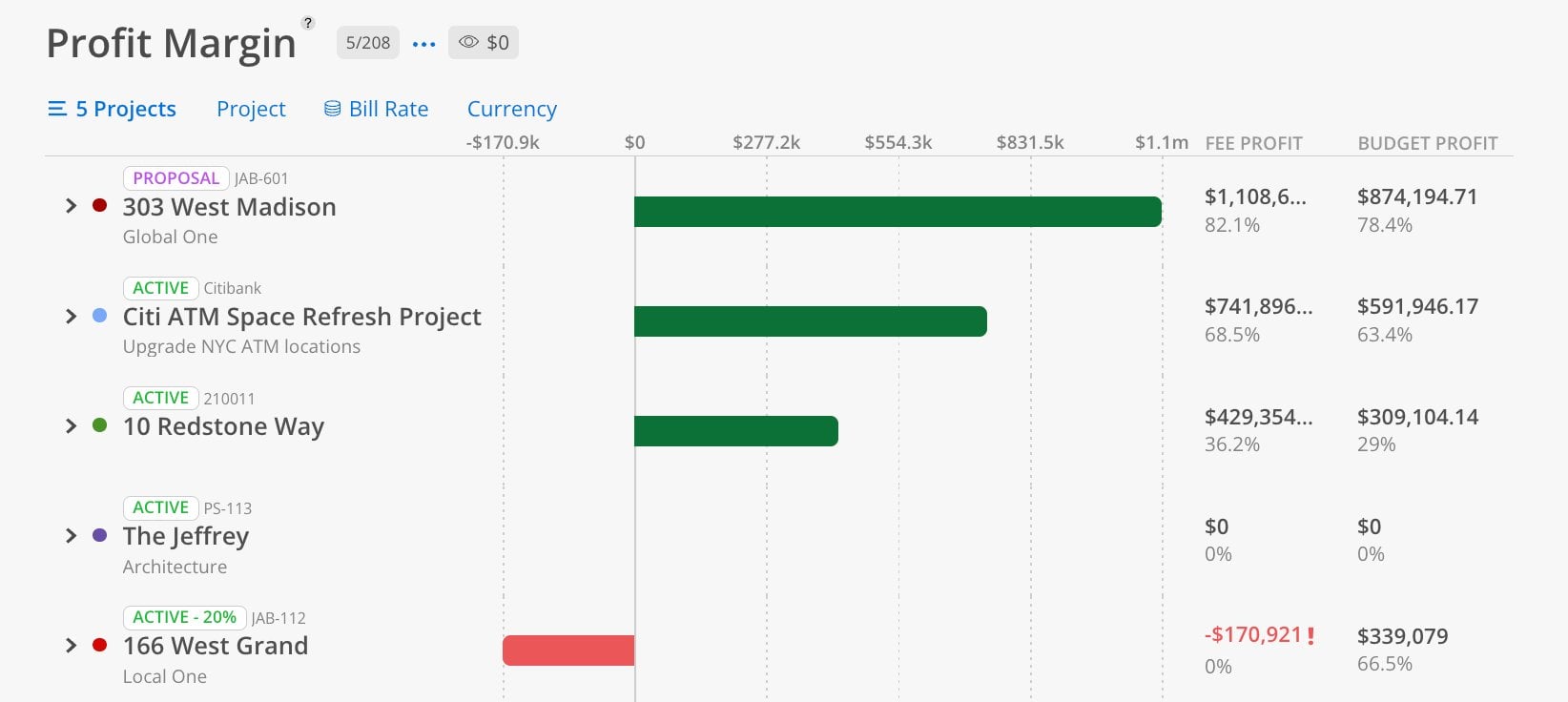
This report is available for projects at any status — it no longer requires a project to be completed. It displays two profit metrics side by side: Fee Profit (how much of the fee is remaining as profit) and Budget Profit (how much of the budget is remaining as profit). Projects with negative margins display a red bar extending to the left.
When To Use This Report
Use the Profit Margin Report when you need to answer: "Which projects are profitable and which are in the red — and is the issue with the fee, the budget, or both?" This report is ideal for quarterly business reviews, identifying underperforming projects, or evaluating whether your fee and budget structures are working. The dual columns (Fee Profit and Budget Profit) let you quickly see if a project is profitable from both a revenue and cost perspective.
What You See
The Bars
Green bar (extending right from $0) = profit. The longer the bar, the more profitable the project.
Red bar (extending left from $0) = negative margin. The project has exceeded its fee or budget.
Dollar scale axis = horizontal axis from negative to positive, with $0 as the center line
Columns & Indicators
FEE PROFIT = dollar amount remaining from the project fee, plus the percentage that is profit
BUDGET PROFIT = dollar amount remaining from the project budget, plus the percentage that is profit
Red exclamation mark (!) = flags projects with negative profit
Controls
Bill Rate dropdown — choose Rate, Bill, or Cost
Currency toggle — switch display units
Project View
This report is organized by project.
Click Reports > Profit Margin.
Select projects using the Project selector.
Review each project's green or red bar.
Check both the Fee Profit and Budget Profit columns.
Projects where Fee Profit shows a healthy percentage but Budget Profit is low may indicate that the fee is adequate but the budget was set too aggressively. Projects where both are negative need immediate attention.
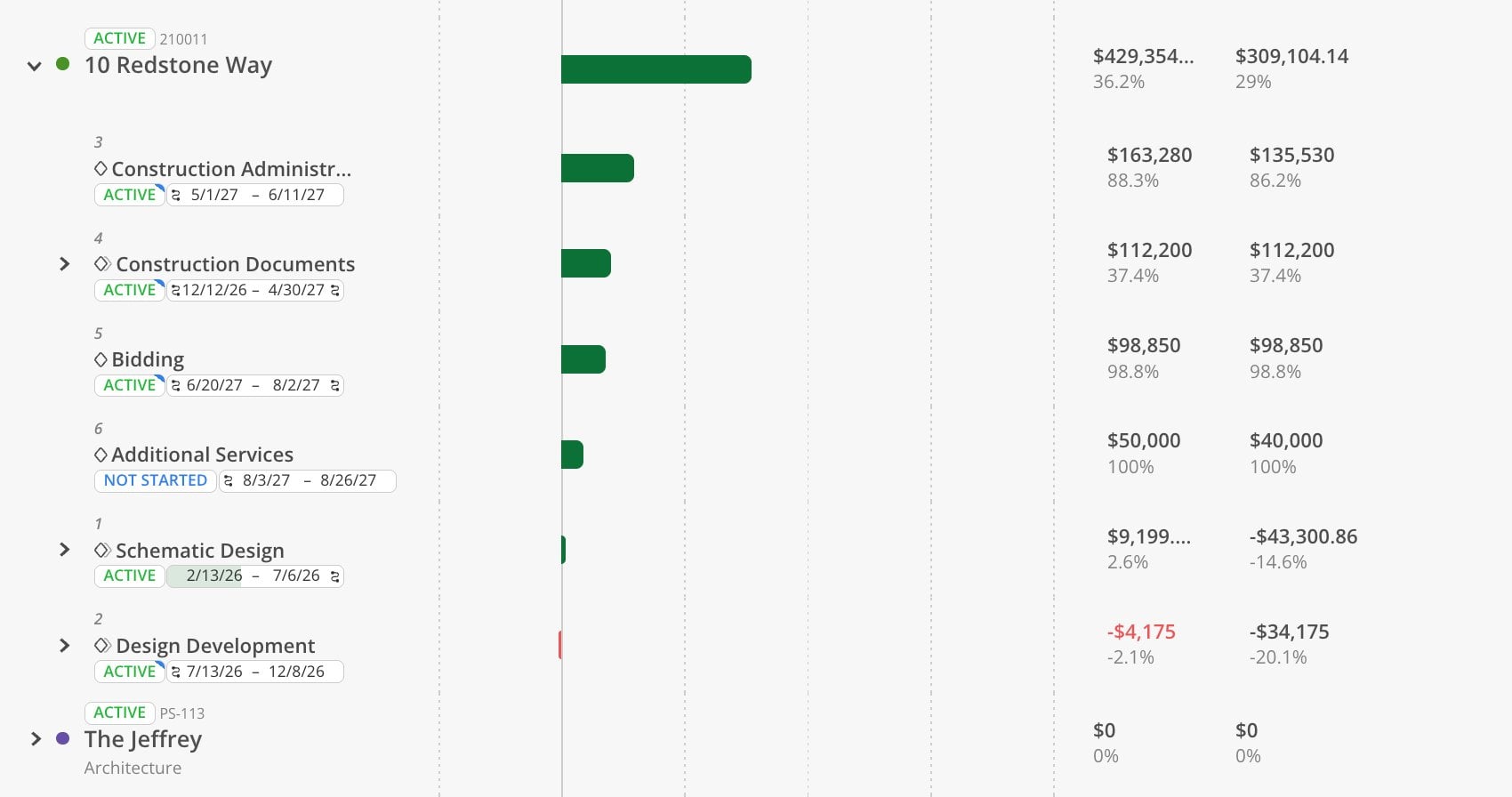
Expand a project to see phase-level profit breakdowns. Each phase shows its own Fee Profit and Budget Profit columns, with negative amounts in red for phases that have exceeded their fee or budget.
Tips
Be cautious with early-stage projects — A project that just started may appear highly profitable simply because little time has been spent yet. The percentages will normalize as work progresses.
Watch for red bars — Any project with a red bar extending to the left of the $0 line has exceeded its fee or budget and is losing money.
Fee Profit vs. Budget Profit — Fee Profit tells you whether you are making money on the contract. Budget Profit tells you whether you are staying within your internal cost estimate. Both can differ significantly.
0% and $0 means no fee or budget is set — If both columns show $0 and 0%, the project likely needs its fee and budget entered.