This report provides a monthly calendar view of each member's time entry status. It shows daily hours entered as circular indicators, time off days, weekly totals, and allows you to set recurring reminders directly from the report. You can filter by entry status: Entered, Submitted, or Approved.
Use the Timesheet Status Report when you need to answer: "Who has not filled out their timesheets this week or this month?" This is the report for managers or admins who need to ensure time is being logged consistently. Use it at the end of each week or month to identify incomplete entries and send reminders before deadlines.
Monthly Calendar
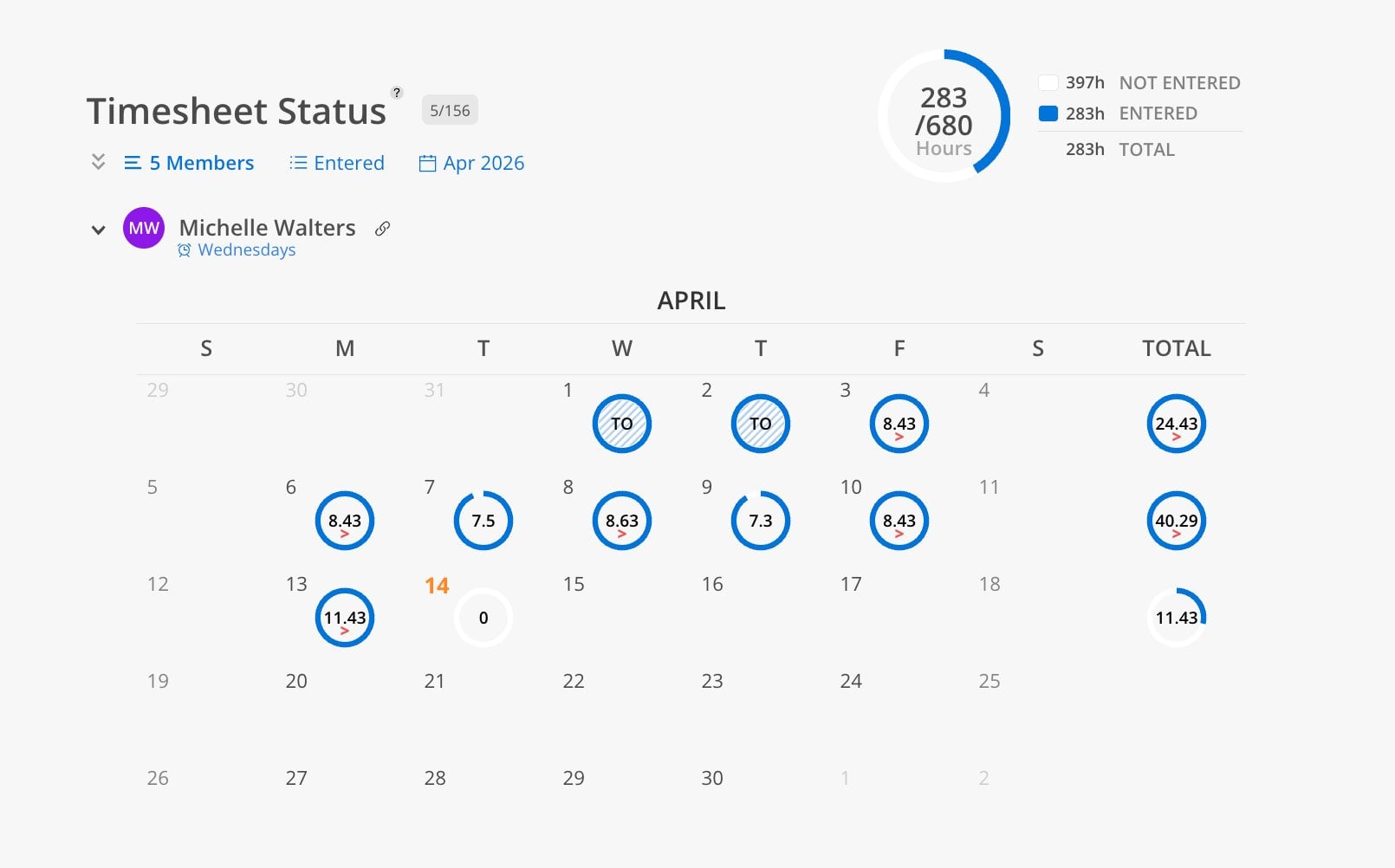
Each member gets a monthly calendar showing their daily time entry status:
Blue circles = hours entered that day. The circle fills proportionally — a full circle means a full day logged.
Small red arrow below a circle = hours logged are over or under expected daily capacity
Hashed circles labeled "TO" = time off days
Weekly total column on the right = sum of hours for that week
Summary Gauge (top right)
Shows total hours entered vs. total expected hours (e.g., 283/680 Hours)
Breaks down into Not Entered, Entered, and Total
Controls
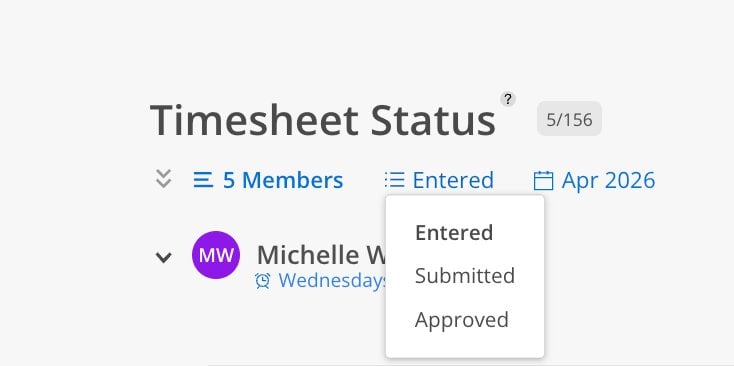
Status filter dropdown — toggle between Entered, Submitted, or Approved
Reminder icon — alarm clock with the day of the week (e.g., "Wednesdays") showing recurring reminders
Link icon — next to the member name for quick access to their profile
Click the status dropdown (e.g., "Entered") at the top.
Choose Entered, Submitted, or Approved.
The calendar updates to show only entries in that status.
Open Reports > Timesheet Status.
Find the member who needs a reminder.
Click the alarm clock icon next to their name.
Select the day of the week for the recurring reminder (e.g., Wednesdays).
The member will receive an email and in-app notification on that day each week to complete their timesheets.
Once set, the reminder day appears below the member's name (e.g., "Wednesdays"). Reminders require email notifications to be enabled for the member.
Find the member with incomplete entries.
Click the notification icon next to their row.
The member receives an immediate email and in-app notification.
Use the status filter for approval workflows — Switch to "Submitted" to review entries waiting for your approval, or "Approved" to confirm what has already been processed.
Check the summary gauge — The total hours vs. expected hours ratio at the top right gives you an instant sense of how complete the month is across all selected members.
Small red arrows indicate variance — If a daily circle has a small red arrow, the member logged more or less than their expected daily capacity for that day.
