The Planner Space lets you view and manage your projects on a visual timeline. Pull up one project or many, set phase dates and dependencies, assign team members, create work plans, and track milestones — all in one place. Unlike the Workload Space (which shows capacity member by member), the Planner organizes everything project by project.
This is the space where project managers, team leads, and principals do the bulk of their project-level planning. It connects directly to the Workload space and the Budget space, so changes you make here are reflected across Mosaic in real time.
This is the best place to go when you want to answer questions like:
What does the schedule look like for my projects?
Who is assigned to each phase, and for how long?
Are any milestones or deadlines coming up soon?
Do I need to add more people to a project?
Is a phase tracking on budget based on current plans?
Who on my team is available to take on new project work?
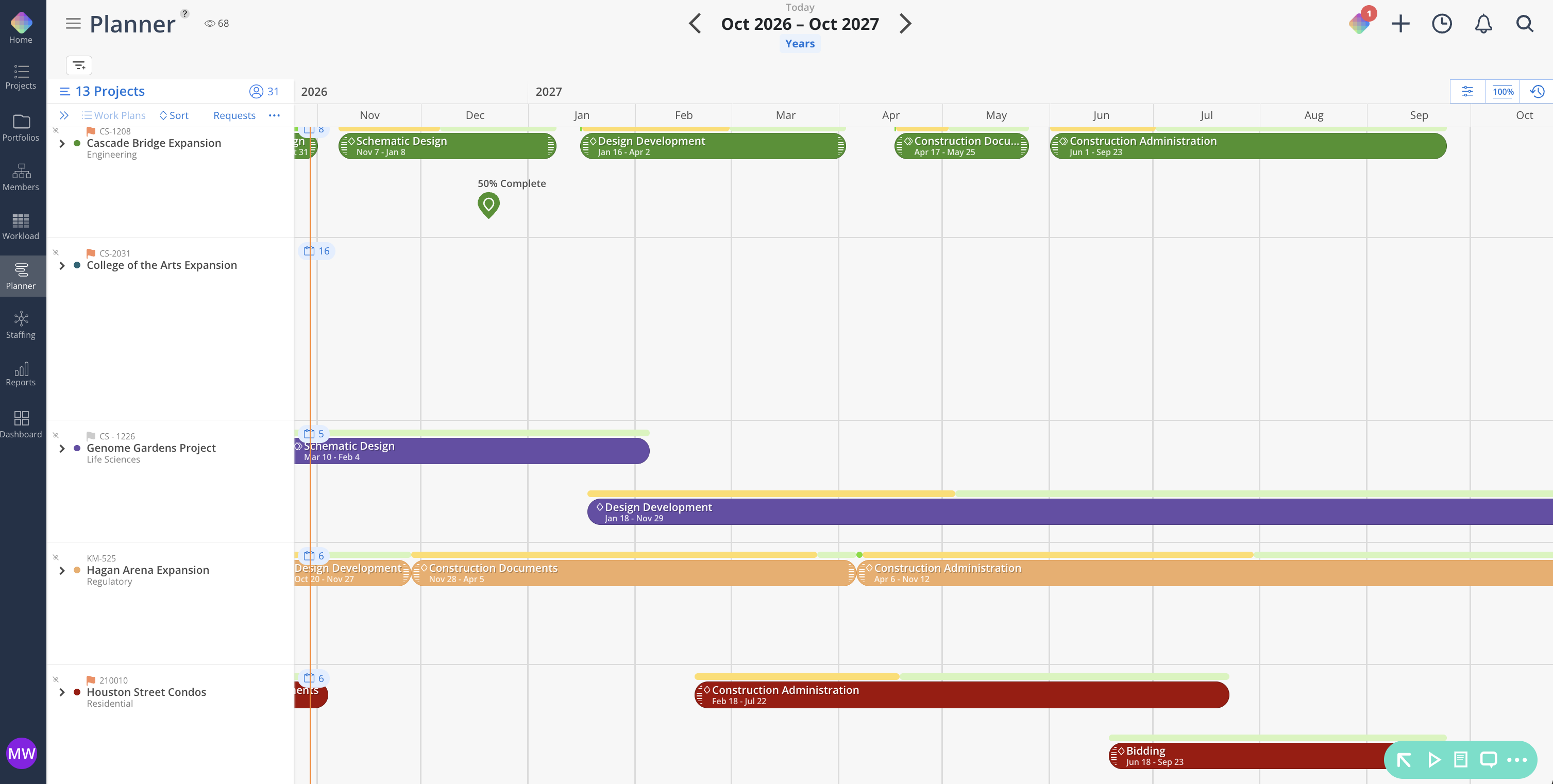
The Planner Space has a left-hand project list with filtering options and a timeline view on the right showing phase bars, work plans, and milestones across a calendar.
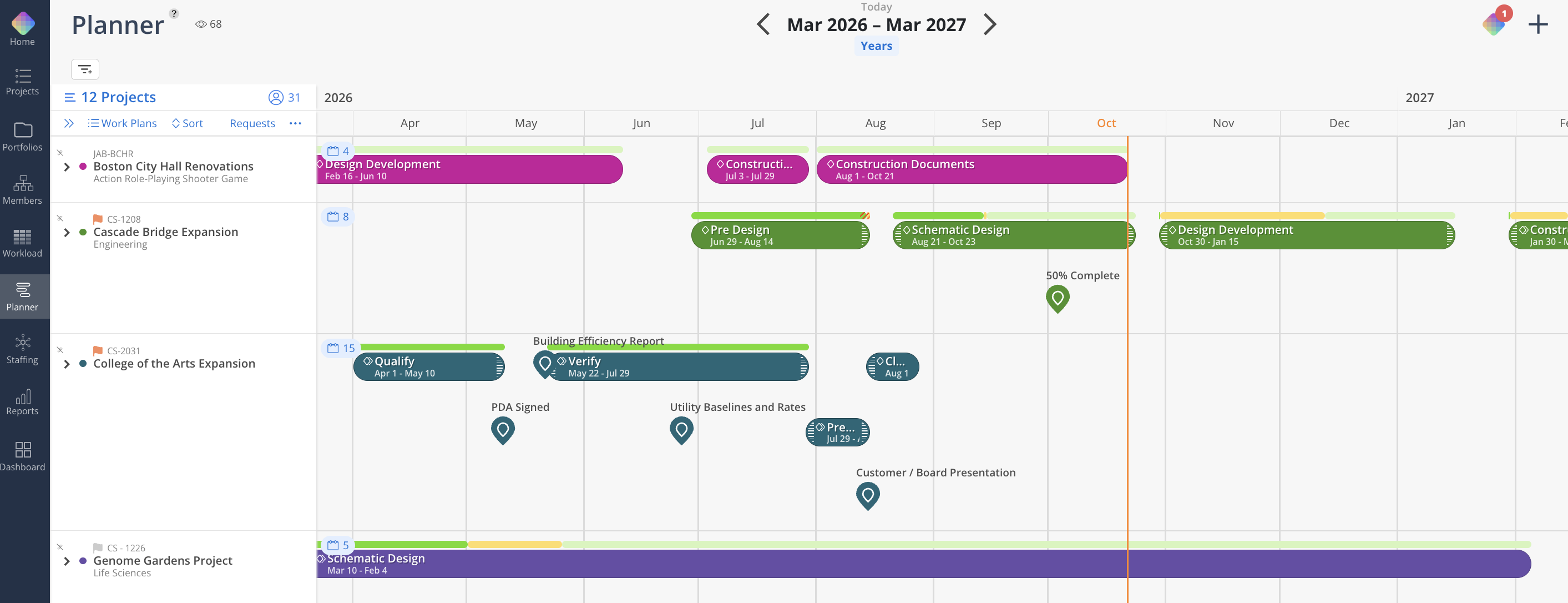
Pull up the projects you need to plan using search, portfolios, or filters. Hot tip: Star your most-used projects for quick access.
Search by project name or number
Filter by project manager, client, or portfolio
Layer your filters to drill down as needed
Use starred projects as a personal shortcut
Select multiple projects to view side by side
👉 Learn more about Selecting and Filtering Projects
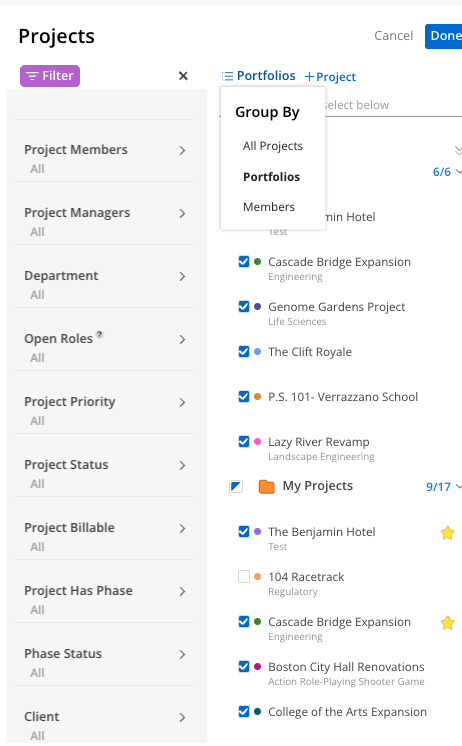
Set start and end dates for each phase, track work days, establish baselines, and build dependencies between phases to create a connected project schedule.
Set date ranges on phases and subphases
Track baseline work days and schedule variance
Drag and drop phase bars to adjust dates
Create dependencies between phases (matching or waiting)
👉 Learn more about Project Schedule Management
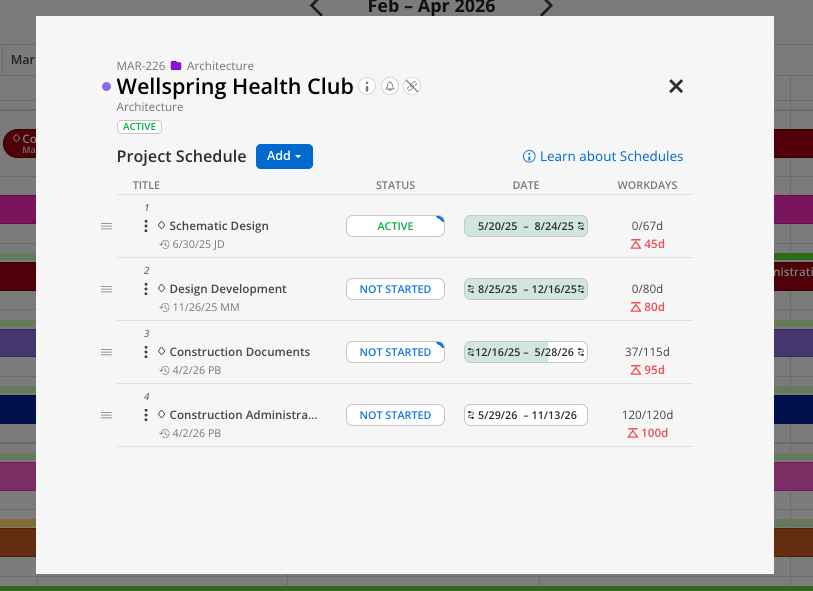
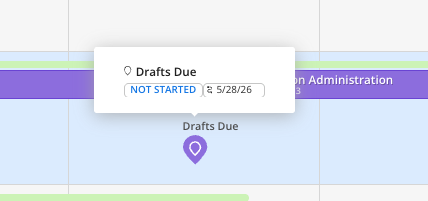
Add milestones to your project schedule to track key deliverables, deadlines, and checkpoints. Use standard org-wide milestones or create custom ones per project.
Add custom milestones with specific dates
Use admin-defined standard milestones as a pick list
Track milestones visually in the calendar timeline
Set dependencies on milestones
👉 Learn more about Milestones
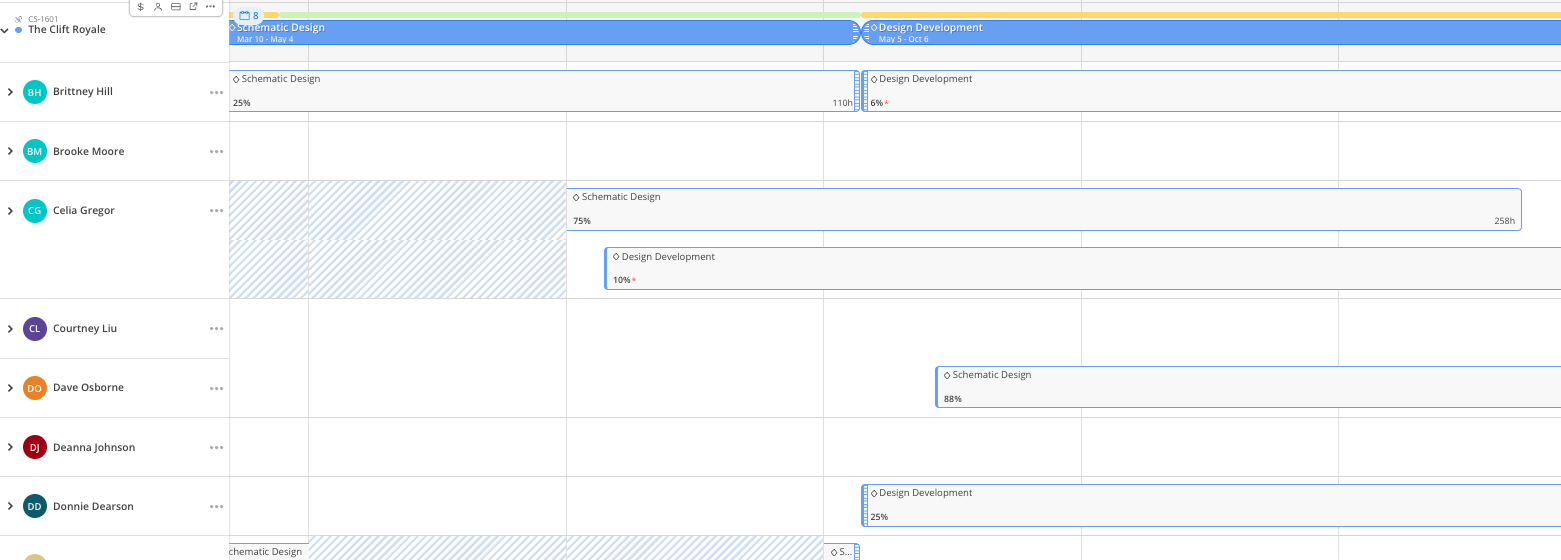
Create and manage work plans at the project level. Assign hours, set date ranges, and link work plans to phase schedules so everything moves together.
Create work plans for team members on specific phases
Schedule by percentage, hours per day, hours per week, or total hours
Lock in a constant (hours, weeks, or total) and adjust the rest
Set work plan dependencies to phase start and end dates
👉 Learn more about Work Plans in Planner
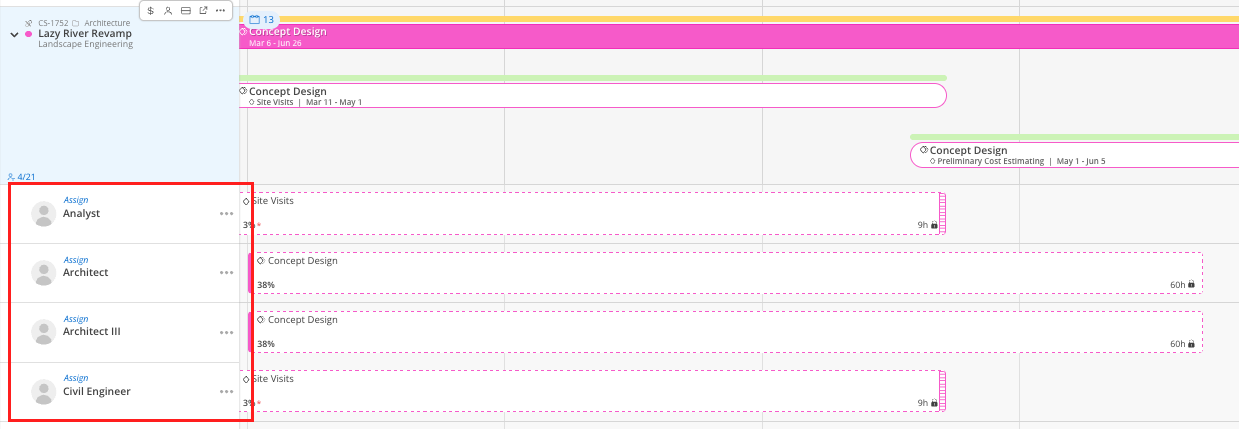
Plan time for roles you need but haven't staffed yet. Add a generic resource, schedule their work plan, then assign it to a real team member when ready.
Add open roles by role type (i.e., Architect, Designer)
Create work plans for open roles- just like named members
Assign the role to a specific person when ready — they inherit the work plans
👉 Learn more about Open Roles and Generic Resources
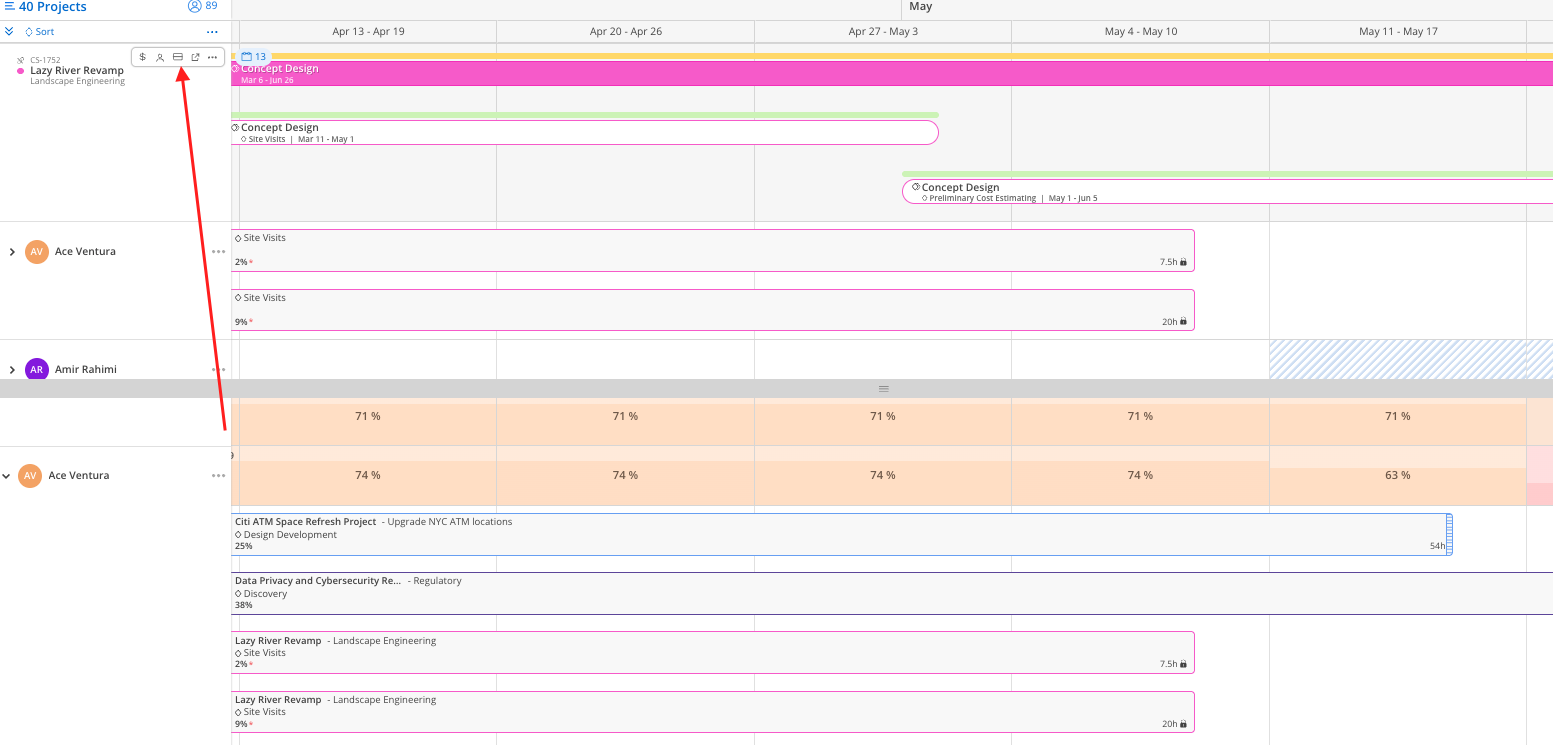
Open a split screen to see your project plans alongside team member capacity from the Workload space. Identify who has bandwidth before assigning new work.
View project schedule on top, member workload on bottom
Condense row heights to see more members at once
Quickly identify who is available to take on work
Make staffing decisions based on real-time capacity data
👉 Learn more about Member Availability Split View
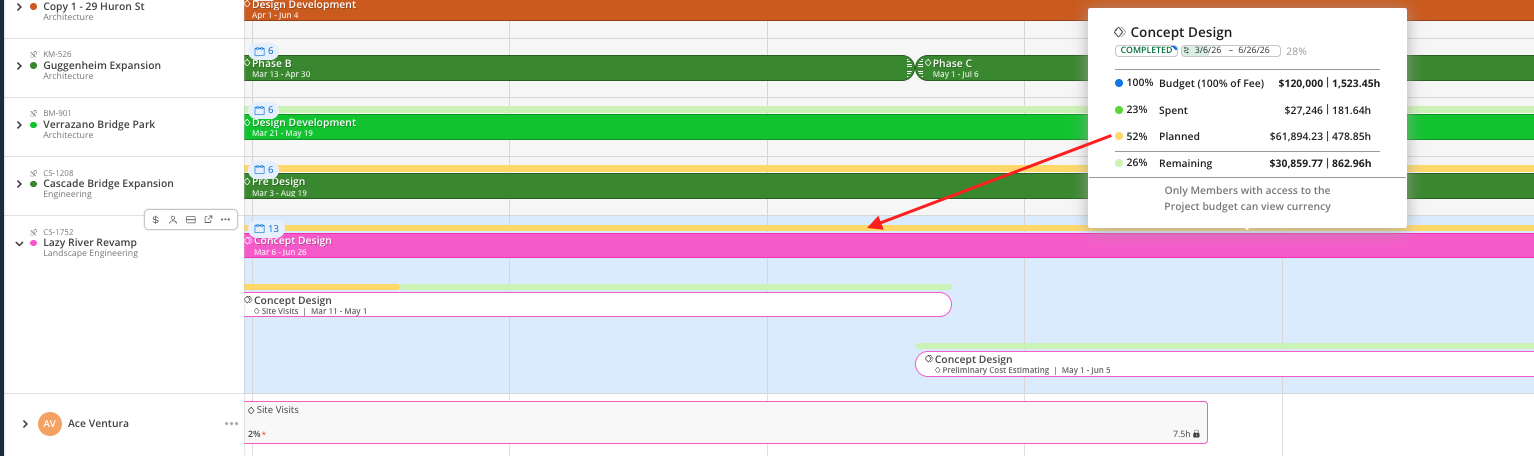
For users with budget manager access, a color-coded bar on each phase shows a quick gauge of budget health — spent time, planned time, and remaining budget — right from the Planner.
Green indicates time already spent
Yellow indicates future planned time
Light green indicates remaining budget
Red indicates plans that exceed the phase budget
👉 Learn more about Budget Indicator
Switch between prebuilt views without leaving the space, so you can check capacity, work plans, or open roles from wherever you already are. Click the menu icon next to the space name to see the views you've added, or to add new ones from the All views picker. The same views are available from both Planner and Workload.
👉 Learn more about Views in Planner
Start in Planner for project-level work. Use the Planner to set up schedules and create work plans project by project. Use Workload for capacity-level decisions across the team.
Star your active projects. This keeps your most-used projects in one click in the starred portfolio at the top of the project list.
Set dependencies early. Linking phases to each other means the schedule adjusts automatically when dates shift.
Use open roles for unassigned work. Plan the hours first, assign the person later. This keeps your schedule realistic even before staffing is finalized.
Incorporate Mosaic into weekly meetings. Pull up the Planner in planning meetings to review schedules, adjust work plans live, and make decisions together.
