The Planner space shows every project’s schedule, team assignments, and work plans in one place. See phase timelines, milestones, and who’s assigned—then adjust plans in real time. All settings are personal—your view doesn’t affect anyone else’s.
Planner shows work from a project perspective. The Workload space shows the same data from a member perspective. Both are built on work plans—scheduled time assigned to a project or phase.
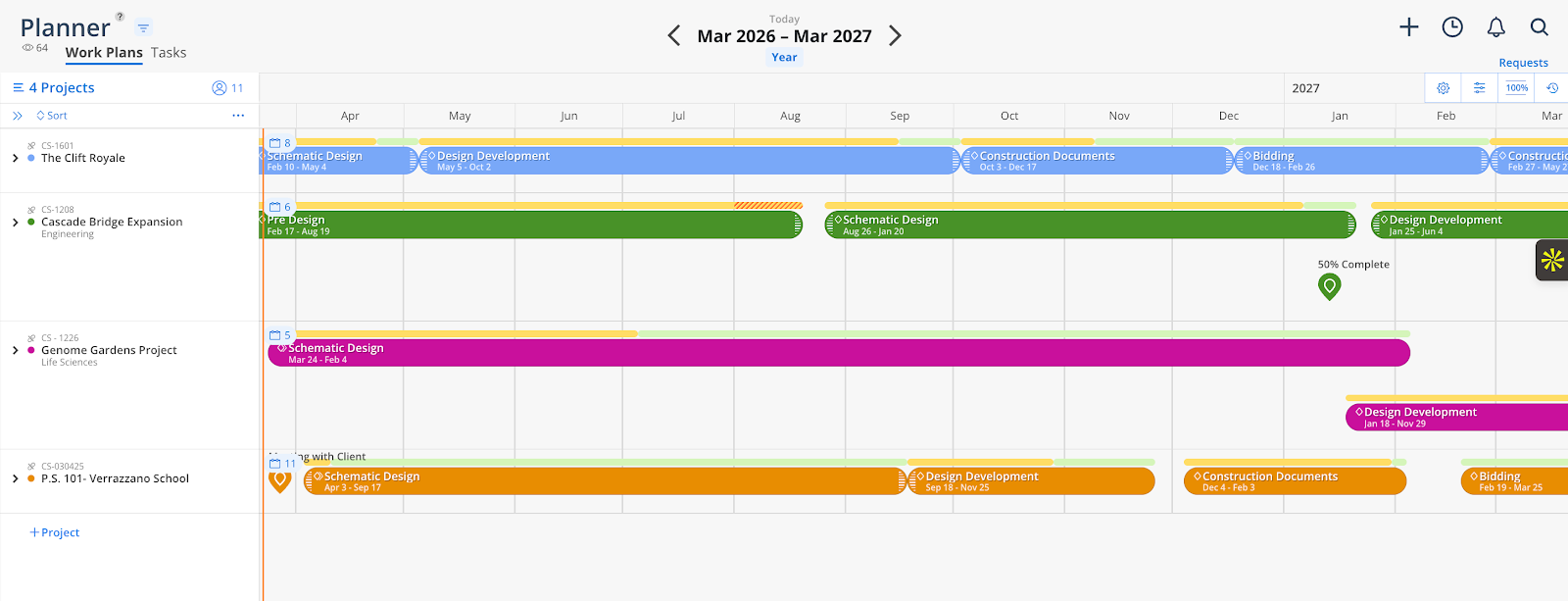
This is the best place to answer questions like:
What does the schedule look like for my projects?
Who is assigned to this project and when?
How is planned work impacting the phase budget?
Pick projects to view. Search by name or number, use portfolios, or filter by client and status.
👉 Learn more: Selecting and Filtering Projects
Set phase dates, baselines, dependencies, and milestones on each project’s timeline.
👉 Learn more: The Project Schedule
Add or remove project members, create generic resources, and assign open roles when availability is clear.
👉 Learn more: Managing Members and Open Roles
Schedule time for members or open roles on a project. The project is pre-selected—just pick the phase and allocate hours.
👉 Learn more: Creating Work Plans in Planner
Split-screen view combining Planner with the Workload heat map to identify who can take on work.
👉 Learn more: Member Availability
Customize your timeline view, toggle sub phases, adjust row height, and access the activity log.
👉 Learn more: Planner Settings and Display Options
Common questions about the Planner space.
👉 Learn more: Planner FAQ
Planner Overview — https://support.mosaicapp.com/en/articles/6
Selecting and Filtering Projects — https://support.mosaicapp.com/en/articles/294
Managing Phases — https://support.mosaicapp.com/en/articles/292
Phase Financials — https://support.mosaicapp.com/en/articles/291
Planner Display Settings — https://support.mosaicapp.com/en/articles/295
Work Plans — https://support.mosaicapp.com/en/articles/117
Star your active projects so they load instantly from the Starred portfolio.
Set phase dates early even approximate dates help the team see schedule overlap and budget impact.
Use dependencies for sequential phases so downstream dates shift automatically when earlier phases move.
Plan open roles when you know the need but not the person to keep projected work visible on the schedule.
