This is the best place to go when you want to answer questions like:
Who is working on this project?
When does each phase happen?
How should work be scheduled across the team?
How do phase dates affect staffing plans?
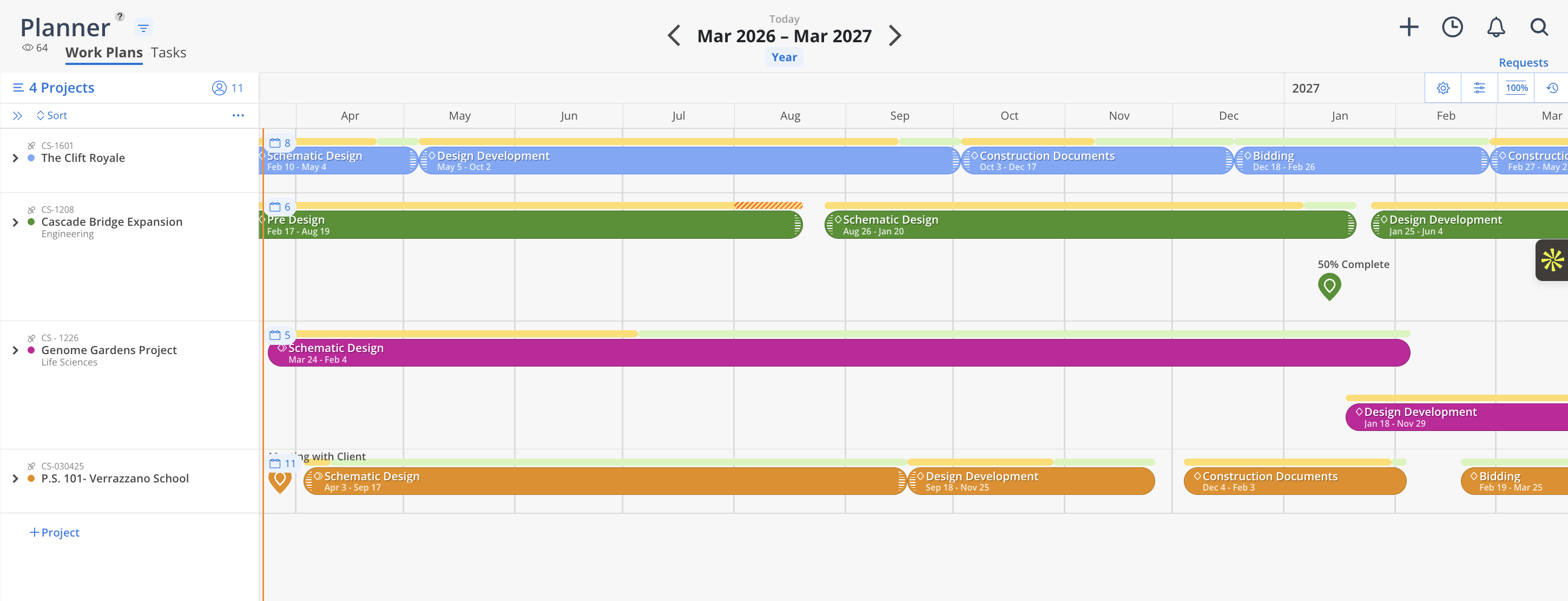
In the Planner space, each row represents a project, and you can expand those rows to see the team members assigned to the work.
Planner is especially useful for:
Project managers
Principals
Team leads
Anyone responsible for building or maintaining project schedules
It helps you coordinate project work while still keeping staffing decisions connected to team capacity.
When you first open Planner, select the projects you want to work with from the left sidebar.
You can find projects by:
Searching by project name or number
Selecting from starred projects
Using your My Projects list
Filtering by project manager, client, or other project details
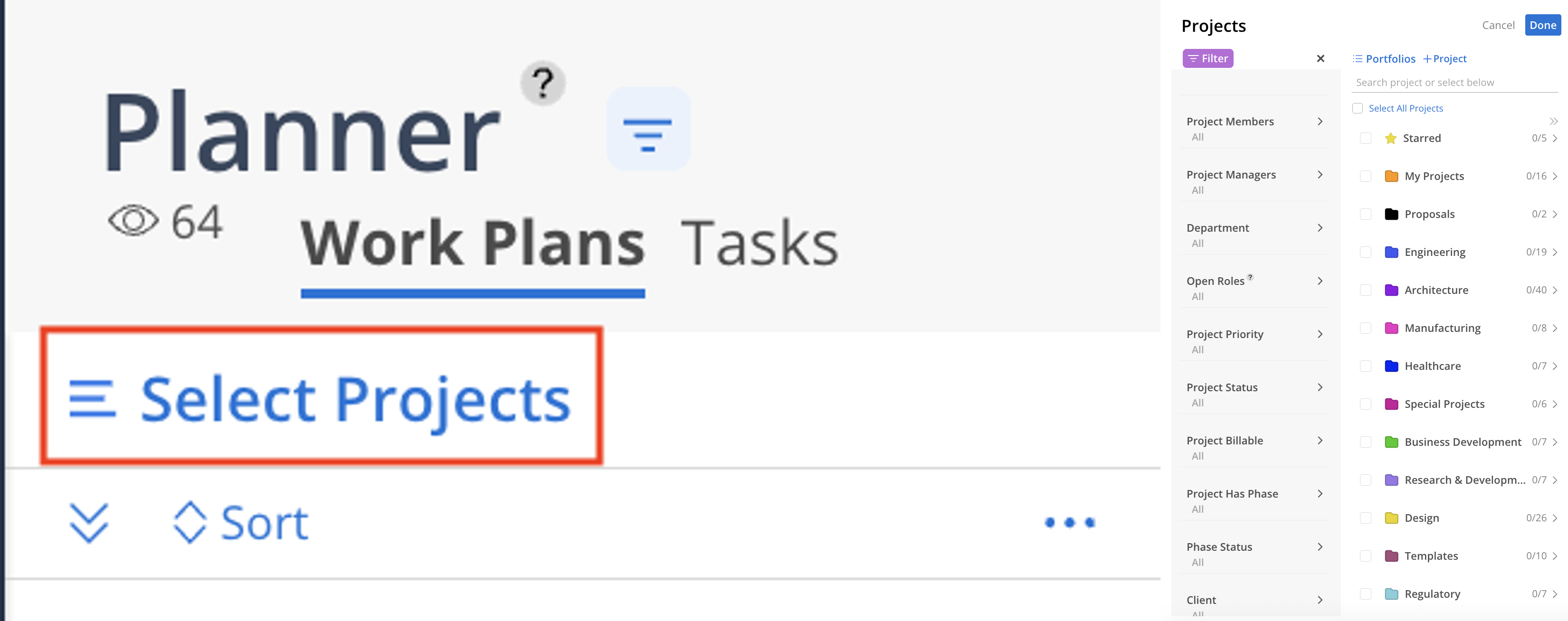
This makes it easy to focus only on the projects relevant to you.
Planner gives you a timeline-based view of your project schedule.
From here, you can:
Review project phases
Add or adjust work plans
Assign team members
Build schedules using phase dates
See project work across time in one place
Unlike Workload, which is centered on people, Planner is centered on the project.
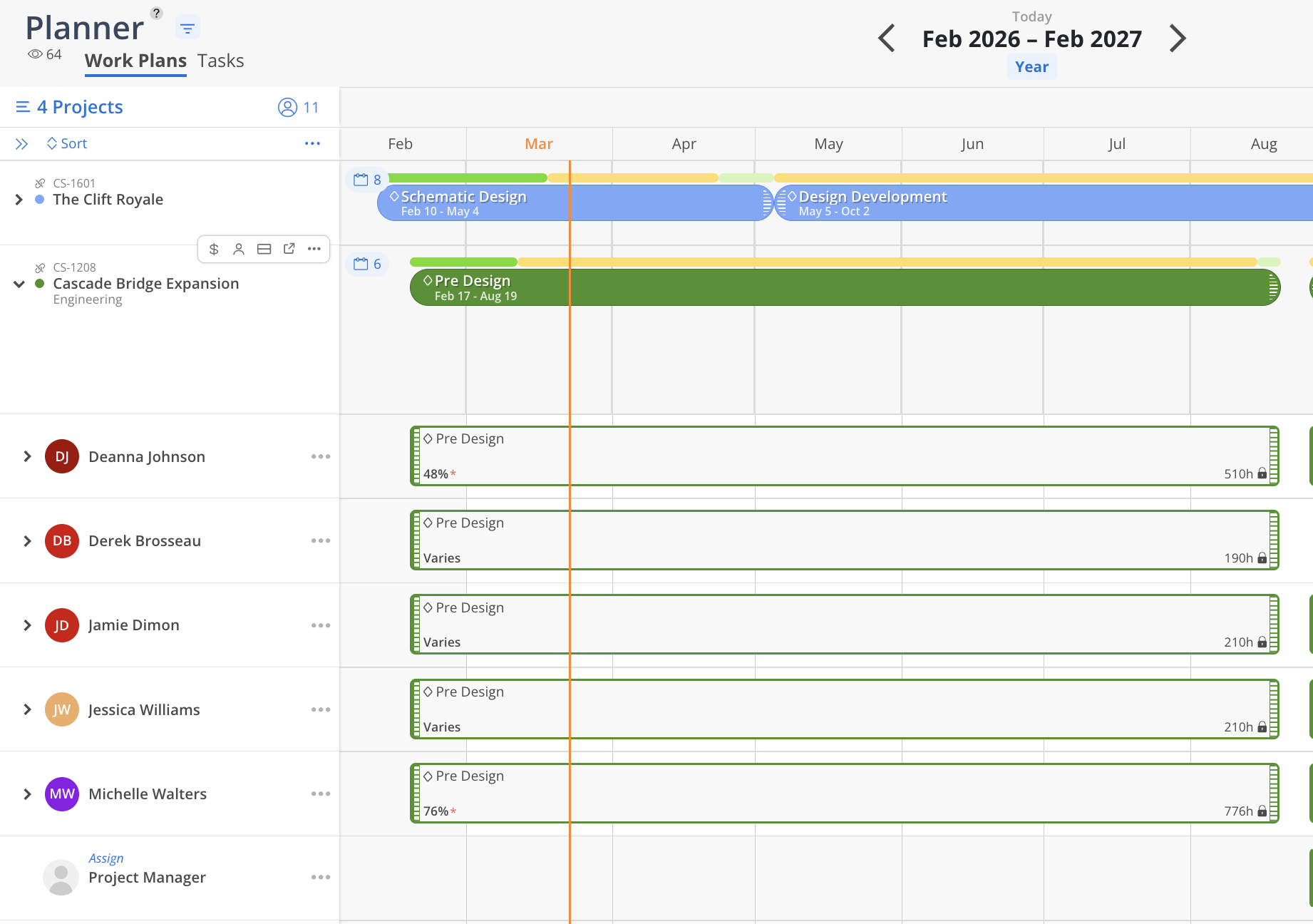
To get the most value from Planner, start by adding dates to your project phases.
When phases have dates, Mosaic can display them visually in the timeline, making it easier to understand:
When each phase starts and ends
How phases relate to one another
What work is active at the same time
How schedule changes affect the project
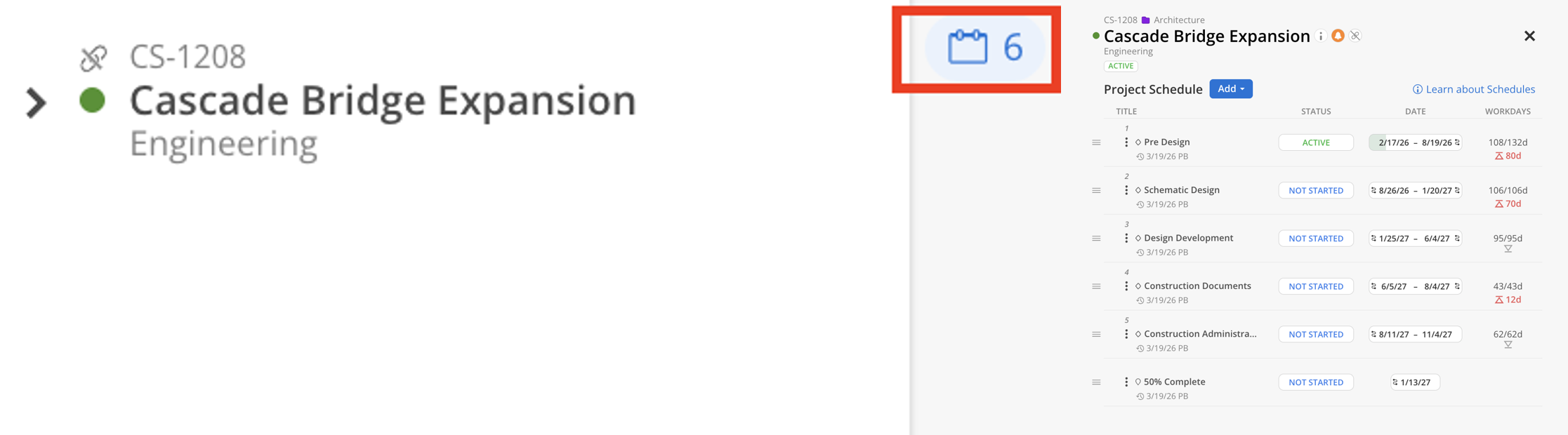
Without dates, phases can still exist, but you lose a lot of the visual scheduling value of the Planner space.
If one phase should begin only after another phase is complete, you can link them with dependencies.
For example, you may want:
Schematic Design to begin after Data Collection ends
Construction Documents to begin after Design Development is complete
You can choose whether the next phase:
Starts on the same date the previous phase ends
Starts after a waiting period or buffer
Once a dependency is created, if the earlier phase shifts, the dependent phase will shift as well.
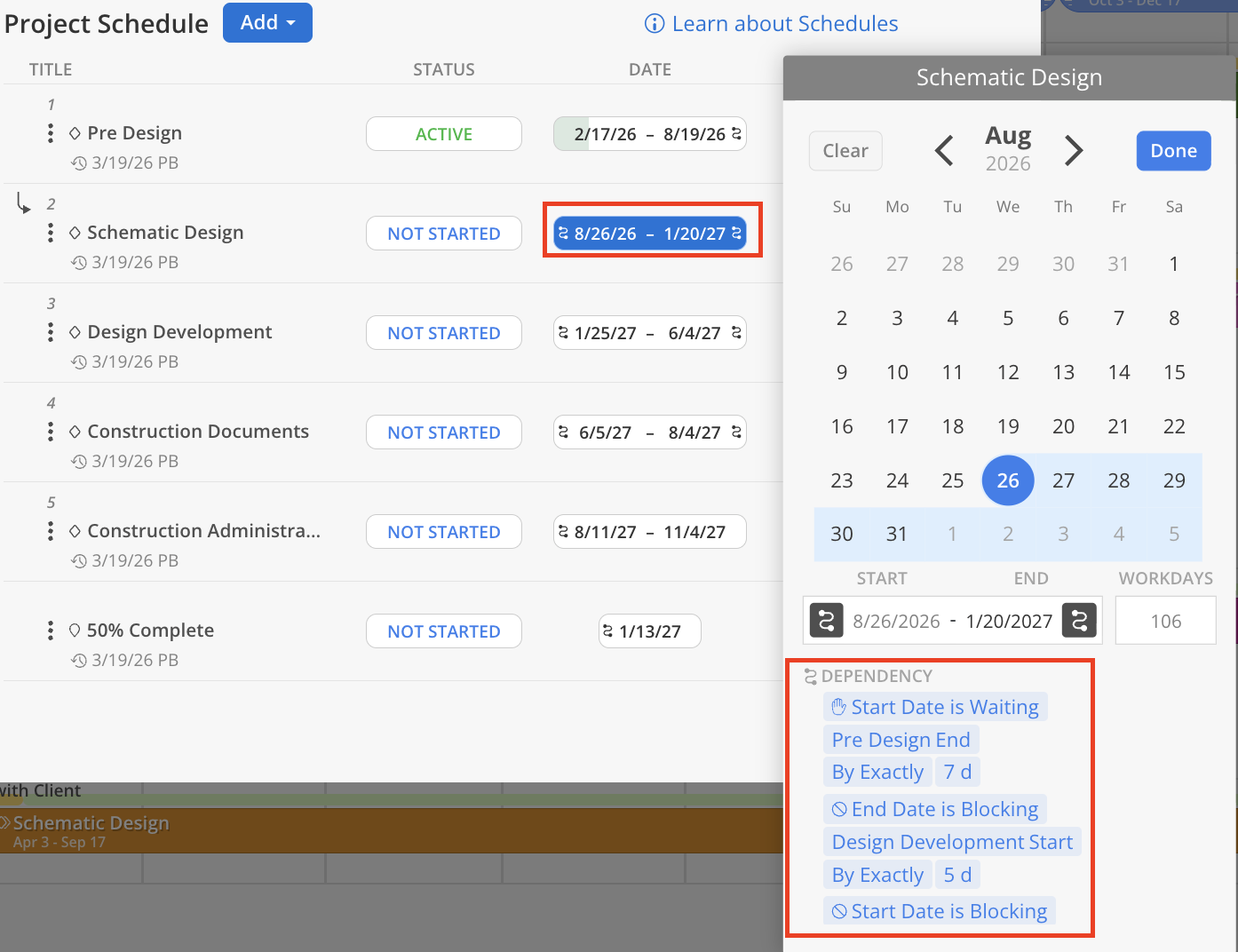
This helps maintain a more realistic schedule as project timelines evolve.
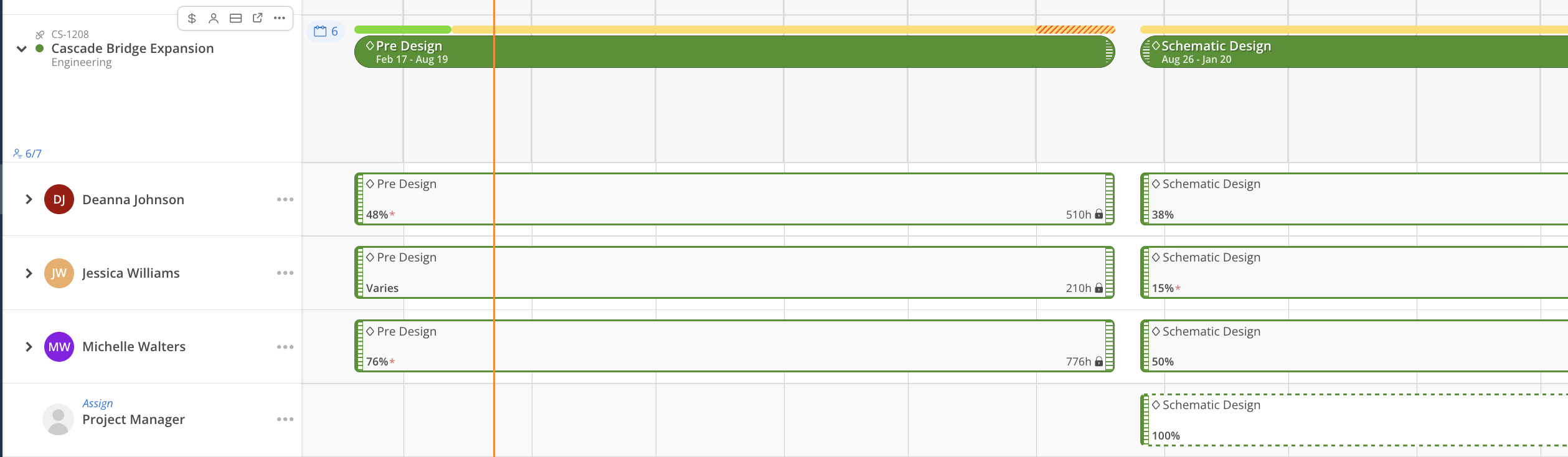
Within Planner, you can expand a project or phase and add the team members who will be working on it.
From there, you can create work plans directly in the project view by selecting the row next to a members name.
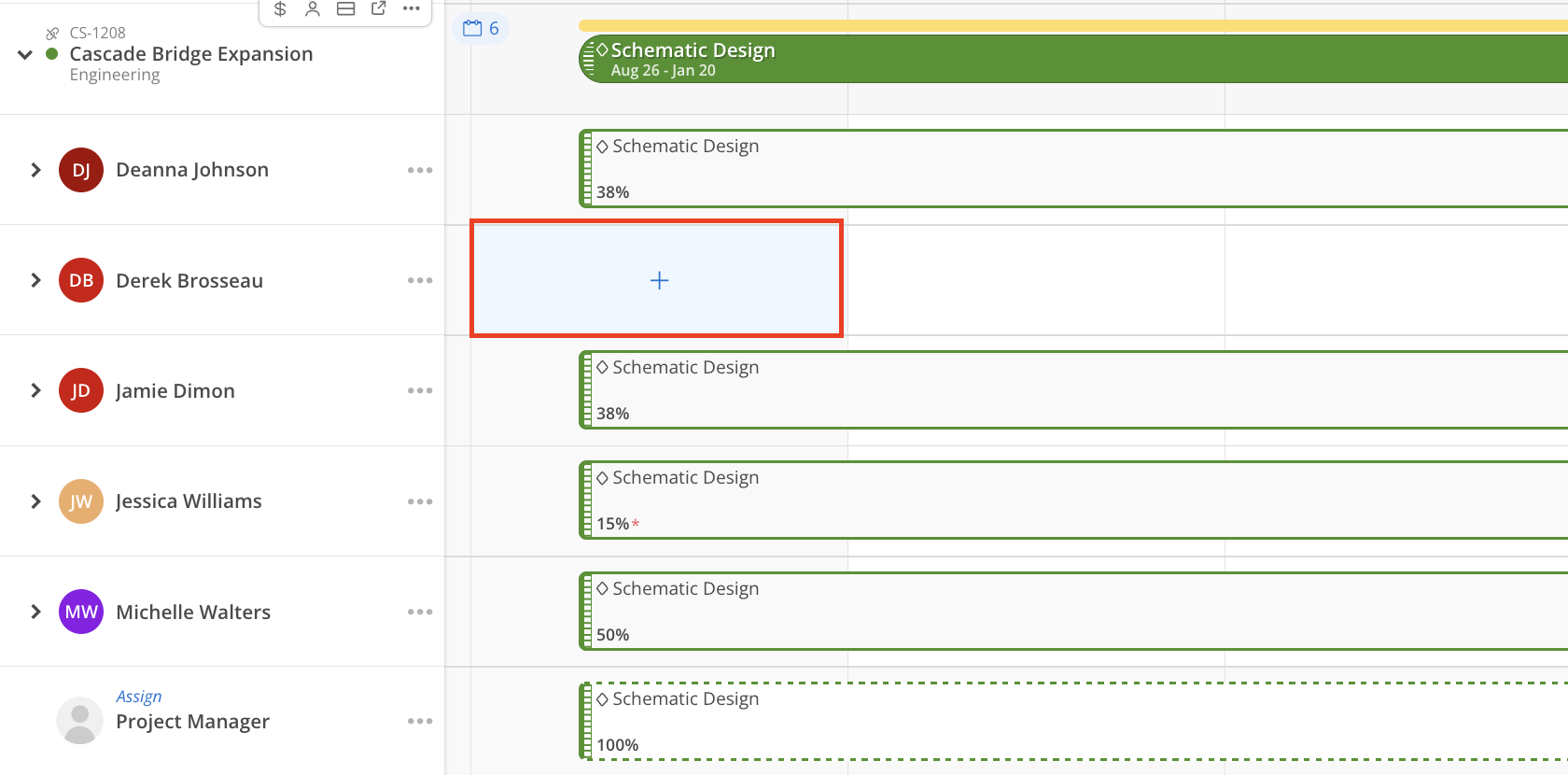
This is a great workflow for project managers who prefer to plan from the perspective of the project rather than the person.
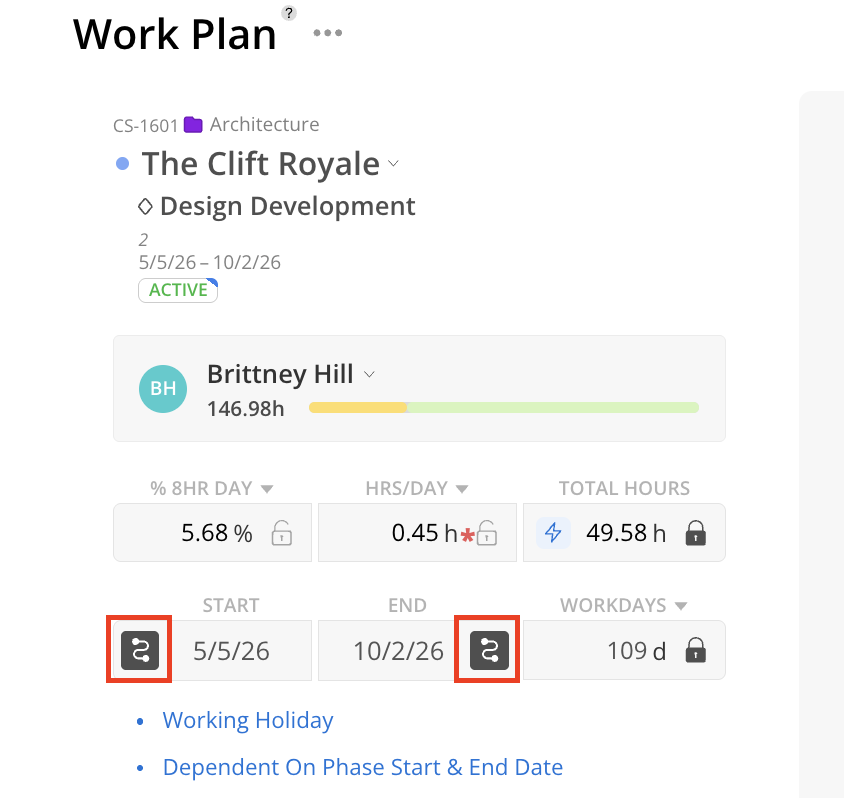
When a phase already has dates, you can tie a work plan to that phase schedule.
This means the team member’s work plan can automatically align with the phase start and end dates instead of relying on manually chosen dates.
This is especially useful when:
The project schedule is already defined
Work should always follow the phase timeline
You want staffing plans to move when the schedule moves
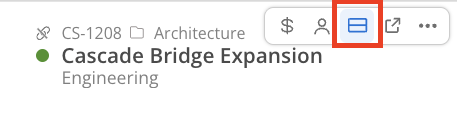
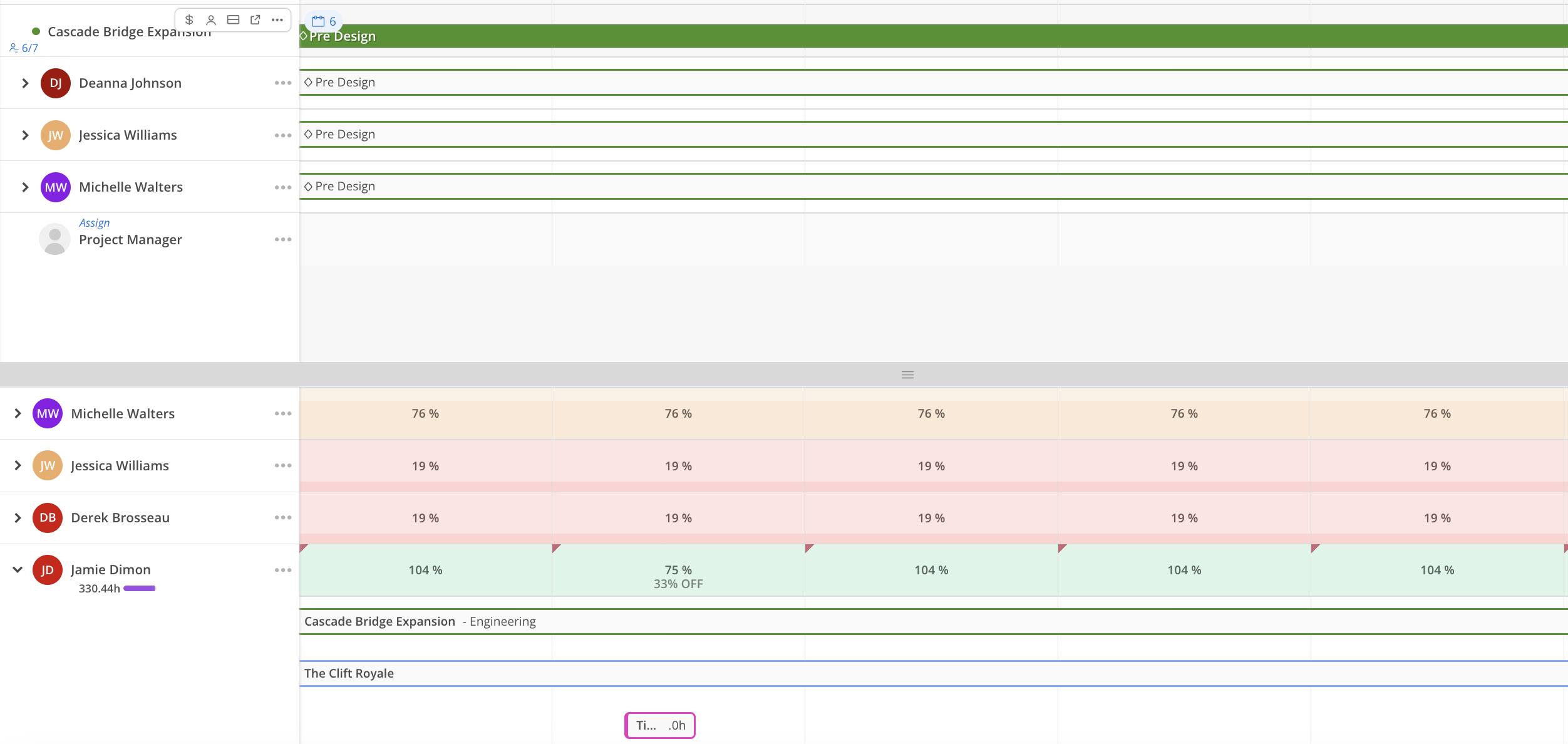
One of the most useful tools in Planner is the member availability split view.
This lets you see:
The project schedule on one side
A team member’s broader workload on the other
That way, even if someone looks free on a specific project, you can confirm whether they actually have availability across their full schedule.
This helps project leads make better staffing decisions without needing to jump back and forth between spaces.
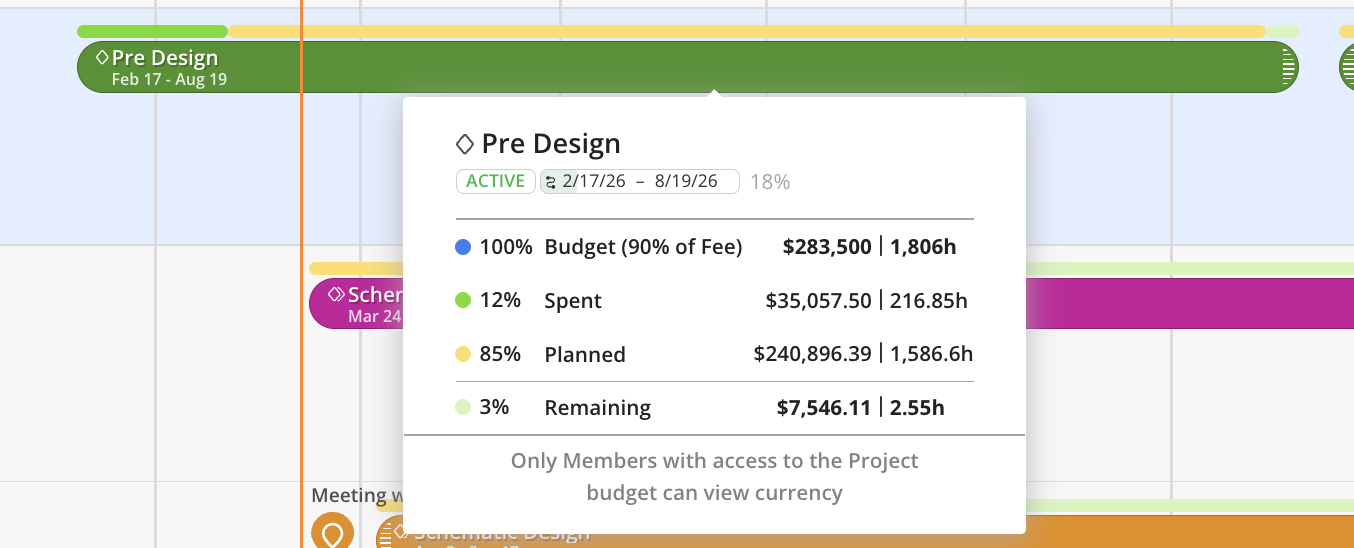
As planned work and time entries accumulate, Planner can also help you monitor progress at the phase level.
You can review:
Time already spent
Future planned work
Remaining budget
Whether a phase is still within budget
This gives project leads a clearer picture of how staffing and schedule decisions connect to project performance.
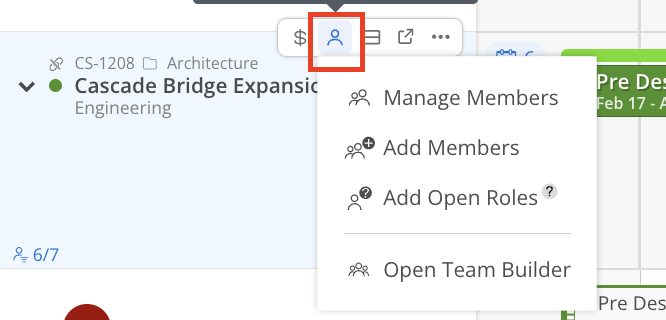
If you know exactly who will do the work, assign those named team members directly in Planner.
If you do not yet know the exact person, Mosaic also allows you to use generic resources or open roles. This can be helpful for early planning before staffing is finalized.
For teams that usually know the specific person assigned, named team members may be the most practical approach.
Just like in Workload, work plans in Planner are flexible and easy to manage.
You can:
Drag and drop plans
Extend or shorten them
Reassign them
Update the phase
Adjust the dates
Align them to dependencies and phase timelines
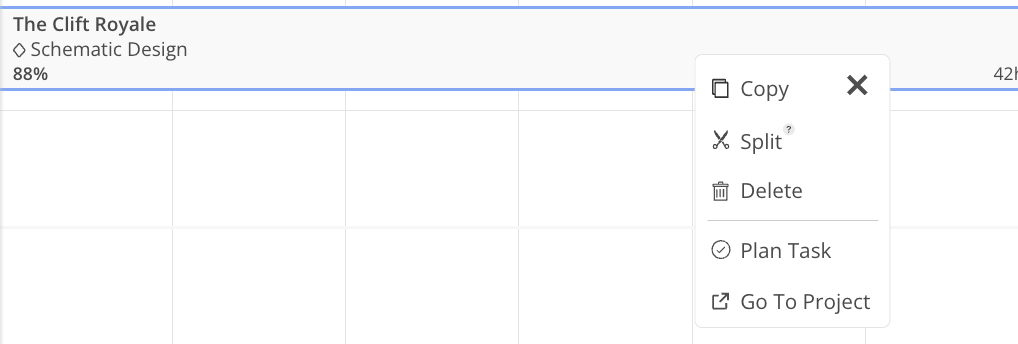
This gives project teams a straightforward way to keep plans current as scopes and schedules change.
When first using Planner, focus on building a simple but clear structure.
A strong starting point is to:
Select active projects
Confirm which phases should appear in Mosaic
Add start and end dates to key phases
Create initial work plans for the next couple of weeks
Use dependencies where phases are sequential
Check member availability before assigning additional work
This creates the foundation for more reliable project scheduling and resource coordination.
