The Display Controls panel combines all Planner visibility and planning preferences into one place. To open it, click the Display Controls icon (sliders icon) in the top-right of the Planner space.
Settings are organized into three sections: Members, Schedule, and Work Plans.

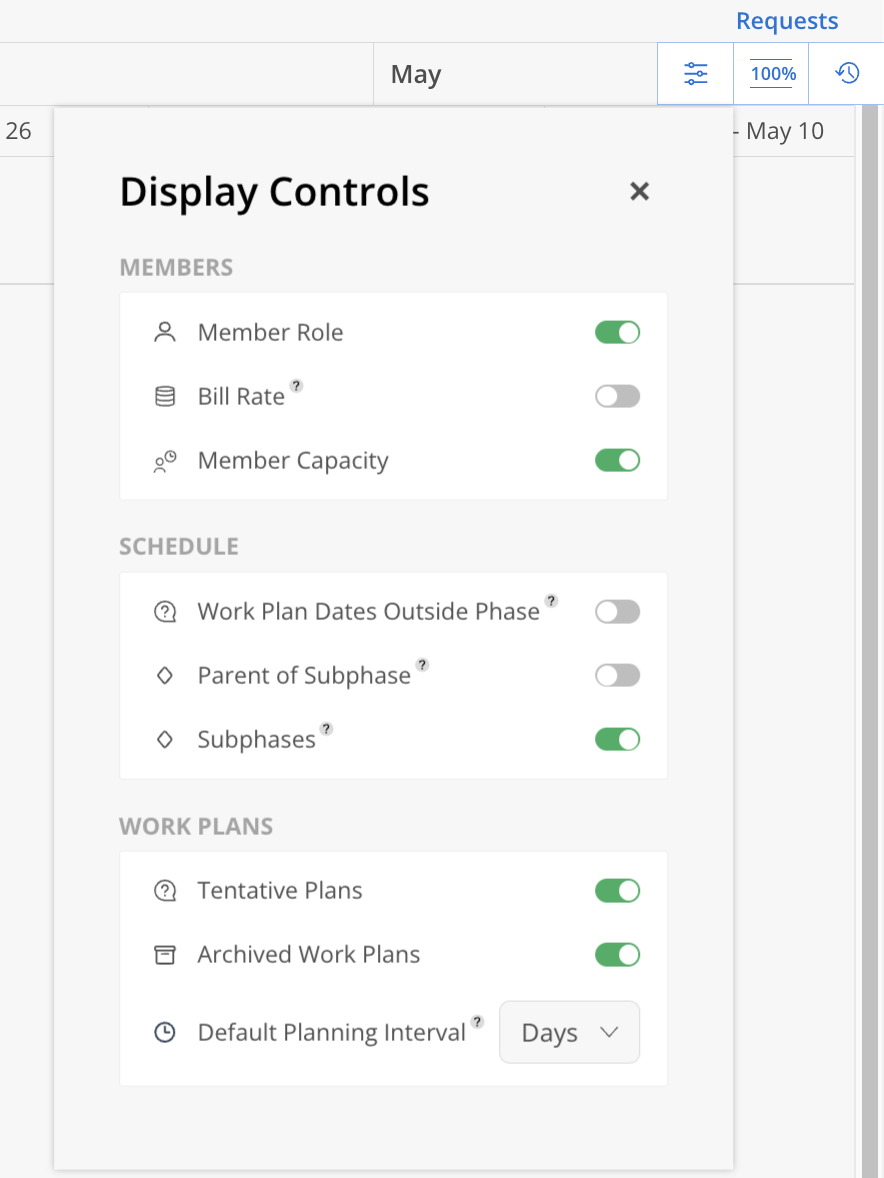
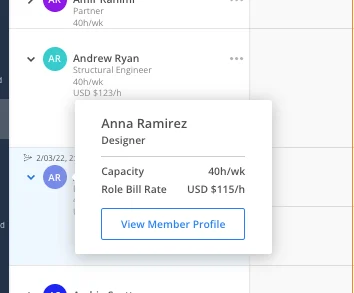
Control what information appears beneath each member's name in the left-side panel.
Member Role — Show or hide the member's role.
Bill Rate — Show or hide the member's default bill rate. The displayed rate reflects any Rate Multiplier applied to the project.
Member Capacity — Show or hide the member's default capacity.
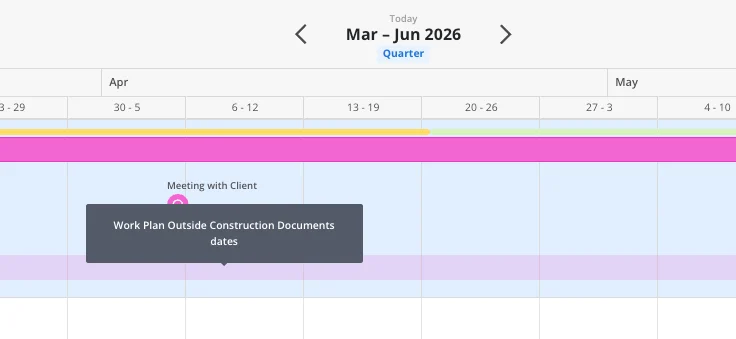
Work Plan Dates Outside Phase — When enabled, faded Phase, Subphase, and Work Plan bars are shown for assignments that fall outside the Phase's scheduled dates, making scheduling conflicts visible at a glance. If the phase has no planned date, the faded bar will also display when there is a Work Plan under this Phase. When disabled, only work within the Phase schedule is shown.
Parent of Subphase — When enabled, the parent phase name is displayed on a subphase Work Plan bar, so you can immediately see which phase a subphase belongs to.
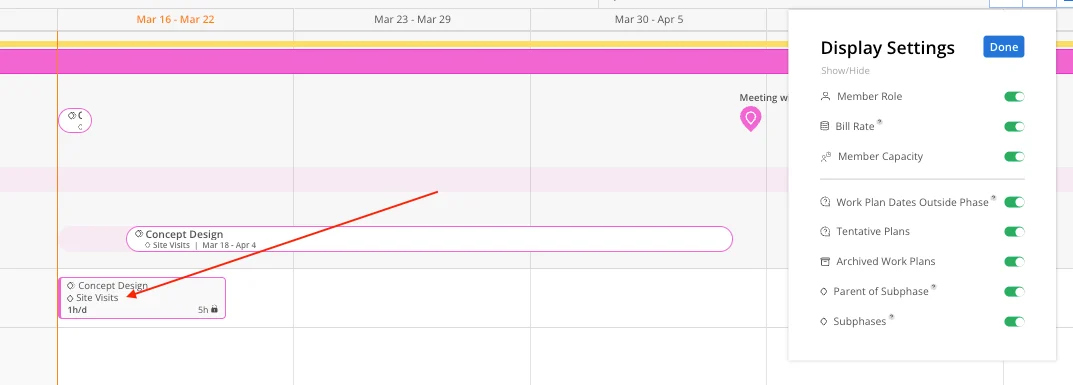
Subphases — Show or hide scheduled Subphase and Work Category bars on the Planner.
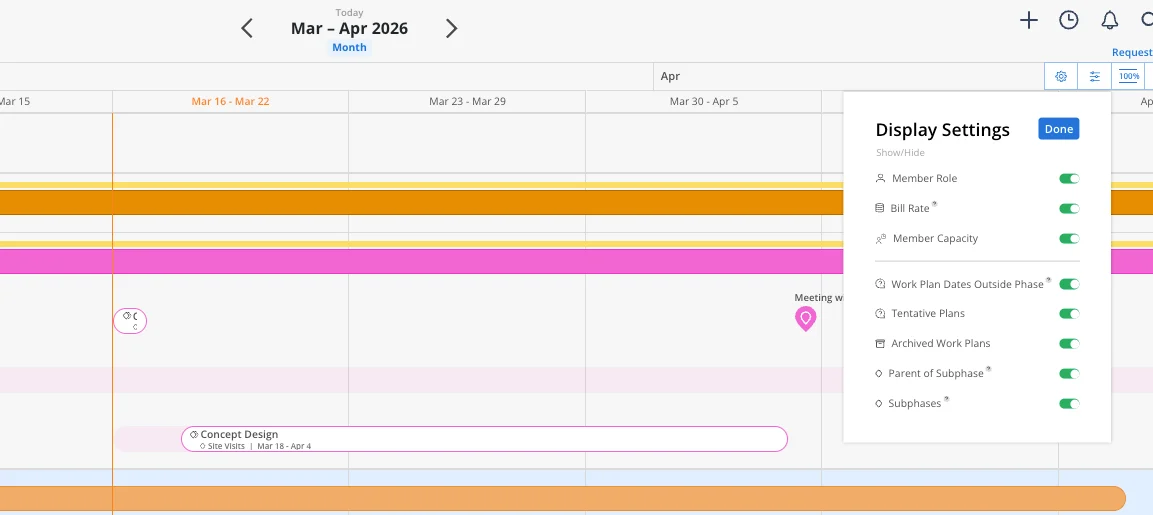
Tentative Plans — Show or hide Work Plans marked as tentative.
Archived Work Plans — Show or hide archived Work Plans.
Default Planning Interval — Sets whether new Work Plans default to Days or Weeks when scheduling time. Select your preferred interval from the dropdown.
