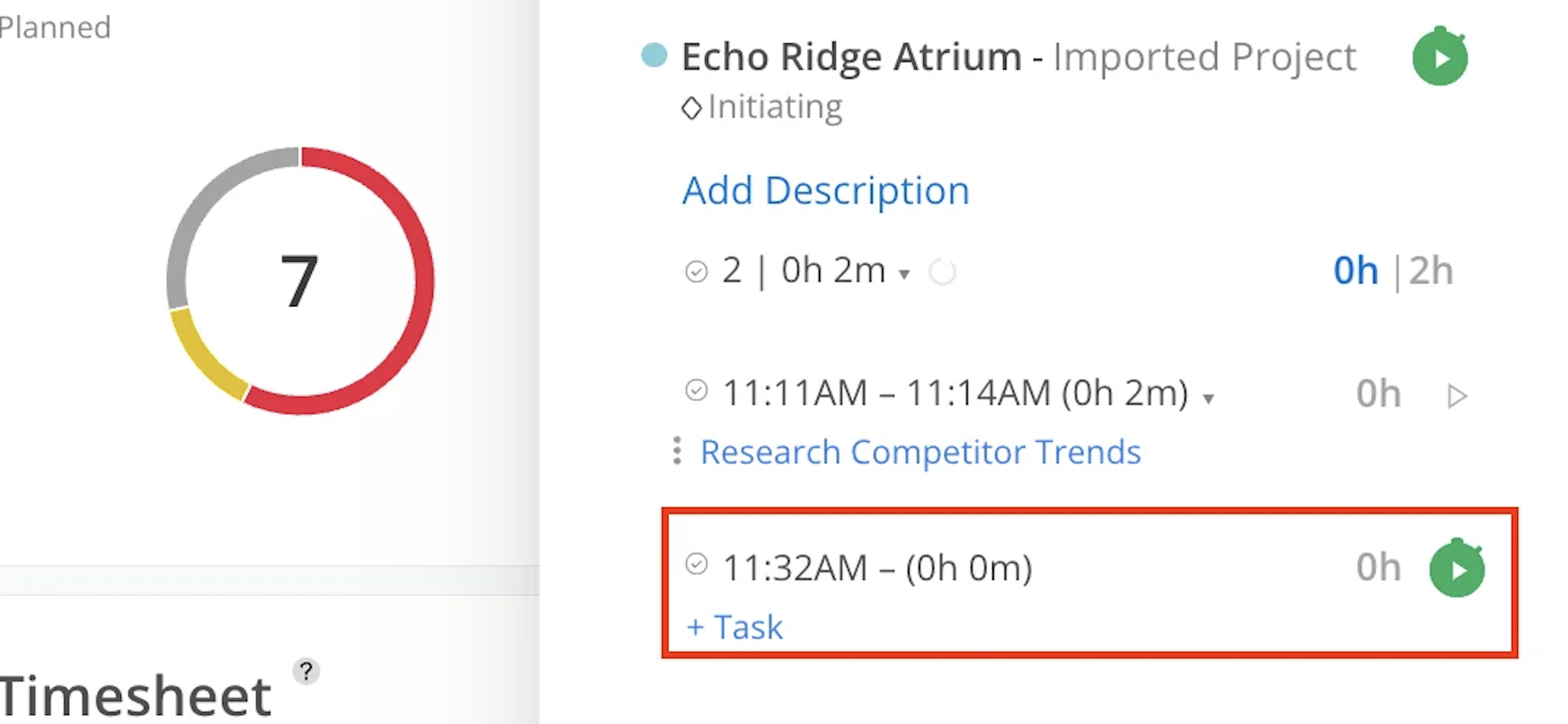
The Timer feature enables the tracking of daily Time Tracking, linking them to specific tasks. A timer can be started on any task to accurately record the time spent.
This functionality supports effective management and monitoring of daily productivity, helping to ensure tasks are completed efficiently.
For days with assigned Work Plans, Time Tracking are automatically created with the planned hours (gray text), and their associated timers are displayed in the list.
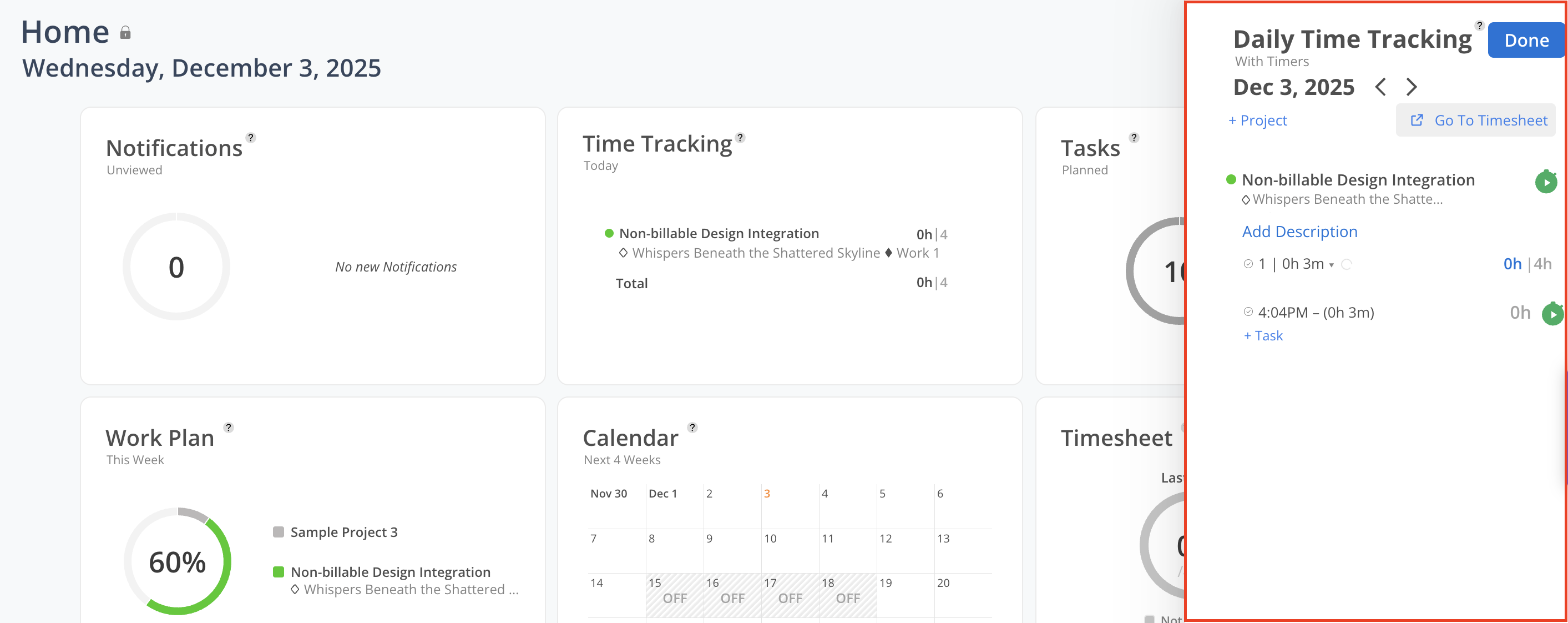
Use the arrows to navigate to other days.
To access your Timesheets, click the Go To Timesheet button on the top right.
Click the Done to close this drawer.
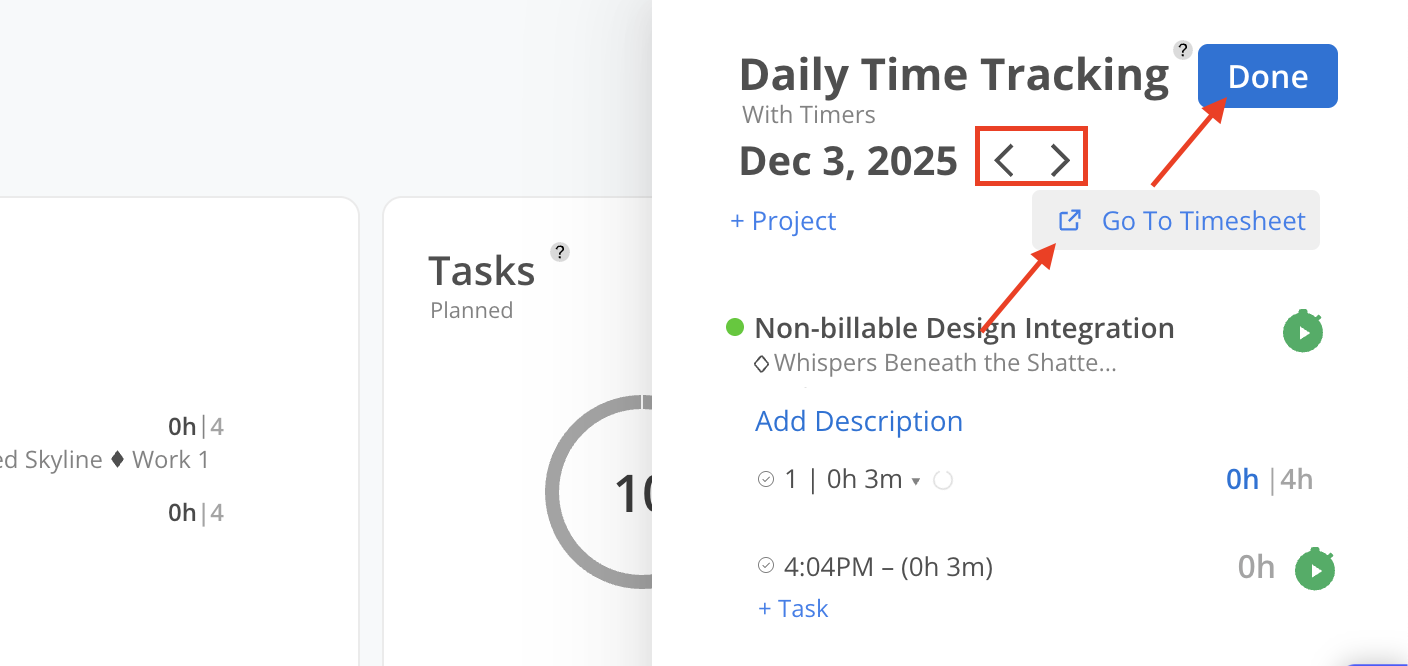
New Time Tracking can be added on this drawer without going to the Time Tracking page by clicking + Project to select the Project, Phase, Work Category (if any).
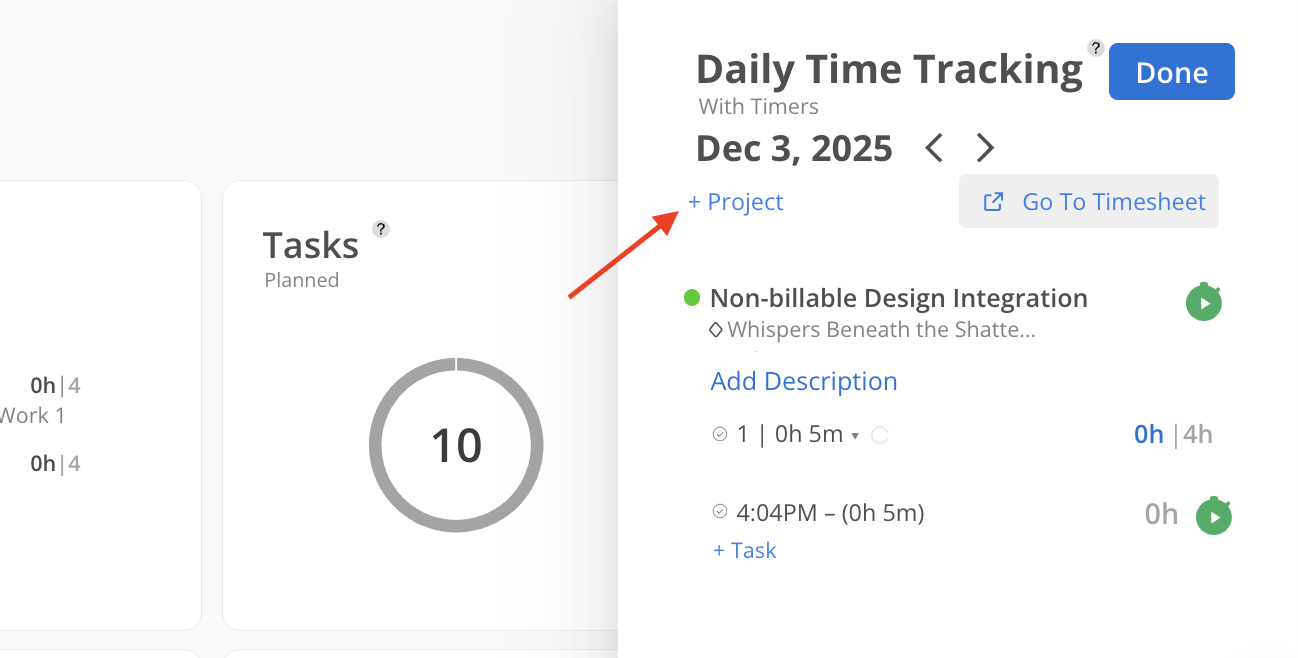
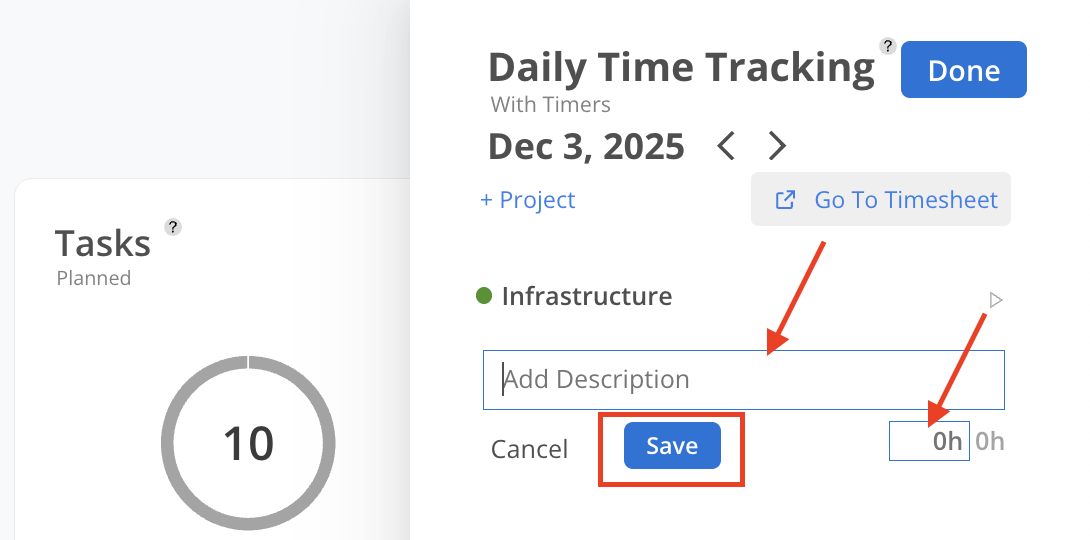
To complete the Time Tracking, select Add Description or 0h to input the hours. Adding a description is optional and can be included if additional context is needed. Click Save when you are done, or cancel if you change your mind.
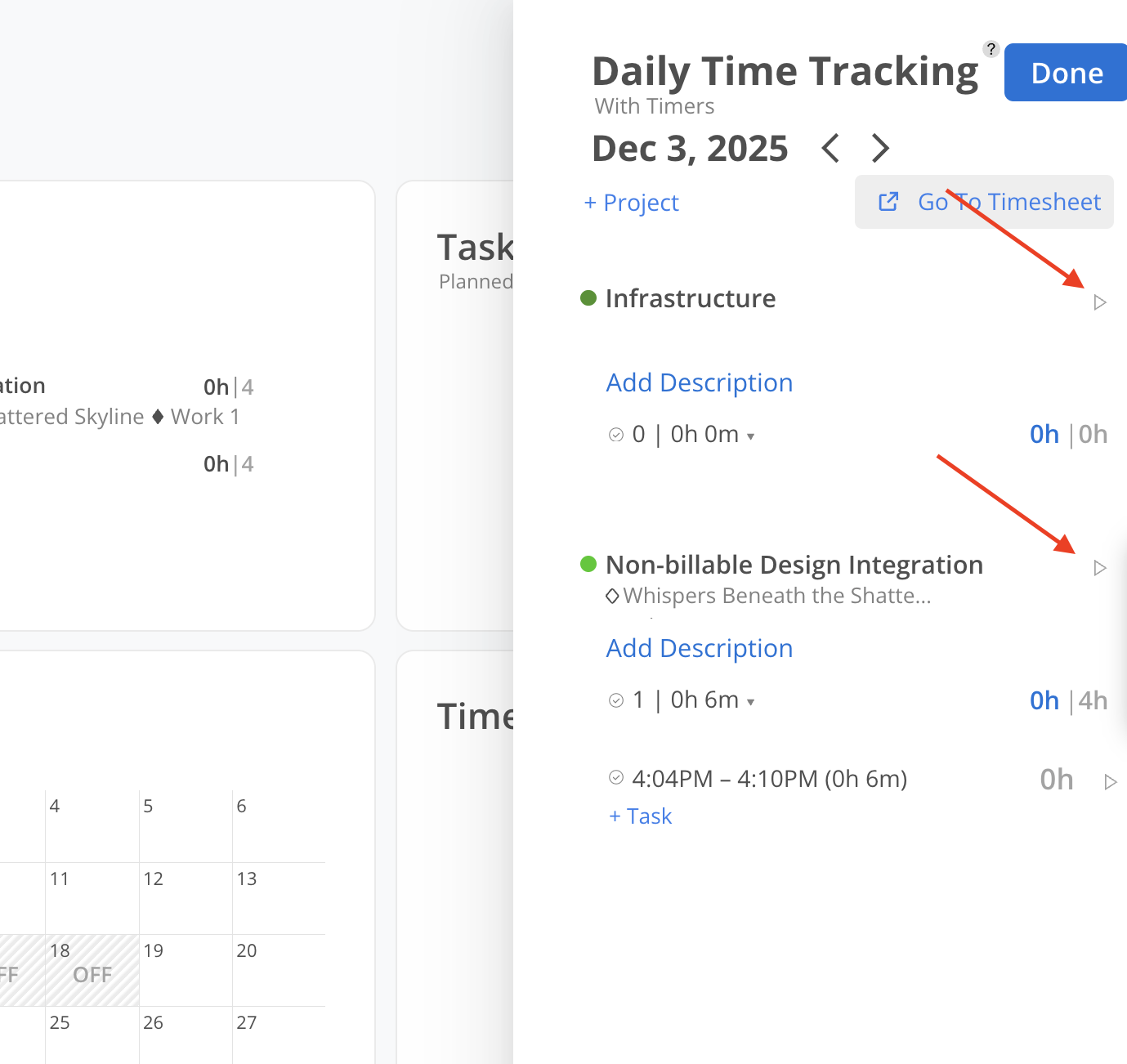
To Start a timer, click the play button next to the Time Tracking.
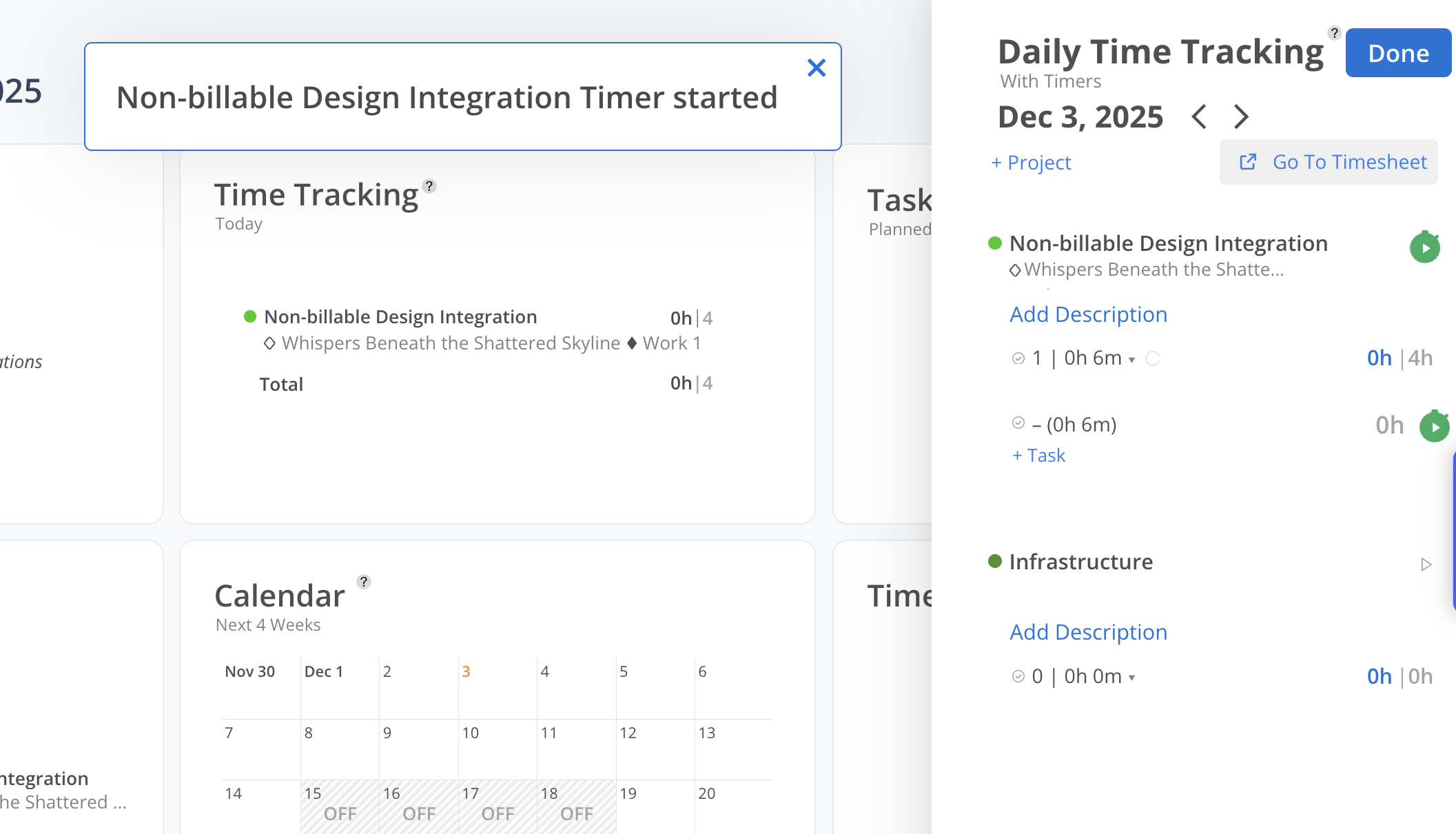
A notification will appear at the top, indicating that a Timer has started for a specific Project. The Time Tracking associated with the active Timer will move to the top of the list, and the Timer icon will change to green to signify that the Timer is running.
Once you are done, you can stop the timer by clicking the green timer button on the project or the task row.

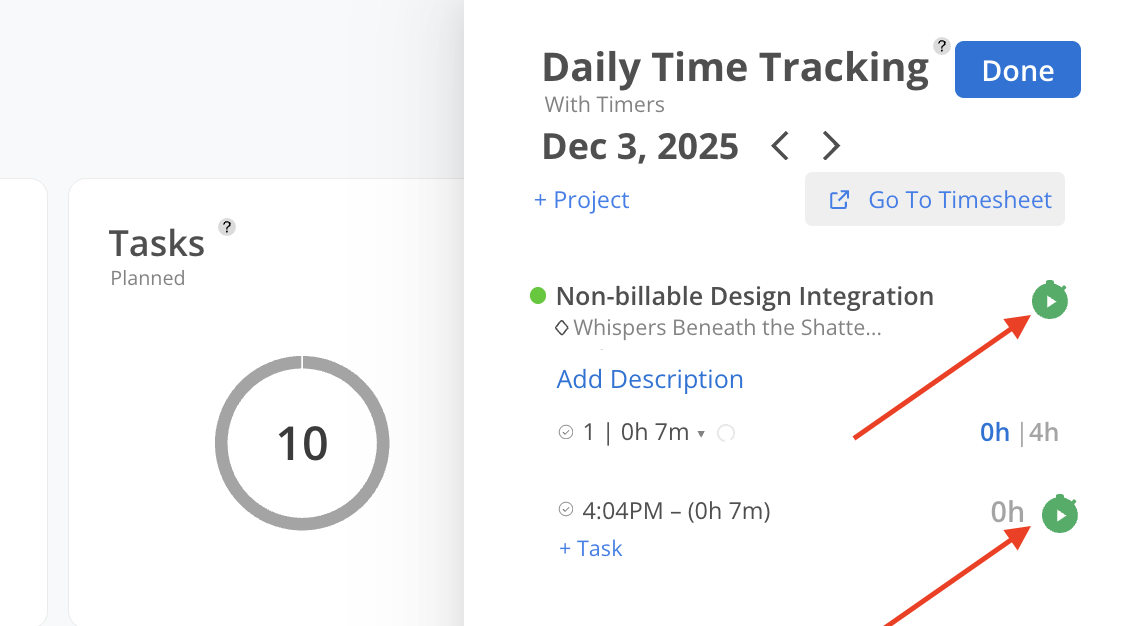
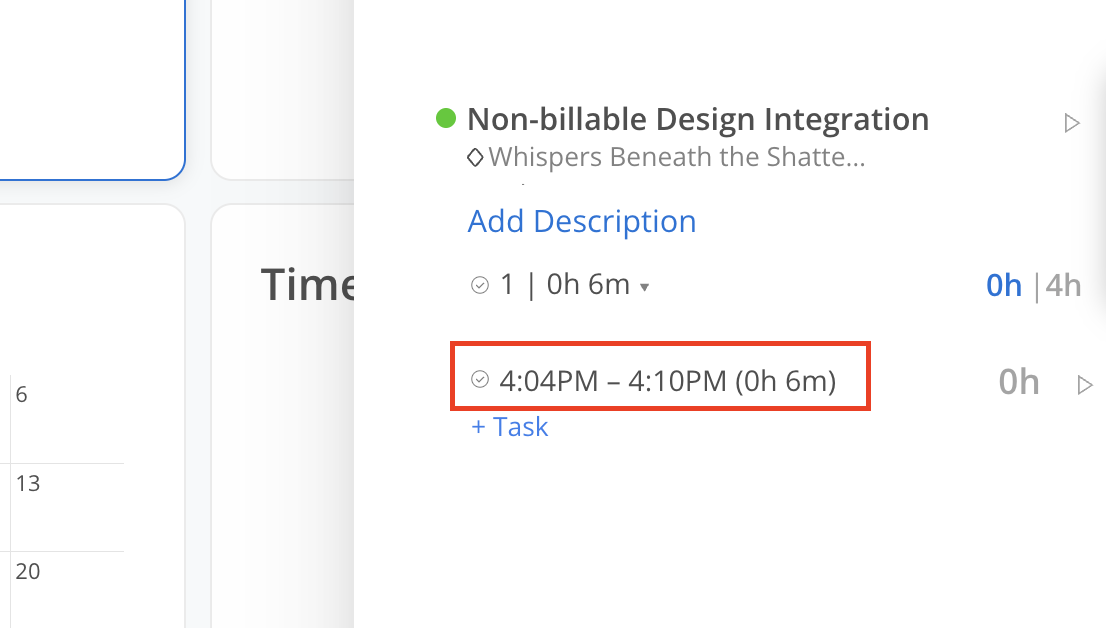
A row displaying the start and stop times of the Timer, along with the total duration it ran, will appear under this Time Tracking.
For example, this Timer started at 4:04 PM and stopped at 4:10 PM, with a total recorded duration of 6 minutes (0h 6m).
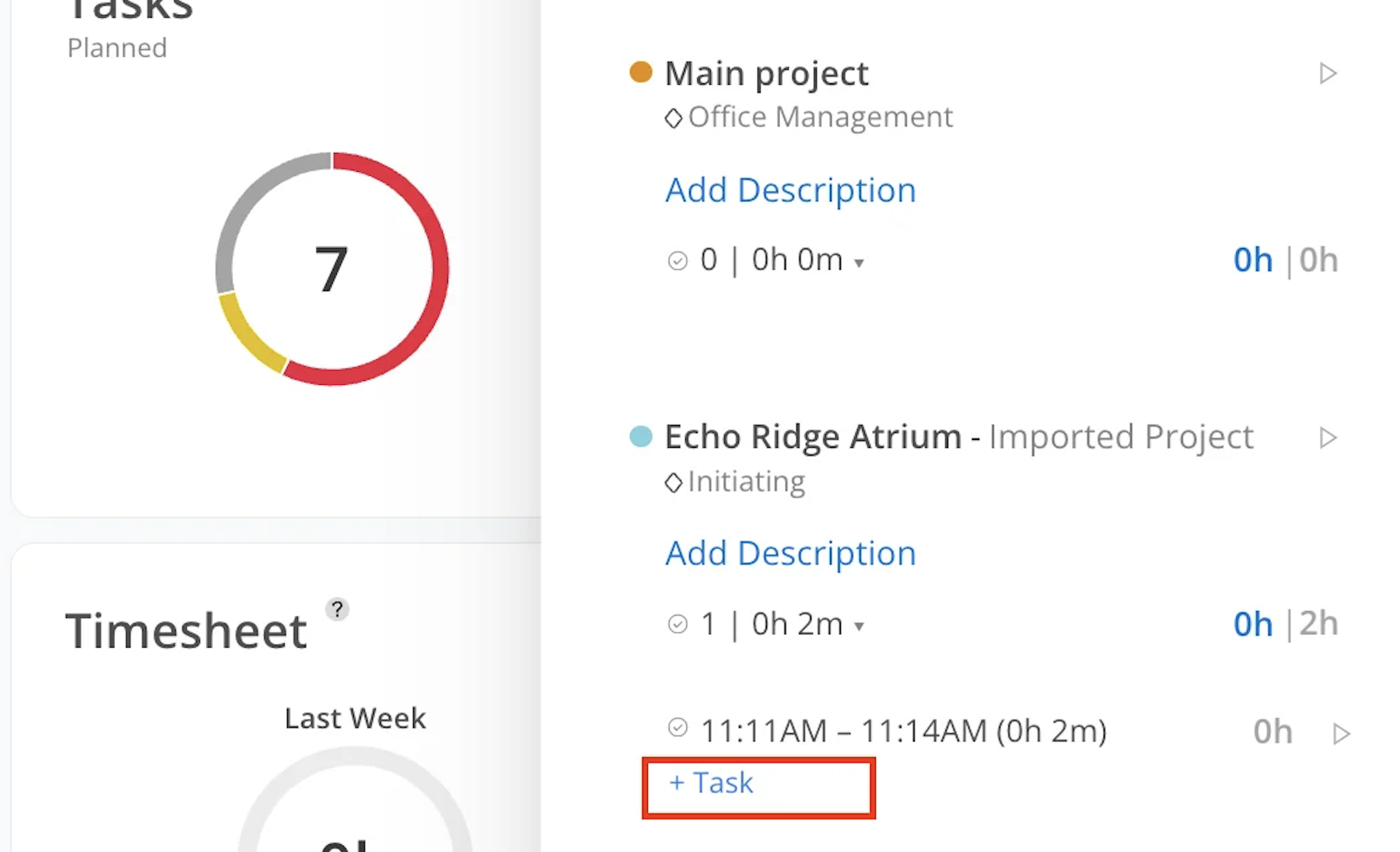
Timers can be linked to specific Tasks if needed. After completing the Task, stop the timer, and a +Task button will be displayed under the timer row. Click +Task button.
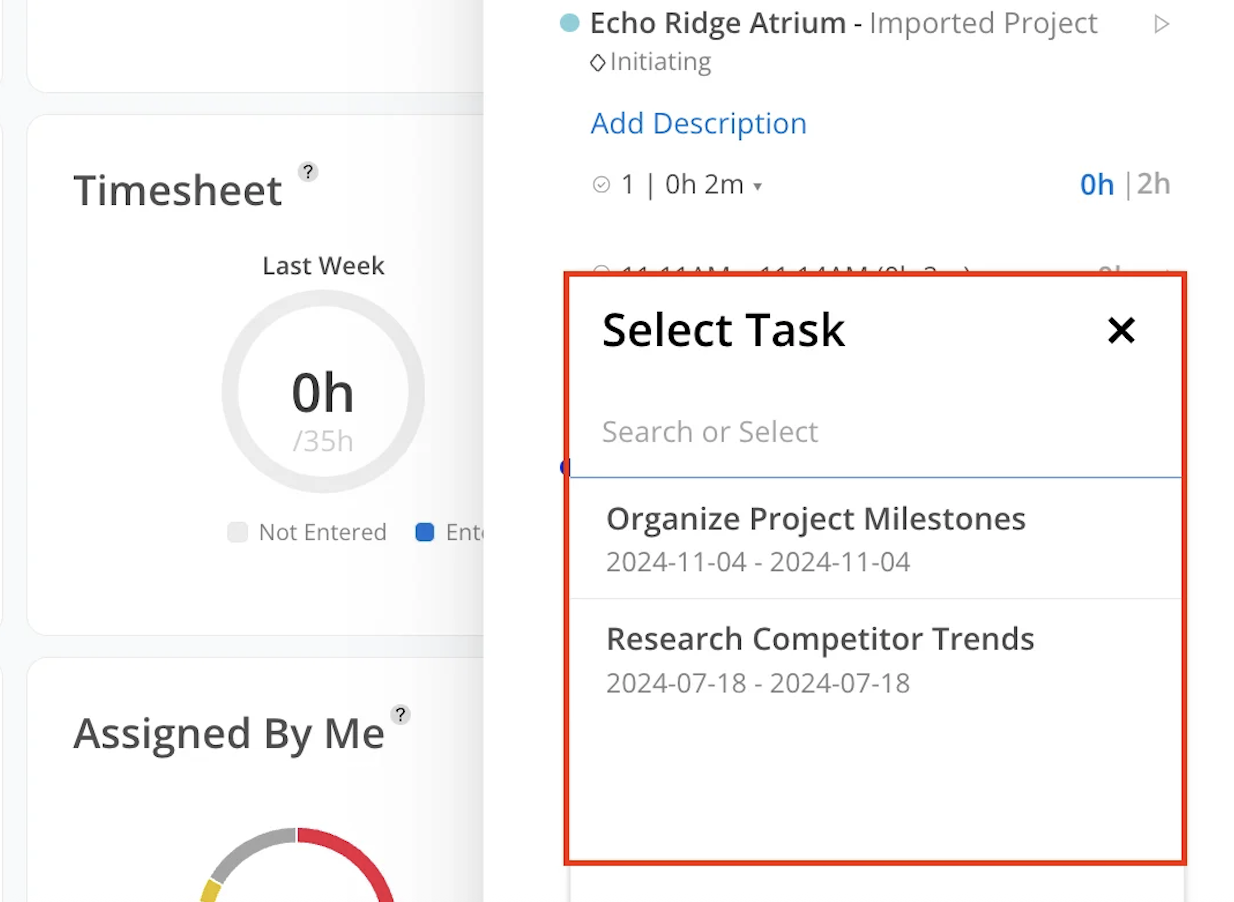
Search the task by name to locate it quickly. Select the Task from the list.
Now the Task name is displayed under the Timer.
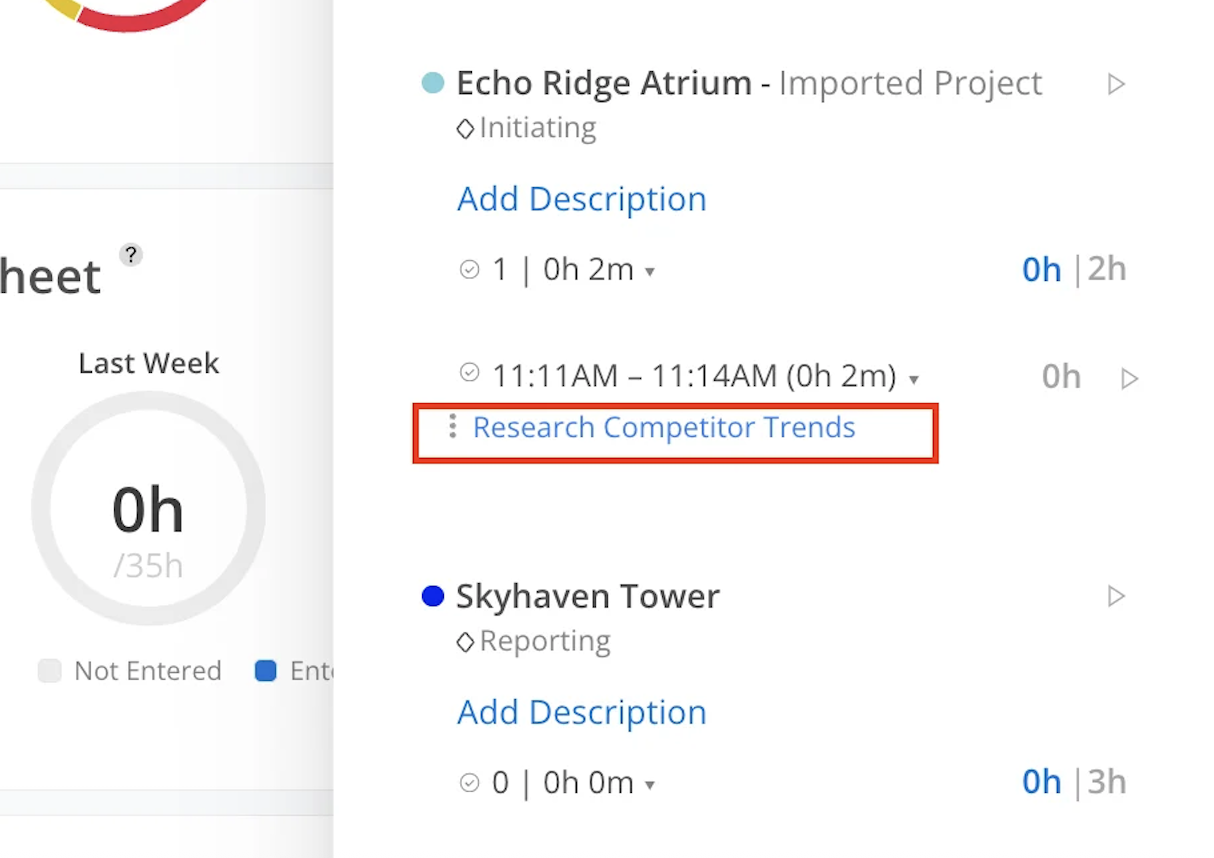
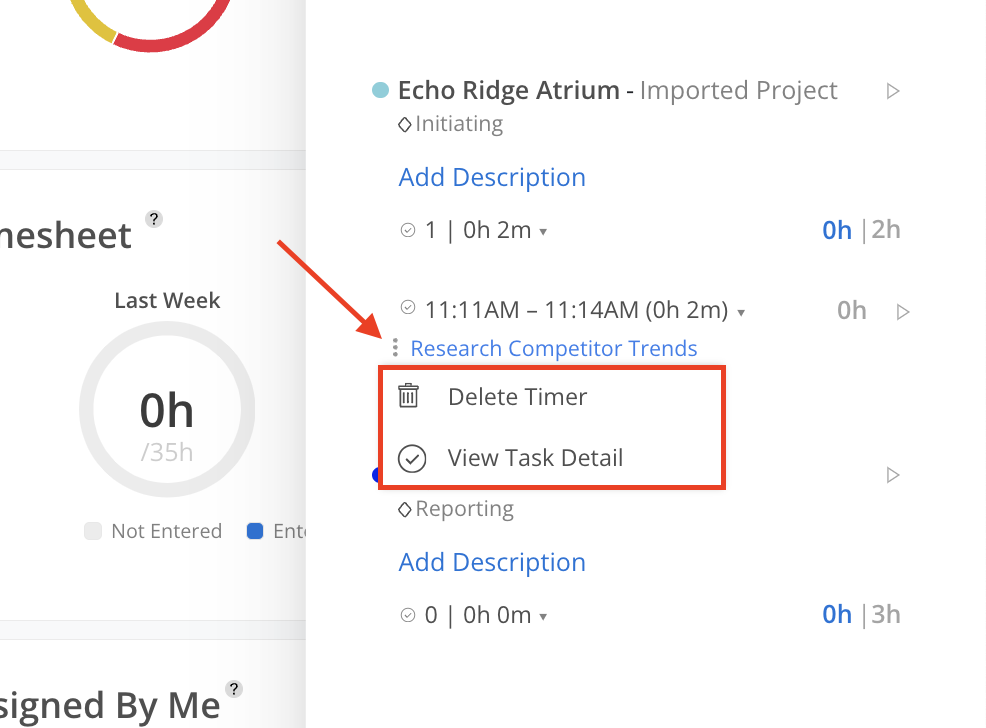
Clicking on the three-dot on the Task provides options to view the task detail or delete the Timer.
To associate a new timer with a new task, start a new timer by clicking the play button again and associate it with a different task once completed.